 QA
QA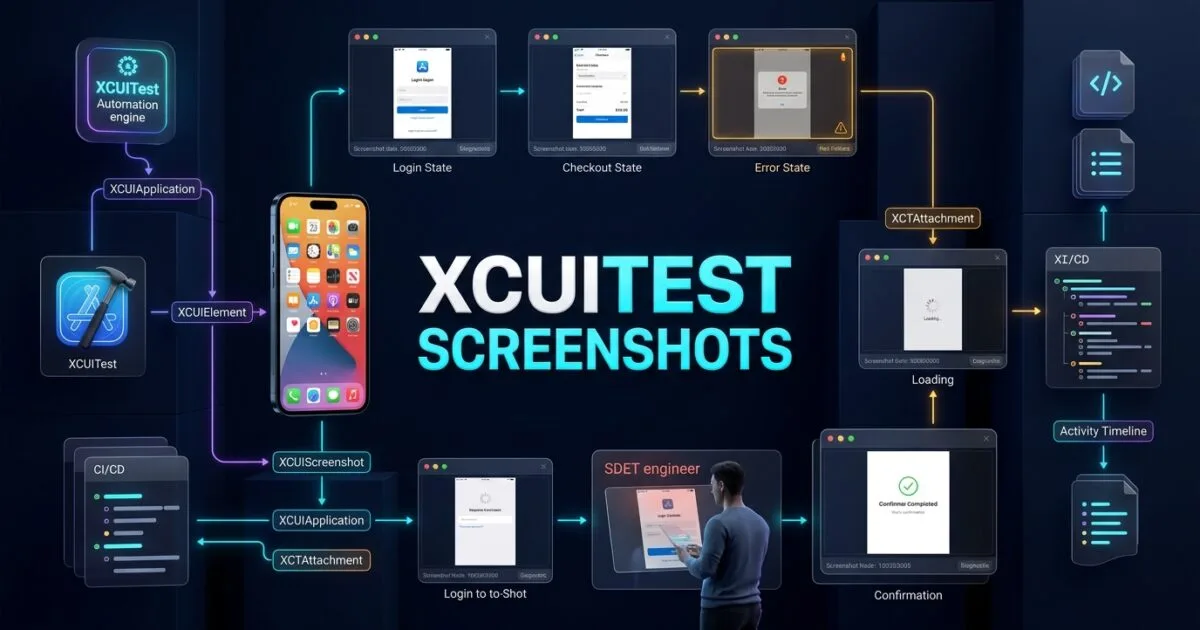
XCUITest screenshots provide visual evidence of an iOS application’s UI state during automated testing. They help SDETs diagnose failures, verify expected screens, document test execution, and preserve evidence inside Xcode test results. Apple’s UI automation APIs allow screenshots to be captured from the device screen, application, or individual UI elements and attached to tests or activities through XCTest. (Apple Developer)
Definition
XCUITest screenshots are captured visual representations of an iOS screen, application window, or UI element during XCUITest execution.
They can be used as:
- Failure evidence
- Debugging artifacts
- Test execution evidence
- Visual verification
- Regression documentation
- CI diagnostic artifacts
Apple provides XCUIScreenshot for captured UI state and XCTAttachment for storing screenshots and other test output with tests, activities, or issues. (Apple Developer)
Key Points
- Capture screenshots at important test states.
- Attach screenshots to XCTest results.
- Keep failure evidence automatically.
- Capture full-screen or element-level UI.
- Give attachments meaningful names.
- Use
.keepAlwayswhen evidence must survive successful tests. - Avoid unnecessary screenshots in every test step.
- Combine screenshots with assertions and logs.
- Use screenshots for CI failure diagnosis.
- Protect sensitive information in captured evidence.
Why XCUITest Screenshots Matter
A failed assertion tells you what failed.
A screenshot can show what the application actually looked like when it failed.
Consider:
XCTAssertTrue(
    app.buttons["Checkout"].exists
)
If the assertion fails, the test result may tell you that the element was not found.
A screenshot can reveal that the application instead displayed:
Loading...
Network Error
Login Required
Unexpected Alert
Empty State
Incorrect Screen
This makes visual evidence particularly valuable for UI automation.
What Can XCUITest Capture?
XCUITest supports screenshots from several automation objects.
Apple documents XCUIScreenshotProviding as the protocol that provides the screenshot() operation, with XCUIScreen, XCUIApplication, and XCUIElement among the conforming types. (Apple Developer)
Device Screen
let screenshot = XCUIScreen.main.screenshot()This captures the current main screen.
Apple also provides access to active screens through XCUIScreen.screens. (Apple Developer)
Application
let screenshot = app.screenshot()This captures the application’s current visual state.
UI Element
let screenshot = app.buttons["Checkout"].screenshot()This is useful when you want evidence for a specific component rather than the entire application.
Capturing a Basic Screenshot
A simple XCUITest can capture the application state like this:
import XCTest

final class ScreenshotTests: XCTestCase {

    func testCaptureApplicationScreenshot() {

        let app = XCUIApplication()
        app.launch()

        let screenshot = app.screenshot()

        let attachment = XCTAttachment(
            screenshot: screenshot
        )

        add(attachment)
    }
}
XCTAttachment supports screenshot-based attachments, which can then appear in Xcode’s test results for later analysis. (Apple Developer)
Naming Screenshot Attachments
Unnamed evidence becomes difficult to understand in a large test suite.
Prefer descriptive names:
let attachment = XCTAttachment(
    screenshot: screenshot
)

attachment.name = "Checkout Screen"
add(attachment)
For failure-oriented evidence:
attachment.name = "Login Failure State"Meaningful names help engineers quickly understand what the artifact represents.
Keeping Screenshot Attachments
XCTest attachments have a lifetime policy.
By default, attachments from successful tests can be discarded. Apple documents XCTAttachment.Lifetime.keepAlways when an attachment should remain available even after a successful test. (Apple Developer)
Use:
attachment.lifetime = .keepAlwaysExample:
let screenshot = app.screenshot()

let attachment = XCTAttachment(
    screenshot: screenshot
)

attachment.name = "Successful Login"
attachment.lifetime = .keepAlways

add(attachment)
This is useful when screenshots are required as permanent test evidence.
Failure-Only Screenshot Capture
Capturing screenshots after every action can produce excessive test artifacts.
A better strategy is to capture screenshots at important checkpoints or when a test fails.
For example:
func attachScreenshot(
    named name: String,
    from app: XCUIApplication
) {

    let screenshot = app.screenshot()

    let attachment = XCTAttachment(
        screenshot: screenshot
    )

    attachment.name = name
    attachment.lifetime = .keepAlways

    add(attachment)
}
Then:
attachScreenshot(
    named: "Before Checkout",
    from: app
)
This keeps screenshot handling reusable.
Screenshot Checkpoints
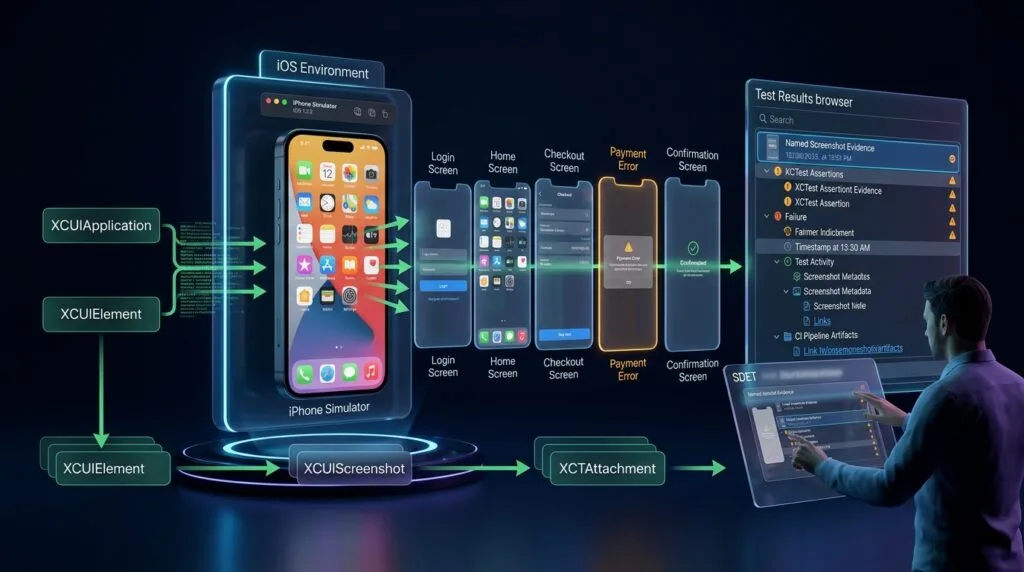
A useful test can capture evidence at meaningful workflow boundaries.
Launch
  ↓
Login
  ↓
Authenticated Home
  ↓
Product Selection
  ↓
Checkout
  ↓
Payment
  ↓
Confirmation
Instead of capturing every tap, capture important states:
Login Screen
Authenticated Home
Checkout Screen
Payment Error
Order Confirmation
This produces more useful evidence with less storage overhead.
Capturing Screenshots with XCTest Attachments
The most useful pattern is to combine screenshot capture with an attachment.
func attachScreenshot(
    named name: String,
    app: XCUIApplication
) {

    let screenshot = app.screenshot()

    let attachment = XCTAttachment(
        screenshot: screenshot
    )

    attachment.name = name
    add(attachment)
}
You can then use it throughout your test:
func testCheckoutFlow() {

    let app = XCUIApplication()
    app.launch()

    attachScreenshot(
        named: "Checkout Initial State",
        app: app
    )

    app.buttons["Checkout"].tap()

    attachScreenshot(
        named: "Checkout Screen",
        app: app
    )
}
Apple’s attachment system is designed to store test output such as screenshots, images, files, and other data alongside tests and activities. (Apple Developer)
Capturing an Element Screenshot
Sometimes a complete application screenshot is unnecessary.
You can capture an individual element:
let checkoutButton = app.buttons["Checkout"]

let screenshot = checkoutButton.screenshot()

let attachment = XCTAttachment(
    screenshot: screenshot
)

attachment.name = "Checkout Button"
attachment.lifetime = .keepAlways

add(attachment)
This can be useful for debugging:
- Incorrect rendering
- Missing labels
- Disabled controls
- Unexpected element states
- UI regression investigation
Capturing the Main Screen
For device-level evidence:
let screenshot = XCUIScreen.main.screenshot()

let attachment = XCTAttachment(
    screenshot: screenshot
)

attachment.name = "Main Device Screen"

add(attachment)
XCUIScreen represents a physical screen attached to the device and exposes screenshot() through XCUIScreenshotProviding. (Apple Developer)
Screenshot Quality
XCTAttachment provides screenshot initializers that can specify image quality. (Apple Developer)
For example:
let screenshot = app.screenshot()

let attachment = XCTAttachment(
    screenshot: screenshot,
    quality: .original
)

attachment.name = "Checkout Evidence"

add(attachment)
Choose quality based on your evidence requirements and storage constraints.
Organizing Screenshots with Activities
Large tests become easier to diagnose when divided into logical activities.
Apple provides XCTest activities for grouping test steps and attaching output data to those activities. (Apple Developer)
Example:
XCTContext.runActivity(
    named: "Login"
) { activity in

    app.textFields["email"].tap()
    app.textFields["email"].typeText(
        "qa@example.com"
    )

    let screenshot = app.screenshot()

    let attachment = XCTAttachment(
        screenshot: screenshot
    )

    attachment.name = "Login State"

    activity.add(attachment)
}
This produces a clearer test execution structure.
Combining Screenshots with Assertions
Screenshots become more valuable when paired with assertions.
let checkoutButton = app.buttons["Checkout"]

XCTAssertTrue(
    checkoutButton.waitForExistence(
        timeout: 10
    )
)

let screenshot = checkoutButton.screenshot()

let attachment = XCTAttachment(
    screenshot: screenshot
)

attachment.name = "Checkout Button Verified"

add(attachment)
The assertion verifies behavior while the screenshot provides visual evidence.
Capturing Evidence Before a Failure
You can capture a screenshot immediately before an important assertion:
let confirmation = app.staticTexts[
    "Order Confirmed"
]

let screenshot = app.screenshot()

let attachment = XCTAttachment(
    screenshot: screenshot
)

attachment.name = "Order Confirmation Verification"
attachment.lifetime = .keepAlways

add(attachment)

XCTAssertTrue(
    confirmation.exists
)
If the assertion fails, the attached image helps explain the observed state.
Using Screenshots for Negative Testing
Screenshots are especially useful for negative scenarios.
Examples:
Invalid Login
Network Failure
Empty State
Server Error
Validation Failure
Permission Denied
Session Expired
Unexpected Alert
For example:
func testInvalidLogin() {

    let app = XCUIApplication()
    app.launch()

    app.textFields["email"].tap()
    app.textFields["email"].typeText(
        "invalid@example.com"
    )

    app.secureTextFields["password"].tap()
    app.secureTextFields["password"].typeText(
        "WrongPassword"
    )

    app.buttons["Login"].tap()

    let screenshot = app.screenshot()

    let attachment = XCTAttachment(
        screenshot: screenshot
    )

    attachment.name = "Invalid Login Error"
    attachment.lifetime = .keepAlways

    add(attachment)

    XCTAssertTrue(
        app.staticTexts[
            "Invalid credentials"
        ].exists
    )
}
Screenshots in CI/CD
Screenshots become especially valuable when XCUITest runs remotely.
A CI pipeline may execute tests on:
Developer Machine
      ↓
Git Push
      ↓
CI Pipeline
      ↓
Build
      ↓
XCUITest
      ↓
Test Failure
      ↓
Screenshot Attachment
      ↓
Test Results
      ↓
Failure Investigation
Without visual evidence, a remote UI test failure can require reproducing the failure locally.
With screenshots, the engineer can inspect the captured application state first.
Test Evidence Strategy
A mature test automation framework should treat evidence as part of the test design.
| Evidence | Purpose |
|---|---|
| Screenshot | Visual application state |
| Assertion | Expected behavior |
| Activity | Logical test step |
| Log | Execution context |
| Test result | Pass/fail outcome |
| Error | Failure reason |
| Metadata | Diagnostic context |
Screenshots should complement these artifacts rather than replace them.
What Should Be Captured?
Prioritize evidence around high-value states.
Authentication
Capture:
- Login screen
- Login error
- Authenticated home screen
- Session-expired state
Checkout
Capture:
- Cart
- Checkout
- Payment error
- Confirmation
Permissions
Capture:
- Permission prompt
- Denied state
- Authorized state
Error Handling
Capture:
- Network error
- Server error
- Validation error
- Retry state
Screenshot Naming Convention
A consistent naming convention makes test evidence easier to navigate.
A useful format is:
<TestName>_<Step>_<State>Examples:
LoginTest_Submit_InvalidCredentials
CheckoutTest_Payment_ServerError
ProfileTest_Load_SessionExpired
For larger suites:
Authentication_Login_InvalidCredentials
Checkout_Payment_Declined
Orders_Load_NetworkError
Avoid meaningless names such as:
Screenshot1
Screenshot2
TestImage
Final
Reusable Screenshot Utility
A dedicated utility prevents repeated attachment logic.
import XCTest

enum ScreenshotUtility {

    static func attach(
        app: XCUIApplication,
        name: String,
        keep: Bool = false,
        testCase: XCTestCase
    ) {

        let screenshot = app.screenshot()

        let attachment = XCTAttachment(
            screenshot: screenshot
        )

        attachment.name = name

        if keep {
            attachment.lifetime = .keepAlways
        }

        testCase.add(attachment)
    }
}
Usage:
ScreenshotUtility.attach(
    app: app,
    name: "Checkout Screen",
    keep: true,
    testCase: self
)
This centralizes screenshot behavior across the test framework.
Screenshot Evidence Architecture
A scalable framework can separate evidence handling from test scenarios.
UITests
   │
   ├── AuthenticationTests
   ├── CheckoutTests
   └── ProfileTests
          │
          ▼
   ScreenshotUtility
          │
          ▼
     XCUIScreenshot
          │
          ▼
     XCTAttachment
          │
          ▼
    XCTest Activity
          │
          ▼
    Test Result Evidence
This keeps screenshot implementation reusable.
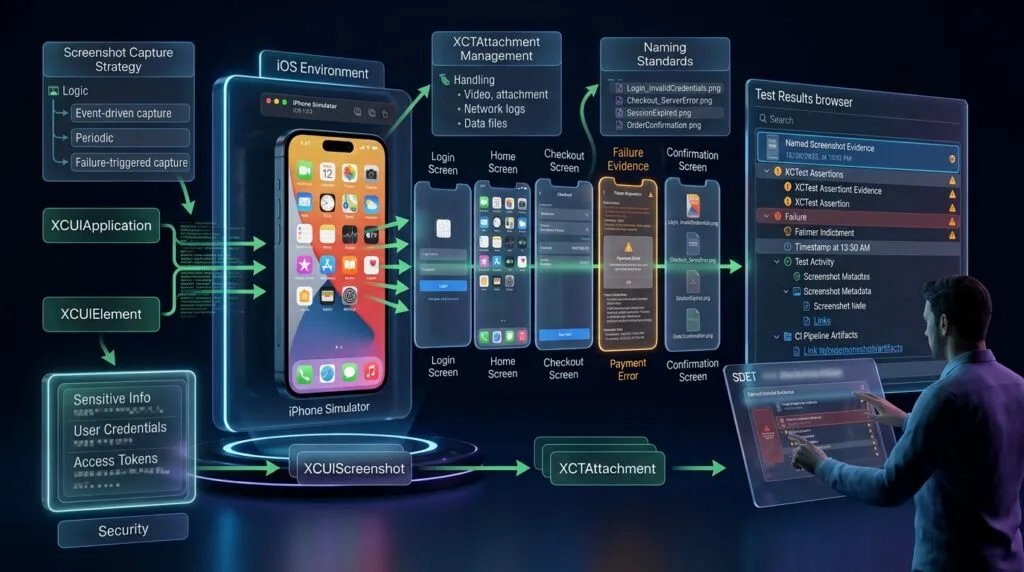
6 Core Pillars of XCUITest Screenshots
1. Capture Strategy
Capture meaningful UI states rather than every interaction.
2. Attachment Management
Use XCTAttachment to associate screenshots with tests and activities.
3. Failure Evidence
Keep screenshots that help diagnose failures.
4. Naming Standards
Use descriptive and consistent attachment names.
5. CI Integration
Make visual evidence available from automated test execution.
6. Security
Ensure screenshots do not expose passwords, tokens, personal information, or sensitive production data.
Production-Ready Screenshot Workflow
A practical implementation can follow this sequence:
Start Test
    ↓
Launch Application
    ↓
Perform UI Actions
    ↓
Reach Important State
    ↓
Capture Screenshot
    ↓
Create XCTAttachment
    ↓
Name Attachment
    ↓
Set Lifetime
    ↓
Attach to Test / Activity
    ↓
Execute Assertion
    ↓
Store Test Evidence
This workflow separates the test’s business scenario from its diagnostic evidence.
When to Keep Screenshots Permanently
Not every screenshot needs permanent retention.
Keep screenshots when they represent:
- Important failures
- Release evidence
- Compliance evidence
- Critical workflows
- Visual regression investigation
- High-value production defects
For routine successful tests, the default attachment lifetime may be sufficient.
Apple notes that successful-test attachments can be discarded by default and recommends .keepAlways when successful-test evidence must be retained. (Apple Developer)
Common Mistakes
Capturing Everything
Too many screenshots make reports difficult to navigate.
Using Generic Names
Poor names reduce the value of evidence.
Forgetting Attachment Lifetime
Important evidence may disappear after successful execution.
Capturing Sensitive Data
Screenshots can expose credentials, tokens, personal data, or internal information.
Using Screenshots as Assertions
A screenshot is evidence, not a replacement for a deterministic assertion.
Ignoring CI Storage
Large screenshot collections can increase artifact storage and pipeline costs.
Mixing Evidence Logic with Test Logic
Reusable screenshot utilities produce cleaner test architecture.
Best Practices
| Area | Recommendation |
|---|---|
| Capture | Capture meaningful states |
| Naming | Use descriptive names |
| Failures | Preserve important failure evidence |
| Assertions | Use screenshots alongside assertions |
| Activities | Group evidence by logical test step |
| Lifetime | Use .keepAlways when required |
| CI | Publish useful artifacts |
| Security | Remove sensitive information |
| Utilities | Centralize attachment logic |
| Storage | Avoid unnecessary screenshots |
Production-Ready Screenshot Workflow
A mature XCUITest framework should treat screenshots as structured test evidence:
Test Scenario
      ↓
UI Interaction
      ↓
Expected State
      ↓
XCTest Assertion
      ↓
Screenshot Evidence
      ↓
XCTAttachment
      ↓
Activity / Test Result
      ↓
CI Artifact
      ↓
Failure Analysis
The important principle is simple: capture evidence where it provides diagnostic value.
Key Takeaways
XCUITest screenshots are more than visual snapshots. They are valuable diagnostic artifacts that connect automated UI behavior with observable application state.
A reliable implementation should:
- Capture meaningful states.
- Use
XCUIScreenshot. - Attach evidence with
XCTAttachment. - Use descriptive attachment names.
- Preserve critical evidence.
- Combine screenshots with assertions.
- Organize complex tests with activities.
- Integrate evidence into CI workflows.
- Protect sensitive information.
- Centralize screenshot handling in reusable utilities.
Apple’s current documentation confirms that screenshots can represent a screen, application, or UI element state, while XCTest attachments provide a mechanism for storing screenshots and other test output with tests and activities. (Apple Developer)
flowchart TD
    A[Test Scenario] --> B[XCUIApplication]
    B --> C[UI Interaction]
    C --> D[Expected UI State]
    D --> E[XCTest Assertion]
    D --> F[XCUIScreenshot]
    F --> G[XCTAttachment]
    G --> H[Test Activity]
    H --> I[Xcode Test Results]
    I --> J[CI Test Evidence]
    J --> K[Failure Analysis]
    E --> K
AI Overview & Answer Engine Optimization
XCUITest screenshots are visual captures of an iOS screen, application, or UI element that can be attached to XCTest tests as diagnostic and test evidence.
How Do You Take a Screenshot in XCUITest?
Use the screenshot API on an XCUIApplication, XCUIElement, or XCUIScreen:
let screenshot = app.screenshot()How Do You Attach a Screenshot to XCTest?
Create an XCTAttachment from the screenshot and add it to the test:
let attachment = XCTAttachment(
    screenshot: app.screenshot()
)

add(attachment)
How Do You Keep Screenshots After a Successful Test?
Set the attachment lifetime to:
attachment.lifetime = .keepAlwaysApple documents this behavior for retaining attachments from successful tests. (Apple Developer)
Can XCUITest Capture a Specific UI Element?
Yes. UI elements conform to the screenshot-providing protocol, allowing element-level screenshots:
let screenshot = app.buttons["Checkout"].screenshot()Why Use Screenshots in UI Automation?
Screenshots provide visual context for failures, unexpected application states, network errors, navigation problems, and other UI automation issues.
AI Overview Summary
XCUITest screenshots provide visual test evidence for iOS UI automation. SDETs can capture application, screen, or element states with XCUIScreenshot, attach them to XCTest tests using XCTAttachment, organize them within activities, and preserve important evidence for CI/CD failure analysis.
People Asked Questions
What are XCUITest screenshots?
They are screenshots captured during XCUITest execution to document the visual state of an iOS screen, application, or UI element.
How do I capture a screenshot in XCUITest?
Use screenshot() on supported screenshot-providing objects such as XCUIApplication, XCUIElement, or XCUIScreen.
How do I attach screenshots to XCTest?
Create an XCTAttachment using the captured XCUIScreenshot and add the attachment to the test or activity.
Can I capture only one UI element?
Yes. XCUIElement supports screenshot capture, allowing targeted evidence for specific controls or components.
Should every XCUITest step capture a screenshot?
No. Capture important checkpoints and diagnostic states instead of generating unnecessary artifacts.
How do I preserve successful-test screenshots?
Set the attachment lifetime to .keepAlways when the evidence must remain available after a successful test.
Can screenshots help with CI failures?
Yes. They provide visual context when tests run remotely and help engineers investigate failures without immediately reproducing them locally.
Are screenshots a replacement for assertions?
No. Assertions validate expected behavior. Screenshots provide supporting visual evidence.
What security risks exist with screenshots?
Screenshots can expose passwords, personal information, authentication tokens, internal data, or other sensitive UI content. Test evidence should therefore be reviewed and handled securely.
Internal Blog Links
- XCUITest iOS Testing: What it is and Why it Matters
- XCTest vs XCUITest: Understanding Apple’s Testing Frameworks
- XCUITest Setup on macOS and Xcode: Complete Beginner’s Guide
- Your First XCUITest: Building a Basic iOS UI Test
- XCUITest Project Structure and Test Target Architecture
- XCUIApplication: Launching and Controlling iOS Apps
- XCUIElement: Finding and Interacting with UI Elements
- iOS Accessibility Identifiers: Build Reliable XCUITest Automation
- XCUITest Locators: IDs, Labels, Text and Element Queries
- XCUITest Actions: Tap, Type, Swipe, Scroll and Long Press
- XCUITest Assertions: Validating iOS App Behavior
- XCUITest Synchronization: Reliable Waiting for iOS UI Tests
- XCUITest Alerts: Handling Alerts, Sheets, Pop-Ups and System Dialogs
- XCUITest Form Testing: Automating Text Fields, Pickers and Keyboards
- XCUITest Collection Testing: Automating Tables, Lists and Dynamic Content
- XCUITest Page Object Model: Build Maintainable iOS UI Tests with Swift
- XCUITest Test Utilities: Build Reusable Helpers for Scalable iOS UI Automation
- XCUITest Data-Driven Testing: Build Scalable iOS UI Tests with Swift
- XCUITest Authentication Testing: Network, Login, and Secure iOS UI Scenarios
Internal Series Links
- Learn MCP – Zero to Hero
- Learn AI Agents for QA – Zero to Hero
- Playwright Automation – Zero to Hero
- TencentDB Agent Memory: Complete Zero to Hero
- LangGraph: Complete Zero to Hero
- Learn Python – Zero to Hero
- OpenAI Codex: Complete Zero to Hero
- Cursor AI: Complete Zero to Hero
- Claude Code Tutorial: Complete Zero to Hero
- AutoGen: Complete Zero to Hero Guide
- Free QA Resources Built From Real Experience
- QA Glossary: Test Automation Terms Every Engineer Should Know
External Links
- Apple — XCUITest / XCUIAutomation Documentation — Official documentation for iOS UI automation, application control, UI queries, screenshots, and device interaction. (Apple Developer)
- Apple — XCUIScreenshot Documentation — Official API reference for captured screen, application, and UI element states. (Apple Developer)
- Apple — XCUIScreenshotProviding Documentation — Official documentation for the
screenshot()API used by screenshot-capable UI automation objects. (Apple Developer) - Apple — XCTAttachment Documentation — Official API reference for attaching screenshots, files, images, data, and other test output. (Apple Developer)
- Apple — Adding Attachments to Tests, Activities, and Issues — Official guidance for managing test attachments and attachment lifetime. (Apple Developer)
- Apple — Activities and Attachments — Official XCTest documentation for organizing test activities and attaching evidence. (Apple Developer)
Continue Learning
Explore more expert articles on Mobile Testing, Backend & API, AI & Agentic, AI Tools, n8n, LangChain, CrewAI, MCP Servers, AI Agents, LlamaIndex, Docker, FastAPI, Playwright, Cypress, Test Automation, DevOps, and Software Engineering at www.skakarh.com.
QAPulse by SK delivers expert release analysis, AI engineering insights, enterprise automation strategies, migration guidance, DevOps best practices, and practical testing knowledge to help software professionals build scalable, intelligent, and production-ready software systems.