 QA
QA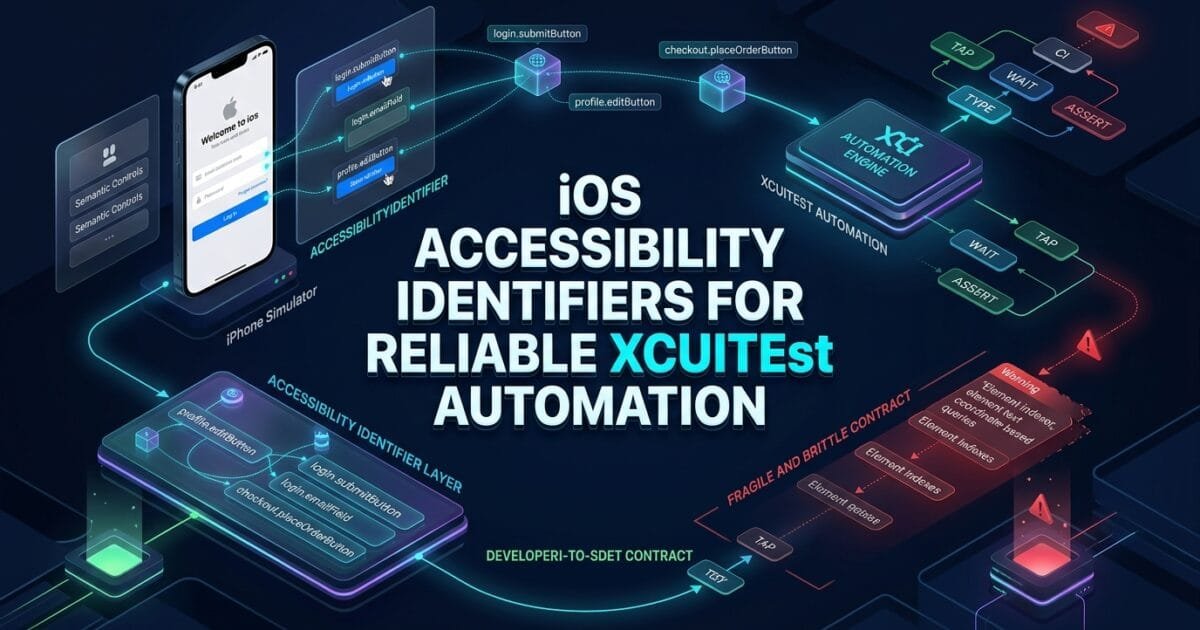
iOS accessibility identifiers provide a stable automation contract between an iOS application’s UI and XCUITest. Instead of locating elements through changing text, screen position, or fragile hierarchy paths, SDETs can use explicit identifiers to build deterministic, maintainable, and scalable UI automation.
What are iOS Accessibility Identifiers?
An accessibility identifier is a string assigned to a UI element through Apple’s accessibilityIdentifier property. Apple documents this property as a way to uniquely identify UI elements in UI automation scripts without incorrectly using the element’s accessibility label. (Apple Developer)
For example:
loginButton.accessibilityIdentifier = "loginButton"The XCUITest can then locate it directly:
let loginButton = app.buttons["loginButton"]

loginButton.tap()
The important distinction is:
Accessibility Identifier
        ↓
Stable Element Identity
        ↓
XCUIElement Query
        ↓
XCUIElement
        ↓
Interaction
        ↓
Assertion
This makes the identifier more than a testing convenience. It becomes part of the application’s automation interface.
Definition
iOS accessibility identifiers are developer-defined strings assigned to iOS UI elements so automation frameworks such as XCUITest can locate those elements using a stable identifier. Apple’s UIAccessibilityIdentification protocol exposes accessibilityIdentifier for this purpose. (Apple Developer)
They are especially valuable when the visible UI changes but the logical purpose of the element remains the same.
For example, a button may display:
Log Intoday and:
Sign Inafter a product change.
Its automation identity can remain:
loginButtonThe test therefore does not need to change simply because the visible wording changed.
Key Points
- Use identifiers for important interactive elements.
- Keep identifiers stable across UI redesigns.
- Prefer semantic names over visual descriptions.
- Do not use visible text as the primary automation contract.
- Avoid positional selectors when a stable identifier exists.
- Keep identifiers unique within the relevant UI hierarchy.
- Treat identifiers as part of the application-test contract.
- Use the same naming convention across the application.
- Separate accessibility labels from automation identifiers.
- Validate identifiers during UI test development.
Apple specifically notes that an identifier can uniquely identify an element in UI automation and helps avoid using the accessibility label for that purpose. (Apple Developer)
Why Reliable Identifiers Matter in XCUITest
Consider this test:
app.buttons["Log In"].tap()It looks simple, but it couples the test to visible text.
Now consider:
app.buttons["loginButton"].tap()The second version couples the test to the semantic purpose of the element.
That difference becomes important when applications support:
- Multiple languages
- Dynamic content
- A/B testing
- Frequent UI redesigns
- Different device sizes
- Dark and light themes
- Accessibility settings
- Product terminology changes
The UI can change while the automation contract remains stable.
Identifier vs Accessibility Label
These concepts should not be confused.
Accessibility Identifier
Used primarily as a stable programmatic identity.
button.accessibilityIdentifier = "checkoutButton"Accessibility Label
Describes the element to assistive technologies and users.
button.accessibilityLabel = "Checkout"The automation test can use:
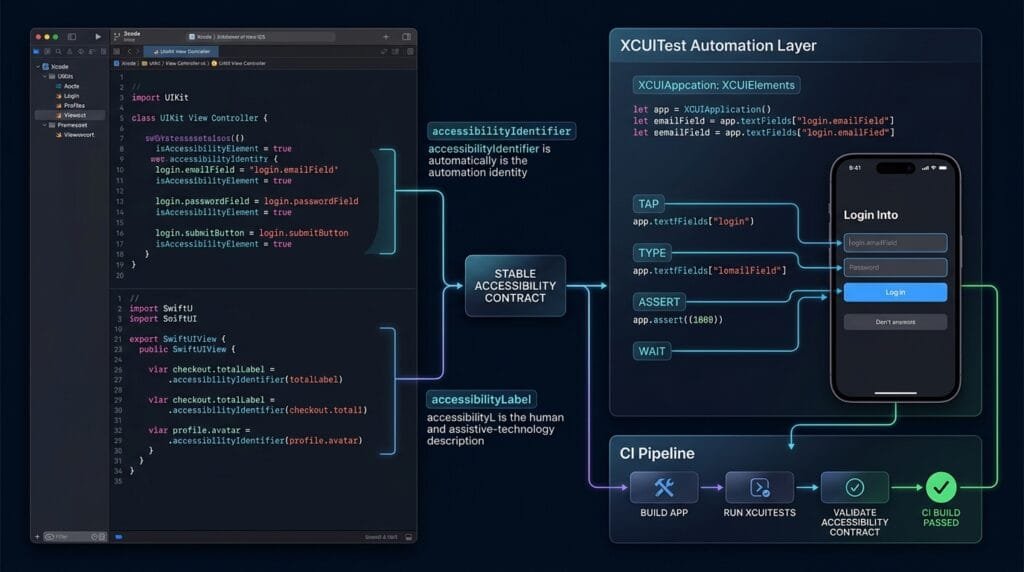
app.buttons["checkoutButton"]while VoiceOver-oriented accessibility behavior can use an appropriate human-readable label.
Apple explicitly recommends identifiers for UI automation rather than inappropriately setting or accessing an element’s accessibility label. (Apple Developer)
This gives us a useful architecture:
UI Element
   │
   ├── accessibilityIdentifier
   │       └── Automation identity
   │
   └── accessibilityLabel
           └── Human/assistive description
UIKit Implementation
For UIKit applications, identifiers can be assigned directly to supported UI objects.
Example:
final class LoginViewController: UIViewController {

    @IBOutlet weak var emailTextField: UITextField!
    @IBOutlet weak var passwordTextField: UITextField!
    @IBOutlet weak var loginButton: UIButton!

    override func viewDidLoad() {
        super.viewDidLoad()

        emailTextField.accessibilityIdentifier = "login.emailField"
        passwordTextField.accessibilityIdentifier = "login.passwordField"
        loginButton.accessibilityIdentifier = "login.submitButton"
    }
}
The corresponding test becomes:
let app = XCUIApplication()

let emailField = app.textFields["login.emailField"]
let passwordField = app.secureTextFields["login.passwordField"]
let loginButton = app.buttons["login.submitButton"]

emailField.tap()
emailField.typeText("qa@example.com")

passwordField.tap()
passwordField.typeText("Password123!")

loginButton.tap()
This creates a clean mapping between application code and test code.
SwiftUI Implementation
SwiftUI provides a convenient modifier for assigning an accessibility identifier:
Button("Log In") {
    login()
}
.accessibilityIdentifier("login.submitButton")
A text field:
TextField("Email", text: $email)
    .accessibilityIdentifier("login.emailField")
A secure field:
SecureField("Password", text: $password)
    .accessibilityIdentifier("login.passwordField")
The XCUITest can then query the elements:
let emailField = app.textFields["login.emailField"]
let passwordField = app.secureTextFields["login.passwordField"]
let loginButton = app.buttons["login.submitButton"]
This is particularly useful for modern SwiftUI applications where visual hierarchy can change frequently.
Identifier Naming Strategy
A poor naming strategy creates a different problem: technically stable identifiers that become difficult to understand.
Avoid:
.accessibilityIdentifier("button1")Avoid:
.accessibilityIdentifier("testButton")Avoid:
.accessibilityIdentifier("blueButton")These names describe implementation or appearance rather than purpose.
Prefer:
.accessibilityIdentifier("login.submitButton")or:
.accessibilityIdentifier("checkout.placeOrderButton")or:
.accessibilityIdentifier("profile.editButton")The identifier should answer:
What does this element represent?
not:
Where does this element appear?
Recommended Naming Convention
A practical convention is:
<screen>.<purpose><ElementType>Examples:
login.emailField
login.passwordField
login.submitButton
home.searchField
home.profileButton
checkout.placeOrderButton
checkout.totalLabel
profile.editButton
settings.notificationsSwitch
This provides immediate context.
For example:
app.buttons["checkout.placeOrderButton"]is easier to understand than:
app.buttons["button_17"]Naming Rules for Large Teams
For enterprise automation, define the naming convention before hundreds of identifiers are introduced.
A useful standard is:
| Rule | Example |
|---|---|
| Screen prefix | login |
| Semantic purpose | submit |
| Element type | Button |
| Full identifier | login.submitButton |
| Lower camel case | placeOrderButton |
| No screen coordinates | Avoid topButton |
| No colors | Avoid blueButton |
| No indexes | Avoid button3 |
| No test-specific names | Avoid testLoginButton |
The goal is consistency.
Identifiers Should Describe Intent
Compare:
"button1"with:
"login.submitButton"The first tells the automation engineer almost nothing.
The second communicates:
Screen = Login
Purpose = Submit
Element = Button
This becomes particularly valuable when diagnosing CI failures.
Avoid Overly Long Identifiers
Semantic does not mean excessively verbose.
Avoid:
loginScreenMainAuthenticationFormPrimarySubmitLoginButtonPrefer:
login.submitButtonThe identifier should be:
- Unique
- Predictable
- Readable
- Stable
- Short enough for debugging
Avoid Dynamic Identifiers
Do not generate identifiers from changing runtime values.
Avoid:
button.accessibilityIdentifier = "product_\(product.id)"when the test expects a fixed identity for the same control across environments.
Dynamic identifiers can be useful for genuinely repeated data elements, but they should be introduced deliberately.
For example, a product cell may reasonably use:
product.cell.12345if the test specifically needs to identify that particular data item.
The important distinction is between stable semantic identity and accidental runtime identity.
Accessibility Identifiers for Lists
Lists and collections require special attention.
Consider:
ForEach(products) { product in
    ProductRow(product: product)
}
A SwiftUI implementation could expose a semantic identifier:
ProductRow(product: product)
    .accessibilityIdentifier(
        "product.\(product.id)"
    )
The test can then target a specific product:
let product = app.otherElements["product.12345"]

XCTAssertTrue(
    product.waitForExistence(timeout: 10)
)
For dynamic content, this approach can be useful when the business identity of the item is itself meaningful.
However, avoid making every selector depend on unstable test data.
Containers and Child Elements
A common mistake is putting an identifier on a parent container and expecting XCUITest to automatically expose every child through that identifier.
For example:
VStack {
    TextField("Email", text: $email)
    Button("Continue") {
        continueAction()
    }
}
.accessibilityIdentifier("login.form")
This identifies the container, not necessarily the individual controls you need to automate.
Prefer:
VStack {
    TextField("Email", text: $email)
        .accessibilityIdentifier("login.emailField")

    Button("Continue") {
        continueAction()
    }
    .accessibilityIdentifier("login.continueButton")
}
.accessibilityIdentifier("login.form")
Now both the container and important child controls have explicit automation identities.
Identifiers and XCUIElement
The relationship between identifiers and XCUIElement is direct.
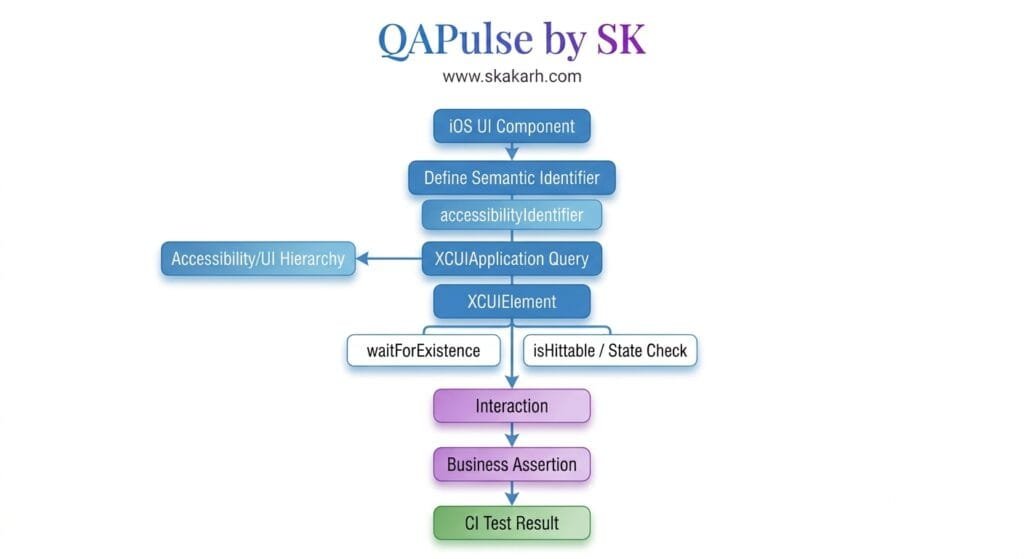
Application Code
       ↓
accessibilityIdentifier
       ↓
Accessibility/UI Hierarchy
       ↓
XCUITest Query
       ↓
XCUIElement
Example:
button.accessibilityIdentifier = "login.submitButton"Then:
let button = app.buttons["login.submitButton"]XCUIElement provides APIs such as exists, isHittable, and waitForExistence(timeout:) for inspecting and synchronizing with the element. (Apple Developer)
Reliable Element Synchronization
A stable identifier does not automatically make an interaction reliable.
This is still weak:
app.buttons["login.submitButton"].tap()A production test should consider asynchronous rendering:
let loginButton = app.buttons["login.submitButton"]

XCTAssertTrue(
    loginButton.waitForExistence(timeout: 10)
)

XCTAssertTrue(
    loginButton.isHittable
)

loginButton.tap()
Apple’s XCUIElement API provides waitForExistence(timeout:) and isHittable specifically for querying current UI state. (Apple Developer)
The architecture is:
Stable Identifier
       ↓
Find Element
       ↓
Wait
       ↓
Validate Interaction State
       ↓
Interact
       ↓
Assert Result
Identifier-Based Page Object Model
Identifiers become even more powerful when combined with Page Object Model architecture.
final class LoginPage {

    private let app: XCUIApplication

    init(app: XCUIApplication) {
        self.app = app
    }

    private var emailField: XCUIElement {
        app.textFields["login.emailField"]
    }

    private var passwordField: XCUIElement {
        app.secureTextFields["login.passwordField"]
    }

    private var submitButton: XCUIElement {
        app.buttons["login.submitButton"]
    }

    func login(
        email: String,
        password: String
    ) {
        emailField.tap()
        emailField.typeText(email)

        passwordField.tap()
        passwordField.typeText(password)

        XCTAssertTrue(
            submitButton.waitForExistence(timeout: 10)
        )

        submitButton.tap()
    }
}
The test remains business-focused:
func testSuccessfulLogin() {

    let loginPage = LoginPage(app: app)

    loginPage.login(
        email: "qa@example.com",
        password: "Password123!"
    )

    XCTAssertTrue(
        app.staticTexts["dashboard.title"]
            .waitForExistence(timeout: 10)
    )
}
The test does not need to know how the login button is implemented.
Identifier Contract Between Developers and SDETs
The strongest implementation model is collaborative.
Developer
   ↓
Defines Semantic Identifier
   ↓
Application UI
   ↓
SDET Consumes Identifier
   ↓
XCUITest
   ↓
CI/CD
Developers should not treat identifiers as something added only after automation fails.
Instead, identifiers should be considered during UI implementation.
For important controls:
.accessibilityIdentifier("checkout.placeOrderButton")should be part of the component’s design.
This creates an explicit automation contract.
When Not to Add an Identifier
Not every UI element needs a custom identifier.
You may not need one for:
- Decorative backgrounds
- Static visual containers
- Elements never referenced by automation
- Elements already uniquely and reliably identifiable through an appropriate semantic query
The goal is not:
Add identifiers everywhere.
The goal is:
Add stable identifiers where automation needs stable identity.
Identifiers vs Text Selectors
| Approach | Stability | Localization Safety | Maintainability |
|---|---|---|---|
| Accessibility Identifier | High | High | High |
| Exact Visible Text | Medium | Low | Medium |
| Partial Text | Low | Low | Low |
| Index | Low | High | Low |
| Screen Coordinates | Very Low | High | Very Low |
| Complex Hierarchy | Low–Medium | Medium | Low |
This is why identifier-driven automation is generally preferred for important application controls.
Identifiers vs Index Selectors
Consider a login screen containing three buttons.
An index-based test might use:
app.buttons.element(boundBy: 2).tap()If a new button is inserted before it, the test can now target the wrong element.
An identifier-based test:
app.buttons["login.submitButton"].tap()does not depend on the button’s position.
The UI can change structurally while the semantic identity remains stable.
Testing the Identifier Contract
A useful practice is to fail early when a required identifier is missing.
For example:
func testLoginElementsExist() {

    let emailField = app.textFields["login.emailField"]
    let passwordField = app.secureTextFields["login.passwordField"]
    let submitButton = app.buttons["login.submitButton"]

    XCTAssertTrue(emailField.exists)
    XCTAssertTrue(passwordField.exists)
    XCTAssertTrue(submitButton.exists)
}
This can act as a lightweight contract test for the automation surface.
A stronger version waits for the page:
XCTAssertTrue(
    emailField.waitForExistence(timeout: 10)
)

XCTAssertTrue(
    passwordField.waitForExistence(timeout: 10)
)

XCTAssertTrue(
    submitButton.waitForExistence(timeout: 10)
)
6 Core Pillars of Reliable Identifier Design
1. Semantic Identity
Identifiers should represent business or UI intent.
2. Stability
They should survive harmless visual changes.
3. Consistency
Teams should follow a shared naming convention.
4. Uniqueness
Important controls should be distinguishable within their relevant hierarchy.
5. Testability
Identifiers should make XCUITest queries simple and readable.
6. Maintainability
The identifier strategy should scale with the application.
Key Architectural Takeaways for SDETs
Treat Identifiers as an API
A stable identifier behaves like an interface between application code and automation.
Changing:
login.submitButtonto:
login.primaryButtonmay break dozens of tests even if the application behavior has not changed.
Therefore, identifier changes should be reviewed like automation-facing API changes.
Keep Naming Centralized
For larger applications, define constants:
enum AccessibilityID {

    enum Login {
        static let emailField = "login.emailField"
        static let passwordField = "login.passwordField"
        static let submitButton = "login.submitButton"
    }

    enum Checkout {
        static let placeOrderButton =
            "checkout.placeOrderButton"
    }
}
Application code:
loginButton.accessibilityIdentifier =
    AccessibilityID.Login.submitButton
Test code:
let loginButton =
    app.buttons[AccessibilityID.Login.submitButton]
This reduces spelling errors and makes identifier refactoring safer.
Separate Application IDs From Test Logic
Do not scatter raw strings everywhere:
app.buttons["login.submitButton"]Instead:
app.buttons[AccessibilityID.Login.submitButton]This creates one source of truth.
Make Failures Diagnosable
When an identifier disappears, the test failure should immediately communicate which application contract has changed.
A meaningful identifier:
checkout.placeOrderButtonis much easier to diagnose than:
button_7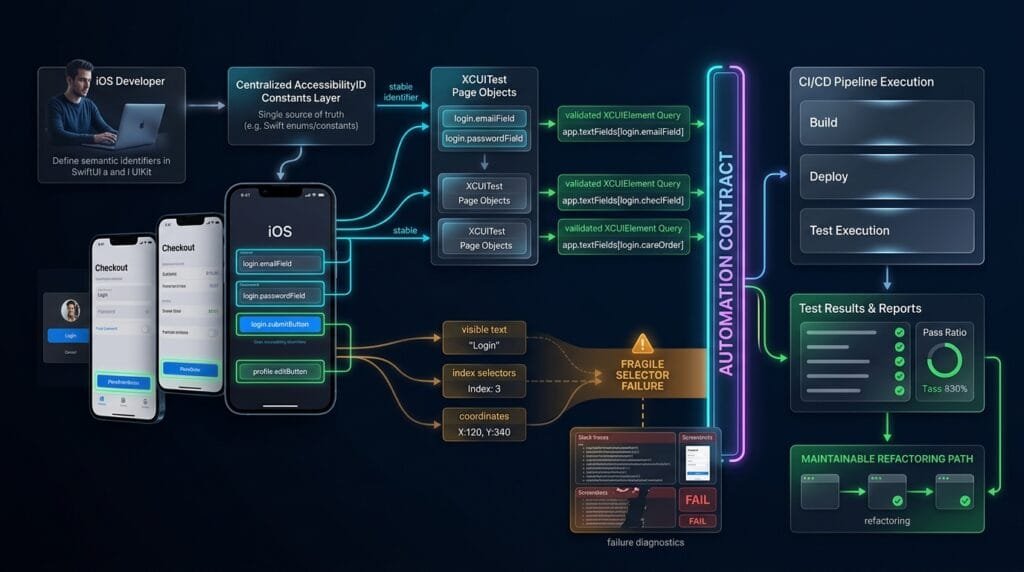
Common Implementation Mistakes
Mistake 1: Using Visible Text as the Automation Contract
Avoid:
app.buttons["Sign In"].tap()when the element has a stable identifier.
Prefer:
app.buttons["login.submitButton"].tap()Mistake 2: Using Coordinates
Avoid coordinate-based automation:
app.coordinate(
    withNormalizedOffset: CGVector(dx: 0.5, dy: 0.5)
).tap()
Coordinates are highly sensitive to:
- Device size
- Orientation
- Layout changes
- Safe areas
- Dynamic content
Use an element query whenever possible.
Mistake 3: Using Indexes
Avoid:
app.buttons.element(boundBy: 4).tap()when semantic identification is available.
Mistake 4: Using the Same Identifier Everywhere
Avoid:
buttonfor every screen.
Prefer:
login.submitButton
checkout.placeOrderButton
profile.editButton
Mistake 5: Mixing Accessibility Label and Identifier
Do not change the accessibility label solely to make an automation selector work.
Keep the purposes separate:
button.accessibilityLabel = "Log In"
button.accessibilityIdentifier = "login.submitButton"
Apple’s documentation specifically describes the identifier as a way to identify elements in UI automation without improperly using the accessibility label. (Apple Developer)
Mistake 6: Adding Dynamic Random IDs
Avoid:
UUID().uuidStringfor identifiers consumed by deterministic tests.
The test needs predictable identity.
Production-Ready Accessibility ID Architecture
A scalable approach can centralize identifiers:
enum AccessibilityID {

    enum Login {
        static let emailField = "login.emailField"
        static let passwordField = "login.passwordField"
        static let submitButton = "login.submitButton"
        static let forgotPasswordButton =
            "login.forgotPasswordButton"
    }

    enum Dashboard {
        static let title = "dashboard.title"
        static let profileButton =
            "dashboard.profileButton"
    }

    enum Checkout {
        static let totalLabel = "checkout.totalLabel"
        static let placeOrderButton =
            "checkout.placeOrderButton"
    }
}
SwiftUI:
TextField("Email", text: $email)
    .accessibilityIdentifier(
        AccessibilityID.Login.emailField
    )

Button("Log In") {
    login()
}
.accessibilityIdentifier(
    AccessibilityID.Login.submitButton
)
XCUITest:
let emailField =
    app.textFields[AccessibilityID.Login.emailField]

let loginButton =
    app.buttons[AccessibilityID.Login.submitButton]

XCTAssertTrue(
    emailField.waitForExistence(timeout: 10)
)

emailField.tap()
emailField.typeText("qa@example.com")

loginButton.tap()
This pattern gives developers and SDETs a shared vocabulary.
Accessibility Identifier Governance
For large teams, define governance rules.
Naming
Use:
screen.purposeElementTypeOwnership
Application teams own the identifiers.
Automation teams consume them.
Change Management
Treat breaking identifier changes as automation-impacting changes.
Documentation
Maintain a lightweight identifier catalogue for critical workflows.
Review
Code reviews should detect:
- Duplicate identifiers
- Random identifiers
- Visual names
- Test-specific names
- Unnecessary identifiers
- Naming convention violations
This turns locator management from an individual tester preference into an engineering practice.
AI Overview & Answer Engine Optimization
iOS accessibility identifiers are stable developer-defined strings assigned to iOS UI elements so XCUITest can locate and interact with those elements without depending on visible text, screen position, or fragile UI hierarchy. Apple’s accessibilityIdentifier property is specifically intended for identifying elements in UI automation. (Apple Developer)
Why Are iOS Accessibility Identifiers Important?
They make XCUITest selectors more stable because tests can identify UI elements by semantic purpose instead of changing visual properties.
How Do You Add an Accessibility Identifier in SwiftUI?
Button("Log In") {
    login()
}
.accessibilityIdentifier("login.submitButton")
How Do You Add One in UIKit?
loginButton.accessibilityIdentifier =
    "login.submitButton"
How Do You Use an Accessibility Identifier in XCUITest?
let loginButton =
    app.buttons["login.submitButton"]

loginButton.tap()
Accessibility Identifier vs Accessibility Label
An accessibility identifier provides a programmatic identity for UI automation, while an accessibility label provides a human-readable description used by accessibility technologies. Apple recommends identifiers for UI automation rather than using labels for that purpose. (Apple Developer)
What Is the Best Naming Convention?
A practical convention is:
<screen>.<purpose><ElementType>Examples:
login.emailField
login.submitButton
checkout.placeOrderButton
profile.editButton
AI Overview Summary
iOS accessibility identifiers create a stable contract between iOS application code and XCUITest. Developers assign semantic identifiers to important UI elements, while SDETs use those identifiers to create reliable XCUIElement queries that are less dependent on text, layout, localization, and UI structure.
People Asked Questions
What are iOS accessibility identifiers?
They are developer-defined strings assigned to UI elements for reliable identification in UI automation.
Are accessibility identifiers the same as accessibility labels?
No. Identifiers are primarily used for programmatic identification, while labels describe elements for users and assistive technologies.
Should every iOS UI element have an identifier?
No. Add identifiers to important elements that automation needs to reliably locate.
Are accessibility identifiers better than text selectors?
For stable automation contracts, yes. They avoid coupling tests to visible wording that can change through localization or UI updates.
Should accessibility identifiers be unique?
They should be designed to provide stable and unambiguous identification for the elements your tests need to target.
Can SwiftUI use accessibility identifiers?
Yes. SwiftUI supports .accessibilityIdentifier().
Can UIKit use accessibility identifiers?
Yes. UIKit controls and many other UI objects expose accessibilityIdentifier through Apple’s accessibility identification APIs. (Apple Developer)
Can identifiers contain dots?
Yes. A convention such as:
login.submitButtoncan make identifiers easier to organize and understand.
Should identifiers contain visible text?
Prefer semantic purpose over UI wording.
Use:
login.submitButtonrather than:
login.SignInwhen the visible wording may change.
Do accessibility identifiers make XCUITest completely reliable?
No. They improve element identification, but reliable automation also requires proper synchronization, application state management, deterministic test data, and meaningful assertions.
Internal Blog Links
- XCUITest iOS Testing: What it is and Why it Matters
- XCTest vs XCUITest: Understanding Apple’s Testing Frameworks
- XCUITest Setup on macOS and Xcode: Complete Beginner’s Guide
- Your First XCUITest: Building a Basic iOS UI Test
- XCUITest Project Structure and Test Target Architecture
- XCUIApplication: Launching and Controlling iOS Apps
- XCUIElement: Finding and Interacting with UI Elements
Internal Series Links
- Learn MCP – Zero to Hero
- Learn AI Agents for QA – Zero to Hero
- Playwright Automation – Zero to Hero
- TencentDB Agent Memory: Complete Zero to Hero
- LangGraph: Complete Zero to Hero
- Learn Python – Zero to Hero
- OpenAI Codex: Complete Zero to Hero
- Cursor AI: Complete Zero to Hero
- Claude Code Tutorial: Complete Zero to Hero
- AutoGen: Complete Zero to Hero Guide
- Free QA Resources Built From Real Experience
- QA Glossary: Test Automation Terms Every Engineer Should Know
External Links
- Apple — UIAccessibilityIdentification — Official API documentation for associating identifiers with UI elements. (Apple Developer)
- Apple — accessibilityIdentifier — Official documentation explaining how identifiers uniquely identify elements for UI automation. (Apple Developer)
- Apple — XCUIElement — Official documentation for querying, inspecting, waiting for, and interacting with XCUITest UI elements. (Apple Developer)
- Apple — Accessibility — Apple’s accessibility resources for designing accessible and testable applications.
Continue Learning
Explore more expert articles on Mobile Testing, Backend & API, AI & Agentic, AI Tools, n8n, LangChain, CrewAI, MCP Servers, AI Agents, LlamaIndex, Docker, FastAPI, Playwright, Cypress, Test Automation, DevOps, and Software Engineering at www.skakarh.com.
QAPulse by SK delivers expert release analysis, AI engineering insights, enterprise automation strategies, migration guidance, DevOps best practices, and practical testing knowledge to help software professionals build scalable, intelligent, and production-ready software systems.