 QA
QA
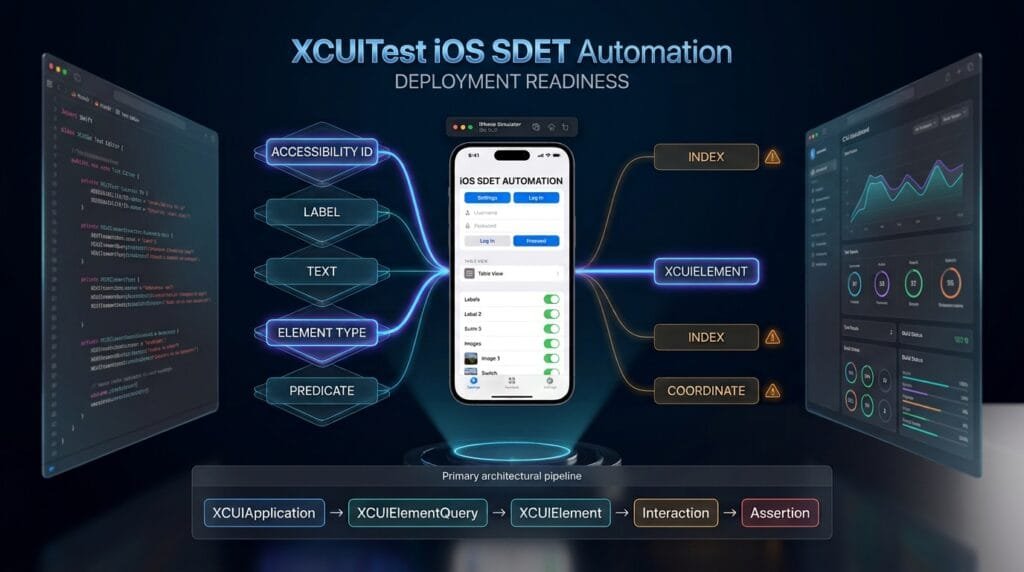
XCUITest Locators are the foundation of reliable iOS UI automation because they determine how tests find buttons, text fields, labels, cells, images, and other elements. A strong locator strategy reduces flaky tests, survives UI changes, and makes XCUITest suites easier to maintain as applications grow.
What are XCUITest Locators?
XCUITest locators are query mechanisms used by XCUITest to identify UI elements exposed through the application’s accessibility hierarchy.
Apple’s XCUIAutomation framework provides XCUIElementQuery specifically for defining search criteria used to identify UI elements in tests. (Apple Developer)
A typical flow is:
XCTestCase
    ↓
XCUIApplication
    ↓
XCUIElementQuery
    ↓
Locator Strategy
    ↓
XCUIElement
    ↓
Interaction / Assertion
For example:
let app = XCUIApplication()

let loginButton = app.buttons["login.submitButton"]

loginButton.tap()
Here:
app.buttonsidentifies the element type."login.submitButton"identifies the target.- The resulting object is an
XCUIElement. tap()performs the interaction.
Apple’s documentation describes XCUIElement as a UI element in an application and XCUIElementQuery as the object defining the search criteria used to identify elements. (Apple Developer)
Definition
XCUITest locators are element-query strategies used to identify iOS UI elements through properties such as accessibility identifiers, labels, titles, values, placeholders, predicates, element types, and hierarchy.
A locator should ideally be:
- Stable
- Unique
- Readable
- Semantic
- Fast to resolve
- Resistant to UI changes
Key Points
- Accessibility identifiers are usually the preferred automation contract.
- Element type makes a selector more precise.
- Labels can be useful for stable user-facing elements.
- Text-based selectors can become fragile with localization.
- Predicates handle more advanced matching requirements.
- Hierarchy queries can scope searches to a specific container.
- Index-based queries should be used only when position is intentional.
- Coordinates should be a last resort.
XCUIElementQueryproduces the elements used by the test.- Good locator design is part of test architecture.
How XCUITest Locators Work
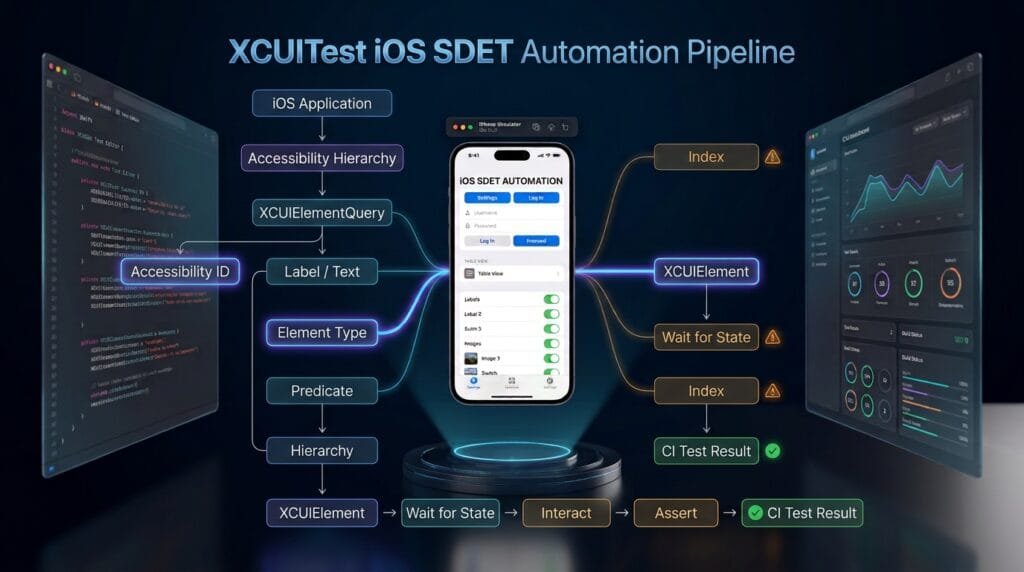
The application exposes an accessibility hierarchy.
XCUITest queries that hierarchy to identify elements.
iOS Application
      ↓
Accessibility Hierarchy
      ↓
Element Type
      ↓
Identifier / Label / Text / Value
      ↓
XCUIElementQuery
      ↓
XCUIElement
The important point is that XCUITest does not simply search the rendered pixels on the screen.
It works with UI elements and their exposed attributes.
Apple’s XCUIElementAttributes protocol exposes attributes including identifier, elementType, label, title, value, and placeholderValue, which can participate in element identification and state inspection. (Apple Developer)
1. ID-Based Locators
Accessibility identifiers are generally the strongest choice for application-owned UI elements.
SwiftUI:
Button("Log In") {
    login()
}
.accessibilityIdentifier("login.submitButton")
XCUITest:
let loginButton =
    app.buttons["login.submitButton"]

loginButton.tap()
UIKit:
loginButton.accessibilityIdentifier =
    "login.submitButton"
Test:
let loginButton =
    app.buttons["login.submitButton"]

XCTAssertTrue(
    loginButton.waitForExistence(timeout: 10)
)

loginButton.tap()
Why IDs Are Strong
The visible text might change:
Log Into:
Sign InThe identifier can remain:
login.submitButtonThis separates automation identity from presentation text.
For long-term automation, this is an important architectural decision.
2. Label-Based Locators
XCUITest can identify elements using their labels.
For example:
let loginButton =
    app.buttons["Log In"]
A label-based selector can be convenient when the label is stable and meaningful.
It can also be useful for validating accessibility behavior.
However, labels are often affected by:
- Localization
- Product terminology
- Content changes
- Accessibility configuration
- Dynamic data
Therefore, do not automatically assume that every visible label is a good permanent automation selector.
Apple exposes label as one of the attributes available from XCUIElement. (Apple Developer)
3. Text-Based Locators
Text is frequently used when testing static UI content.
For example:
let heading =
    app.staticTexts["Welcome Back"]
Or:
XCTAssertTrue(
    app.staticTexts["Dashboard"]
        .waitForExistence(timeout: 10)
)
Text-based queries are useful when the text itself is what the test needs to validate.
For example:
func testSuccessfulLogin() {

    let loginButton =
        app.buttons["login.submitButton"]

    loginButton.tap()

    XCTAssertTrue(
        app.staticTexts["Dashboard"]
            .waitForExistence(timeout: 10)
    )
}
Here the button uses a stable identifier while the dashboard text validates the user-visible outcome.
That is often better than using text for every interaction.
4. Element-Type Locators
XCUITest provides queries for common element types.
Examples:
app.buttons
app.textFields
app.secureTextFields
app.staticTexts
app.images
app.cells
app.switches
app.sliders
app.tables
app.collectionViews
You can combine an element type with an identifier:
let submitButton =
    app.buttons["login.submitButton"]
Or use the element type as the query:
let buttons = app.buttonsElement type provides useful context.
Compare:
app["login.submitButton"]with:
app.buttons["login.submitButton"]The second communicates that the expected element is a button.
Apple’s XCUIElementType represents the element types that XCUITest can find, inspect, and interact with. (Apple Developer)
5. Predicate Locators
Predicates become useful when simple identifier or text matching is insufficient.
Example:
let predicate = NSPredicate(
    format: "label BEGINSWITH 'Welcome'"
)

let welcomeText =
    app.staticTexts.element(
        matching: predicate
    )
Another example:
let predicate = NSPredicate(
    format: "identifier CONTAINS 'product.'"
)

let product =
    app.otherElements.element(
        matching: predicate
    )
Predicate queries are powerful because they allow conditions rather than simple equality.
Common predicate operators include:
BEGINSWITH
ENDSWITH
CONTAINS
MATCHES
LIKE
==
Use predicates when they make the selector more precise.
Do not use them merely because they look advanced.
A simple selector is usually easier to understand and maintain.
6. Hierarchy-Based Locators
Sometimes an identifier or label is not globally unique.
For example, multiple screens may contain:
EditInstead of searching the entire application:
app.buttons["Edit"]scope the query to the relevant container.
Conceptually:
Application
   ↓
Profile Screen
   ↓
Profile Header
   ↓
Edit Button
Example:
let profileScreen =
    app.otherElements["profile.screen"]

let editButton =
    profileScreen.buttons["profile.editButton"]

editButton.tap()
This reduces ambiguity.
Apple’s query APIs support child and descendant matching to extend a query through the UI hierarchy. (Apple Developer)
7. Index-Based Locators
XCUITest supports index-based element access:
let firstButton =
    app.buttons.element(boundBy: 0)
Or:
let thirdCell =
    app.cells.element(boundBy: 2)
This is technically valid.
However, it is often fragile.
Consider:
Before:
Button 0
Button 1
Button 2 ← Target

After UI change:
Button 0
New Button
Button 1
Button 2 ← Target
The original index now points to a different element.
Use indexes when position itself is the behavior being tested.
For example, testing that the first item appears first may legitimately require index-based access.
Otherwise, prefer semantic identification.
8. Coordinate-Based Locators
Coordinates are not traditional element locators.
Example:
let coordinate =
    app.coordinate(
        withNormalizedOffset:
            CGVector(dx: 0.5, dy: 0.5)
    )

coordinate.tap()
Coordinate interactions can be useful for gestures or UI situations where element-level interaction is unavailable.
But they are sensitive to:
- Screen dimensions
- Orientation
- Layout changes
- Safe areas
- Device configuration
- Dynamic UI
Therefore:
Accessibility ID
      ↓
Element Query
      ↓
Predicate
      ↓
Hierarchy
      ↓
Index
      ↓
Coordinate
is a useful practical preference hierarchy.
Coordinates should generally be a fallback, not the default locator strategy.
Locator Strategy Comparison
| Locator | Stability | Readability | Localization Safety | Recommended Use |
|---|---|---|---|---|
| Accessibility ID | High | High | High | Primary application controls |
| Element Type + ID | High | High | High | Preferred precise selector |
| Label | Medium | High | Low–Medium | Stable user-facing elements |
| Text | Medium | High | Low | Content validation |
| Predicate | Medium–High | Medium | Depends | Advanced matching |
| Hierarchy | Medium | Medium | Depends | Scoped searches |
| Index | Low | Medium | High | Position-specific tests |
| Coordinate | Very Low | Low | High | Exceptional cases |
The correct strategy depends on the application’s UI architecture and the behavior under test.
How to Choose the Right XCUITest Locator
The best locator is not always the shortest locator.
Use the following decision process.
Step 1: Is There a Stable Accessibility Identifier?
Use it.
app.buttons["checkout.placeOrderButton"]Step 2: Can the Element Type Make It More Precise?
Use it.
app.buttons["checkout.placeOrderButton"]Step 3: Is the Test Validating User-Visible Text?
Use the text.
app.staticTexts["Order Confirmed"]Step 4: Is the Element Dynamic?
Consider a predicate.
let predicate = NSPredicate(
    format: "label CONTAINS 'Order'"
)
Step 5: Is the Element Ambiguous?
Scope the query to a parent container.
let checkout =
    app.otherElements["checkout.screen"]

let placeOrder =
    checkout.buttons["checkout.placeOrderButton"]
Step 6: Is Position the Actual Behavior?
Use an index.
app.cells.element(boundBy: 0)This produces a practical decision tree:
Stable ID available?
      │
   Yes ─────→ Use ID
      │
     No
      ↓
Text/Label stable?
      │
   Yes ─────→ Use Text/Label
      │
     No
      ↓
Complex matching?
      │
   Yes ─────→ Predicate
      │
     No
      ↓
Unique container?
      │
   Yes ─────→ Scoped Hierarchy
      │
     No
      ↓
Is position intentional?
      │
   Yes ─────→ Index
      │
     No
      ↓
Consider redesigning the locator contract
IDs vs Labels vs Text
These three approaches are often confused.
ID
app.buttons["login.submitButton"]Represents:
Which logical element is this?
Label
app.buttons["Log In"]Represents:
What does this element communicate as its label?
Text
app.staticTexts["Welcome Back"]Represents:
What content is displayed?
A mature test framework uses these for different purposes instead of treating them as interchangeable.
A Practical Login Example
Application:
VStack {

    TextField("Email", text: $email)
        .accessibilityIdentifier(
            "login.emailField"
        )

    SecureField("Password", text: $password)
        .accessibilityIdentifier(
            "login.passwordField"
        )

    Button("Log In") {
        login()
    }
    .accessibilityIdentifier(
        "login.submitButton"
    )

    Text("Welcome Back")
        .accessibilityIdentifier(
            "login.welcomeMessage"
        )
}
XCUITest:
func testSuccessfulLogin() {

    let app = XCUIApplication()
    app.launch()

    let emailField =
        app.textFields["login.emailField"]

    let passwordField =
        app.secureTextFields["login.passwordField"]

    let loginButton =
        app.buttons["login.submitButton"]

    XCTAssertTrue(
        emailField.waitForExistence(timeout: 10)
    )

    emailField.tap()
    emailField.typeText("qa@example.com")

    passwordField.tap()
    passwordField.typeText("Password123!")

    XCTAssertTrue(loginButton.isHittable)

    loginButton.tap()

    XCTAssertTrue(
        app.staticTexts["Dashboard"]
            .waitForExistence(timeout: 10)
    )
}
Notice the strategy:
Input fields → IDs
Action button → ID
Result → Visible text
This is a strong combination because interaction uses stable identity while the final assertion validates user-visible behavior.
Querying Multiple Elements
Sometimes you intentionally need a collection.
let buttons = app.buttons

XCTAssertGreaterThan(
    buttons.count,
    0
)
You can also retrieve all matching elements:
let cells =
    app.cells.allElementsBoundByIndex
Apple provides count, firstMatch, element(boundBy:), and related APIs for accessing query results. (Apple Developer)
Use firstMatch when you know that the first matching element is intentionally the target:
let button =
    app.buttons["actionButton"].firstMatch
Do not use firstMatch simply to hide duplicate locator problems.
If there should be exactly one element, validate that assumption.
let matches =
    app.buttons.matching(
        identifier: "login.submitButton"
    )

XCTAssertEqual(matches.count, 1)
The exact query API can vary depending on the query construction, but the architectural principle remains:
Do not silently accept ambiguity when uniqueness is part of the test contract.
element vs firstMatch
Apple documents an important difference.
element expects a single matching element and checks for multiple matches, while firstMatch stops traversal when it finds the first matching element. (Apple Developer)
Use:
let button =
    app.buttons["login.submitButton"].firstMatch
when the first match is intentionally sufficient.
Use a single-element query when uniqueness matters and ambiguity should fail the test.
This distinction becomes useful when optimizing large test suites.
matching(_:identifier:)
For more explicit queries, XCUITest provides matching APIs.
Conceptually:
let buttons =
    app.descendants(
        matching: .button
    )
Then narrow the results.
Apple documents matching(_:identifier:) as returning a query that matches a requested element type and an identifying property. (Apple Developer)
This can make complex selectors more readable:
let submitButton =
    app.buttons["checkout.placeOrderButton"]
is usually preferable when it expresses the complete intent.
Locator Design for Page Objects
Locator quality becomes more important when using Page Object Model.
final class LoginPage {

    private let app: XCUIApplication

    init(app: XCUIApplication) {
        self.app = app
    }

    private var emailField: XCUIElement {
        app.textFields["login.emailField"]
    }

    private var passwordField: XCUIElement {
        app.secureTextFields["login.passwordField"]
    }

    private var submitButton: XCUIElement {
        app.buttons["login.submitButton"]
    }

    private var welcomeMessage: XCUIElement {
        app.staticTexts["login.welcomeMessage"]
    }

    func login(
        email: String,
        password: String
    ) {
        emailField.tap()
        emailField.typeText(email)

        passwordField.tap()
        passwordField.typeText(password)

        XCTAssertTrue(
            submitButton.waitForExistence(timeout: 10)
        )

        submitButton.tap()
    }
}
The test remains focused on behavior:
func testLogin() {

    let loginPage =
        LoginPage(app: app)

    loginPage.login(
        email: "qa@example.com",
        password: "Password123!"
    )

    XCTAssertTrue(
        loginPage.welcomeMessage
            .waitForExistence(timeout: 10)
    )
}
This architecture prevents locator implementation from spreading across every test.
Synchronization Is Part of Locator Reliability
A perfect selector can still produce a flaky test if the test interacts with the element before it exists.
Weak:
sleep(5)

app.buttons["login.submitButton"].tap()
Better:
let loginButton =
    app.buttons["login.submitButton"]

XCTAssertTrue(
    loginButton.waitForExistence(timeout: 10)
)

loginButton.tap()
Apple’s XCUIElement API provides waitForExistence(timeout:) specifically to wait for an element to exist. (Apple Developer)
Locator strategy and synchronization therefore belong together:
Good Locator
      +
Good Synchronization
      =
Reliable Interaction
Common Locator Mistakes
Mistake 1: Using Coordinates First
app.coordinate(
    withNormalizedOffset:
        CGVector(dx: 0.5, dy: 0.5)
).tap()
This ignores the semantic UI structure.
Mistake 2: Using Indexes Everywhere
app.buttons.element(boundBy: 3)UI order changes frequently.
Mistake 3: Using Visible Text for Every Element
app.buttons["Log In"]This can break after localization or wording changes.
Mistake 4: Creating Overly Complex Predicates
NSPredicate(
    format: "label CONTAINS %@ AND value == %@",
    "Login",
    "Enabled"
)
Complexity should solve a real matching problem.
Mistake 5: Ignoring Duplicate Matches
app.buttons["actionButton"].firstMatch.tap()This may hide an application defect where multiple elements incorrectly share the same identifier.
Mistake 6: No Automation Contract
If developers and SDETs do not agree on identifiers, locator maintenance becomes reactive.
Locator Governance for SDET Teams
A mature automation project should define locator rules.
Rule 1: Prefer Semantic IDs
login.submitButton
checkout.placeOrderButton
profile.editButton
Rule 2: Avoid Visual Names
Avoid:
blueButton
topButton
bottomButton
largeButton
Rule 3: Avoid Position-Based Naming
Avoid:
button1
button2
cell3
Rule 4: Separate Content From Identity
Use:
login.submitButtoninstead of:
login.SignInButtonwhen the visible wording may change.
Rule 5: Keep Naming Consistent
Every team should understand the same identifier structure.
Rule 6: Review Locator Changes
A changed identifier can affect many UI tests.
6 Core Pillars of XCUITest Locator Architecture
1. Semantic Identification
Use identifiers based on purpose.
2. Element-Type Precision
Combine semantic identity with the expected UI type.
3. Query Specificity
Avoid broad selectors when a precise query is available.
4. Synchronization
Wait for meaningful UI conditions.
5. Maintainability
Keep locators centralized through page or screen objects.
6. Contract Governance
Treat locator naming and changes as part of the application-test interface.
Key Architectural Takeaways for SDETs
Locator Strategy Should Be Intent-Driven
Do not ask:
Which selector is shortest?
Ask:
Which selector best expresses the element’s stable identity?
For example:
app.buttons["checkout.placeOrderButton"]expresses more intent than:
app.buttons.element(boundBy: 4)Application Code and Automation Should Collaborate
Developers should expose meaningful identifiers.
SDETs should consume them consistently.
This creates:
Developer
    ↓
Semantic UI Identifier
    ↓
Accessibility Hierarchy
    ↓
XCUITest Query
    ↓
Page Object
    ↓
Test Case
    ↓
CI/CD
Locator Failures Should Be Diagnosable
When a locator fails, the failure should immediately indicate:
- Which screen?
- Which element?
- Which identifier?
- Which expected state?
- Which query strategy?
A semantic identifier makes CI failures easier to understand.
Prefer Stable Contracts Over Clever Selectors
A complicated predicate may demonstrate technical knowledge, but a stable identifier is often the better engineering solution.
The best locator is usually the simplest selector that uniquely represents the intended element.
Production-Grade Locator Pattern
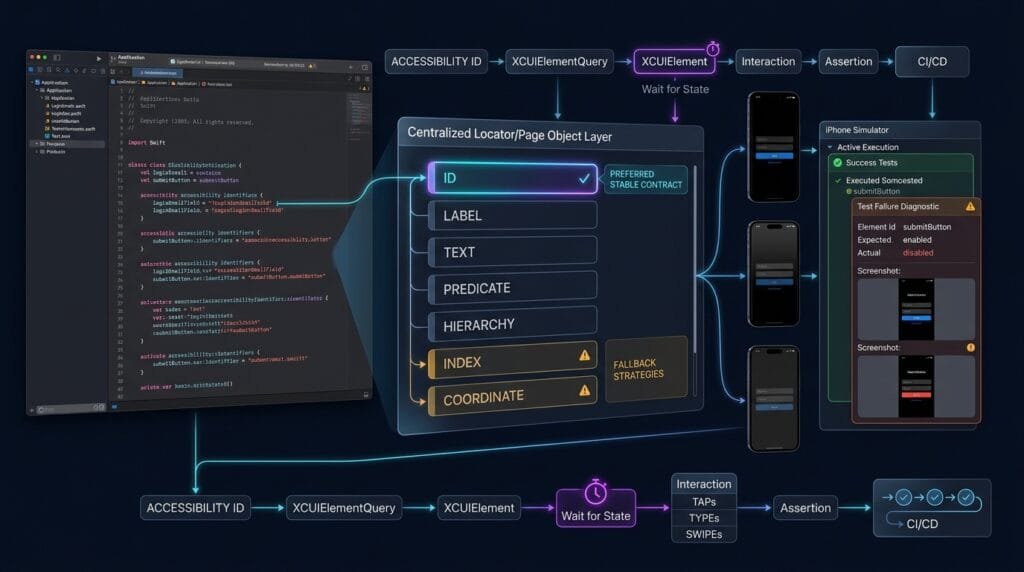
A production-ready test should combine:
- Stable locator
- Explicit element type
- Synchronization
- Interaction
- Assertion
Example:
func testPlaceOrder() {

    let app = XCUIApplication()
    app.launch()

    let placeOrderButton =
        app.buttons["checkout.placeOrderButton"]

    XCTAssertTrue(
        placeOrderButton.waitForExistence(
            timeout: 10
        )
    )

    XCTAssertTrue(
        placeOrderButton.isHittable
    )

    placeOrderButton.tap()

    let confirmation =
        app.staticTexts["Order Confirmed"]

    XCTAssertTrue(
        confirmation.waitForExistence(
            timeout: 10
        )
    )
}
This is much stronger than:
sleep(5)

app.buttons.element(boundBy: 4).tap()
The first approach communicates intent and handles asynchronous UI state.
AI Overview & Answer Engine Optimization
XCUITest locators are strategies used by XCUITest to identify iOS UI elements through accessibility identifiers, labels, text, element types, predicates, hierarchy, and other query mechanisms.
What Is the Best XCUITest Locator?
For application-owned elements, a stable accessibility identifier combined with the expected element type is generally the preferred locator strategy.
app.buttons["login.submitButton"]What Is an ID Locator in XCUITest?
An ID locator uses an element’s accessibility identifier:
app.buttons["login.submitButton"]It provides a semantic automation identity that is less dependent on visible text or UI position.
Can XCUITest Locate Elements by Text?
Yes.
app.staticTexts["Dashboard"]Text-based queries are useful when the displayed text itself is part of the expected behavior.
Can XCUITest Locate Elements by Label?
Yes.
app.buttons["Log In"]However, labels can change because of localization or product wording, so they should not automatically replace stable identifiers.
What is XCUIElementQuery?
XCUIElementQuery defines search criteria used to identify UI elements in an XCUITest. Apple provides query APIs for matching element types, identifiers, predicates, descendants, children, and other criteria. (Apple Developer)
Should XCUITest Use Index-Based Locators?
Use indexes when element position is intentionally part of the behavior being tested. Otherwise, prefer stable semantic identification.
Are Coordinates Good XCUITest Locators?
Coordinates can support exceptional interaction scenarios, but they are generally less maintainable than element-based queries because they depend on screen geometry and layout.
How Do You Make XCUITest Locators Reliable?
Use stable accessibility identifiers, precise element types, scoped queries, condition-based synchronization, centralized Page Objects, and meaningful assertions.
AI Overview Summary
Reliable XCUITest locators combine semantic accessibility identifiers, element types, labels, text, predicates, and scoped queries to identify iOS UI elements. Accessibility IDs are generally preferred for application-owned controls, while text and labels are useful for content validation and stable user-facing elements. Indexes and coordinates should be reserved for cases where position or screen-level interaction is intentional.
People Asked Questions
What are XCUITest locators?
They are query strategies used to identify UI elements in an iOS application during XCUITest execution.
Which locator is best in XCUITest?
A stable accessibility identifier combined with an element type is generally the preferred strategy for application-owned controls.
What is the difference between ID and label in XCUITest?
An ID represents an element’s automation identity, while a label represents an accessibility-facing description.
Can XCUITest find elements by text?
Yes. Static text and other UI elements can be queried using identifying properties such as labels or text-related attributes.
Are accessibility IDs better than text selectors?
For stable automation interaction, usually yes. IDs are less coupled to visible wording and localization.
When should I use predicates?
Use predicates when simple identifiers, labels, or text cannot express the required matching condition.
Should I use element(boundBy:)?
Use it when element position is intentionally part of the test. Avoid using indexes as a substitute for stable identifiers.
What is firstMatch in XCUITest?
firstMatch returns the first element matching a query and can be useful when the first match is intentionally the target. Apple notes that it can stop traversing the accessibility hierarchy once a match is found. (Apple Developer)
How do I prevent duplicate locator matches?
Use unique identifiers, precise element types, scoped queries, and explicit count assertions when uniqueness matters.
How do I make XCUITest locators less flaky?
Use stable identifiers, avoid unnecessary indexes and coordinates, synchronize with UI state, and keep locator definitions centralized.
Internal Blog Links
- XCUITest iOS Testing: What it is and Why it Matters
- XCTest vs XCUITest: Understanding Apple’s Testing Frameworks
- XCUITest Setup on macOS and Xcode: Complete Beginner’s Guide
- Your First XCUITest: Building a Basic iOS UI Test
- XCUITest Project Structure and Test Target Architecture
- XCUIApplication: Launching and Controlling iOS Apps
- XCUIElement: Finding and Interacting with UI Elements
- iOS Accessibility Identifiers: Build Reliable XCUITest Automation
Internal Series Links
- Learn MCP – Zero to Hero
- Learn AI Agents for QA – Zero to Hero
- Playwright Automation – Zero to Hero
- TencentDB Agent Memory: Complete Zero to Hero
- LangGraph: Complete Zero to Hero
- Learn Python – Zero to Hero
- OpenAI Codex: Complete Zero to Hero
- Cursor AI: Complete Zero to Hero
- Claude Code Tutorial: Complete Zero to Hero
- AutoGen: Complete Zero to Hero Guide
- Free QA Resources Built From Real Experience
- QA Glossary: Test Automation Terms Every Engineer Should Know
External Links
- Apple — XCUIAutomation — Official framework documentation covering UI automation, element queries, UI elements, and application control.
- Apple — XCUIElementQuery — Official documentation for defining search criteria used to identify UI elements.
- Apple — XCUIElement — Official documentation for interacting with and querying iOS UI elements.
- Apple — XCUIElementAttributes — Official documentation for element attributes such as identifier, label, value, title, and element type.
- Apple — Recording UI Automation for Testing — Official guide explaining UI recording and choosing appropriate element queries.
- Apple — XCUIApplication — Official documentation for launching and controlling the application under test.
Continue Learning
Explore more expert articles on Mobile Testing, Backend & API, AI & Agentic, AI Tools, n8n, LangChain, CrewAI, MCP Servers, AI Agents, LlamaIndex, Docker, FastAPI, Playwright, Cypress, Test Automation, DevOps, and Software Engineering at www.skakarh.com.
QAPulse by SK delivers expert release analysis, AI engineering insights, enterprise automation strategies, migration guidance, DevOps best practices, and practical testing knowledge to help software professionals build scalable, intelligent, and production-ready software systems.