 QA
QA
XCUITest Alerts are a critical part of reliable iOS UI automation because alerts, action sheets, pop-ups, permission prompts, and system dialogs can interrupt the normal interaction flow. A production-grade XCUITest framework must detect these transient UI states, identify the correct controls, synchronize with their appearance, and validate the resulting application behavior.
What are XCUITest Alerts?
XCUITest alerts are alert and dialog interfaces exposed through XCUITest’s UI automation hierarchy, allowing automated tests to detect, inspect, interact with, and validate alert-driven application behavior.
Typical examples include:
- Confirmation alerts
- Error alerts
- Action sheets
- Delete confirmations
- Permission prompts
- Login dialogs
- System notifications
- Camera and microphone permissions
- Location permissions
- System-level dialogs
- Custom modal pop-ups
A typical automation flow is:
Application Action
       ↓
Alert / Sheet Appears
       ↓
Synchronize
       ↓
Locate Dialog
       ↓
Locate Button
       ↓
Perform Action
       ↓
Validate Result
Definition
XCUITest alerts are alert and dialog interfaces that XCUITest can locate and interact with through the iOS UI automation hierarchy.
Key Points
- Use
app.alertsfor alert-style interfaces. - Use
app.sheetsfor action sheets where appropriate. - Use
app.buttonsto locate dialog actions. - Use
waitForExistence(timeout:)for asynchronous dialogs. - Validate dialog titles and messages when they represent requirements.
- Handle permission dialogs explicitly.
- Do not assume dialogs appear instantly.
- Avoid brittle coordinate-based interactions.
- Separate application dialogs from system dialogs.
- Validate the application state after dismissing a dialog.
- Use launch configuration to control permissions when appropriate.
- Centralize recurring dialog handling in reusable helpers.
Why Dialog Handling Matters in XCUITest
A test can fail even when the application’s primary workflow is correct if an unexpected dialog blocks interaction.
For example:
Launch App
   ↓
Login
   ↓
Dashboard
   ↓
Permission Dialog Appears
   ↓
Next UI Element Blocked
   ↓
Test Failure
A production test should explicitly handle expected dialogs.
let alert =
    app.alerts["Delete Item"]

XCTAssertTrue(
    alert.waitForExistence(timeout: 10)
)

alert.buttons["Delete"].tap()
The test now understands the intermediate application state.
1. Handling Basic Alerts
A standard alert can be accessed through app.alerts.
let app = XCUIApplication()

app.buttons["deleteButton"].tap()

let alert =
    app.alerts["Delete Item"]

XCTAssertTrue(
    alert.waitForExistence(timeout: 10)
)

alert.buttons["Delete"].tap()
This pattern is straightforward:
Tap
 ↓
Wait
 ↓
Find Alert
 ↓
Find Button
 ↓
Tap
2. Validating an Alert Message
When the alert message is part of the expected behavior, validate it.
let alert =
    app.alerts["Delete Item"]

XCTAssertTrue(
    alert.waitForExistence(timeout: 10)
)

let message =
    alert.staticTexts[
        "Are you sure you want to delete this item?"
    ]

XCTAssertTrue(
    message.exists
)
For some alert structures, identifying the message by its visible text can be sufficient:
XCTAssertTrue(
    alert.staticTexts[
        "Are you sure you want to delete this item?"
    ].exists
)
The assertion turns the dialog into a testable behavior.
3. Handling Cancel Actions
Negative paths are equally important.
let alert =
    app.alerts["Delete Item"]

XCTAssertTrue(
    alert.waitForExistence(timeout: 10)
)

alert.buttons["Cancel"].tap()

XCTAssertFalse(
    alert.exists
)
This verifies both:
- The alert appeared.
- The cancel action dismissed it.
4. Handling Confirmation Alerts
A confirmation workflow can be tested as:
func testDeleteConfirmation() {

    let app = XCUIApplication()
    app.launch()

    app.buttons["deleteButton"].tap()

    let alert =
        app.alerts["Delete Item"]

    XCTAssertTrue(
        alert.waitForExistence(timeout: 10)
    )

    XCTAssertTrue(
        alert.buttons["Delete"].exists
    )

    alert.buttons["Delete"].tap()

    XCTAssertTrue(
        app.staticTexts["Deleted"]
            .waitForExistence(timeout: 10)
    )
}
Notice that the final assertion validates the application outcome, not merely the button interaction.
5. Handling Action Sheets
Action sheets represent another common modal interaction.
let sheet =
    app.sheets["File Options"]

XCTAssertTrue(
    sheet.waitForExistence(timeout: 10)
)

sheet.buttons["Delete"].tap()
Depending on the UI hierarchy, you may also locate buttons directly:
app.buttons["Delete"].tap()The important point is to use the hierarchy exposed by the application rather than relying on screen coordinates.
6. Handling Pop-Ups
Custom application pop-ups may not always appear as XCUIAlert-style structures.
For example:
let popup =
    app.otherElements["subscription.popup"]

XCTAssertTrue(
    popup.waitForExistence(timeout: 10)
)

popup.buttons["Close"].tap()
This is why accessibility identifiers are valuable.
A custom popup can expose:
subscription.popup
subscription.popup.close
subscription.popup.upgrade
The resulting test becomes much more stable.
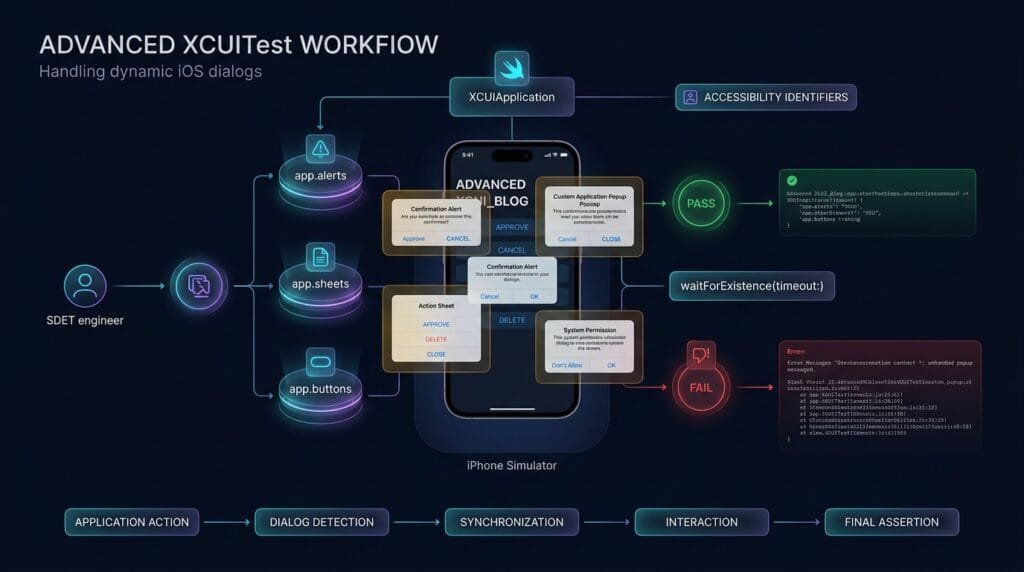
7. Handling System Permission Dialogs
System permission dialogs require special attention because they are generated by iOS rather than ordinary application UI.
Examples include:
- Camera access
- Microphone access
- Location access
- Photos access
- Notifications
- Contacts
- Bluetooth
- Tracking permissions
A permission alert can often be located through the application’s alert query:
let alert =
    app.alerts.firstMatch

if alert.waitForExistence(timeout: 5) {
    alert.buttons["Allow"].tap()
}
However, the exact hierarchy and button labels can vary based on the permission type and iOS version.
Avoid assuming every permission prompt has the same structure.
8. Handling Permission Buttons
For a known permission dialog:
let alert =
    app.alerts.firstMatch

XCTAssertTrue(
    alert.waitForExistence(timeout: 10)
)

alert.buttons["Allow While Using App"].tap()
For another permission:
alert.buttons["Allow"].tap()The automation should use the actual UI exposed by the target iOS version.
9. Handling Conditional Permission Dialogs
Permission dialogs may only appear once.
This creates an important automation problem:
First Test Run
     ↓
Permission Appears
     ↓
Tap Allow
     ↓
Permission Stored

Next Test Run
     ↓
Permission May Not Appear
Therefore, blindly writing:
app.alerts.firstMatch
    .buttons["Allow"]
    .tap()
can fail when the dialog does not exist.
A safer pattern is:
let alert =
    app.alerts.firstMatch

if alert.waitForExistence(timeout: 3) {
    if alert.buttons["Allow"].exists {
        alert.buttons["Allow"].tap()
    }
}
For deterministic suites, configure application state and permissions deliberately instead of depending on the simulator’s previous state.
10. Handling Notification Permission
A notification permission flow can be handled conditionally:
let alert =
    app.alerts.firstMatch

if alert.waitForExistence(timeout: 5) {

    if alert.buttons["Allow"].exists {
        alert.buttons["Allow"].tap()
    }
}
The exact system wording should not be hard-coded without considering the supported iOS versions and permission configuration.
11. Handling Location Permissions
Location prompts may have multiple choices.
For example:
let alert =
    app.alerts.firstMatch

if alert.waitForExistence(timeout: 5) {

    if alert.buttons[
        "Allow While Using App"
    ].exists {
        alert.buttons[
            "Allow While Using App"
        ].tap()
    }
}
A robust framework should explicitly define which permission state each test requires.
12. Handling Multiple Dialogs
Some workflows contain sequential dialogs:
Launch
 ↓
Notification Permission
 ↓
Location Permission
 ↓
Onboarding Popup
 ↓
Main Screen
The test can process each expected state:
func handleInitialDialogs(
    app: XCUIApplication
) {

    let alert =
        app.alerts.firstMatch

    if alert.waitForExistence(timeout: 3) {

        if alert.buttons["Allow"].exists {
            alert.buttons["Allow"].tap()
        }
    }
}
The helper can then be called during setup.
handleInitialDialogs(app: app)For larger suites, create specialized handlers rather than one enormous dialog method.
13. Handling Unknown or Unexpected Alerts
Unexpected dialogs should generally fail the test rather than silently disappear.
For example:
let unexpectedAlert =
    app.alerts.firstMatch

if unexpectedAlert.exists {

    XCTFail(
        "Unexpected alert appeared: \(unexpectedAlert)"
    )
}
This is valuable because an unexpected alert can indicate:
- Application regression
- Backend failure
- Missing test data
- Permission state problem
- Environment problem
- New UI behavior
Silently dismissing every alert can hide real defects.
14. Alert Handling With Reusable Helpers
Repeated alert handling belongs in a reusable utility.
func dismissAlertIfPresent(
    app: XCUIApplication,
    buttonTitle: String
) {

    let alert =
        app.alerts.firstMatch

    if alert.waitForExistence(timeout: 3) {

        let button =
            alert.buttons[buttonTitle]

        if button.exists {
            button.tap()
        }
    }
}
Usage:
dismissAlertIfPresent(
    app: app,
    buttonTitle: "Cancel"
)
For permission handling:
func allowPermissionIfPresent(
    app: XCUIApplication
) {

    let alert =
        app.alerts.firstMatch

    guard alert.waitForExistence(
        timeout: 3
    ) else {
        return
    }

    if alert.buttons["Allow"].exists {
        alert.buttons["Allow"].tap()
    }
}
15. Handling Alerts Through Page Objects
Dialog behavior can also be modeled as a Page Object.
final class DeleteAlert {

    private let app: XCUIApplication

    init(app: XCUIApplication) {
        self.app = app
    }

    private var alert:
        XCUIElement {
        app.alerts["Delete Item"]
    }

    private var deleteButton:
        XCUIElement {
        alert.buttons["Delete"]
    }

    private var cancelButton:
        XCUIElement {
        alert.buttons["Cancel"]
    }

    func waitForAlert() {
        XCTAssertTrue(
            alert.waitForExistence(
                timeout: 10
            )
        )
    }

    func confirmDelete() {
        deleteButton.tap()
    }

    func cancelDelete() {
        cancelButton.tap()
    }
}
The test becomes:
let deleteAlert =
    DeleteAlert(app: app)

deleteAlert.waitForAlert()
deleteAlert.confirmDelete()
This keeps dialog implementation details out of the test case.
16. Alert Handling With Accessibility Identifiers
When you control the application’s source code, provide stable identifiers.
For example:
accessibilityIdentifier =
    "delete.confirmation"
And:
accessibilityIdentifier =
    "delete.confirm"
Then:
let alert =
    app.otherElements[
        "delete.confirmation"
    ]

let confirm =
    app.buttons[
        "delete.confirm"
    ]
Stable identifiers reduce dependency on:
- Visible text
- Localization
- UI hierarchy changes
- Dynamic content
- Styling
17. Handling Sheets With Multiple Actions
Action sheets often contain multiple possible outcomes.
let sheet =
    app.sheets["Export Options"]

XCTAssertTrue(
    sheet.waitForExistence(timeout: 10)
)

let pdf =
    sheet.buttons["Export PDF"]

let cancel =
    sheet.buttons["Cancel"]

XCTAssertTrue(
    pdf.exists
)

XCTAssertTrue(
    cancel.exists
)

pdf.tap()
The test validates the expected action before performing it.
18. Handling Modal Dismissal
After dismissing a dialog, validate that the application returns to the expected state.
alert.buttons["Cancel"].tap()

XCTAssertFalse(
    alert.exists
)

XCTAssertTrue(
    app.navigationBars["Settings"]
        .waitForExistence(timeout: 10)
)
This is stronger than simply tapping Cancel.
The complete behavioral contract becomes:
Alert Appears
     ↓
Cancel
     ↓
Alert Disappears
     ↓
Original Screen Remains
19. Handling System Dialogs Without Overfitting
System dialogs can change across iOS releases.
Avoid making tests dependent on unnecessary details.
Prefer:
if alert.buttons["Allow"].exists {
    alert.buttons["Allow"].tap()
}
over assuming a complete hierarchy that may differ between OS versions.
When system UI behavior is critical, test against the exact iOS versions supported by the application.
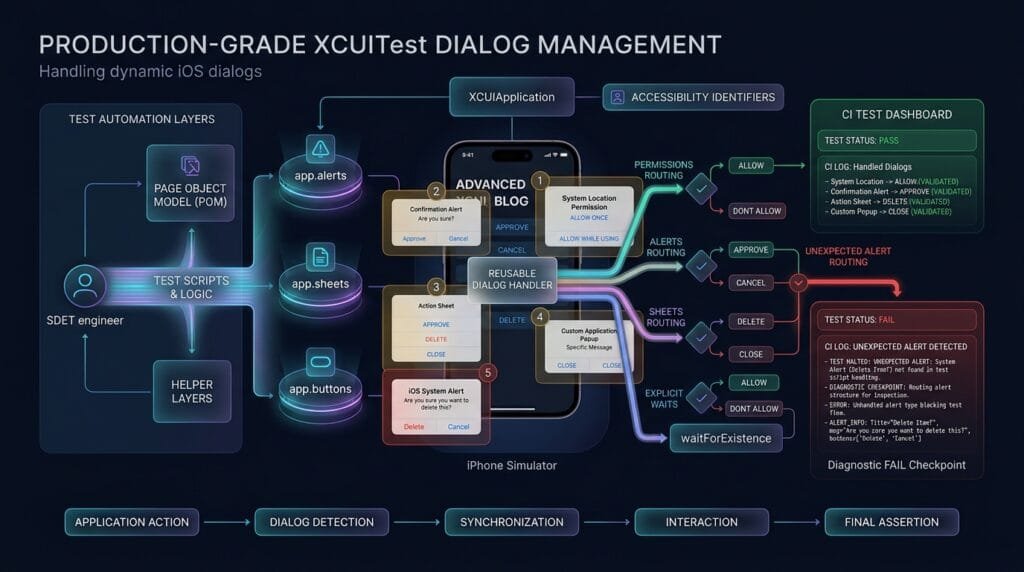
20. Building a Production-Grade Dialog Handler
A production framework should distinguish between:
Expected Dialog
      ↓
Handle
      ↓
Validate Result
and:
Unexpected Dialog
      ↓
Capture Evidence
      ↓
Fail Test
Example:
func handleDeleteAlert(
    app: XCUIApplication
) {

    let alert =
        app.alerts["Delete Item"]

    guard alert.waitForExistence(
        timeout: 5
    ) else {
        return
    }

    let delete =
        alert.buttons["Delete"]

    guard delete.exists else {
        XCTFail(
            "Delete action missing from alert"
        )
        return
    }

    delete.tap()
}
This is safer than a generic:
app.alerts.firstMatch
    .buttons.firstMatch
    .tap()
The generic approach may accidentally dismiss the wrong dialog.
21. Capturing Diagnostics for Dialog Failures
When a dialog-related test fails, diagnostic information is valuable.
A test should ideally capture:
- Screenshot
- UI hierarchy
- Alert title
- Visible message
- Available buttons
- Current screen
- Test action
- iOS version
- Application version
This helps answer:
Why did the dialog appear?
rather than merely:
Why did the test fail?
Common XCUITest Alert Anti-Patterns
Anti-Pattern 1: Blindly Tapping the First Button
app.alerts.firstMatch
    .buttons.firstMatch
    .tap()
This can hide test defects.
Anti-Pattern 2: Assuming Every Dialog Exists
app.alerts["Permission"].buttons["Allow"].tap()If the permission was already granted, the test can fail.
Anti-Pattern 3: Ignoring Unexpected Alerts
Automatically dismissing every alert can hide regressions.
Anti-Pattern 4: Using Coordinates
app.coordinate(
    withNormalizedOffset: CGVector(
        dx: 0.5,
        dy: 0.5
    )
).tap()
Coordinate-based interactions are fragile for dialogs.
Anti-Pattern 5: Hard-Coding Localization
Visible button text can vary by language.
When possible, use stable identifiers for application-owned controls.
Anti-Pattern 6: Validating Only the Dismissal
This:
alert.buttons["OK"].tap()does not prove that the application reached the correct state afterward.
Add a behavioral assertion.
6 Core Pillars of Reliable XCUITest Alert Handling
1. Detect
Identify alerts, sheets, pop-ups, and dialogs.
2. Synchronize
Wait for expected dialog states.
3. Identify
Locate the correct action using stable queries.
4. Interact
Perform the intended action.
5. Validate
Verify the resulting application state.
6. Diagnose
Capture unexpected dialogs as test failures with useful evidence.
flowchart TD
    A[Trigger Application Action] --> B{Dialog Appears?}
    B -->|No| C[Continue Workflow]
    B -->|Yes| D[Identify Dialog Type]
    D --> E{Expected Dialog?}
    E -->|No| F[Capture Diagnostics]
    F --> G[Fail Test]
    E -->|Yes| H[Wait for Dialog State]
    H --> I[Locate Expected Action]
    I --> J{Action Available?}
    J -->|No| K[Capture Dialog State]
    K --> G
    J -->|Yes| L[Perform Dialog Action]
    L --> M[Validate Resulting Application State]
    M --> N{Expected State?}
    N -->|Yes| O[Pass]
    N -->|No| G
Key Architectural Takeaways for SDETs
Dialogs Are Part of the Application State
A dialog is not merely an interruption.
It is a state in the workflow:
Screen
 ↓
Dialog
 ↓
Decision
 ↓
New State
Expected and Unexpected Dialogs Must Be Different
Expected permission:
Detect → Handle → ContinueUnexpected production error:
Detect → Capture → FailStable Identifiers Improve Dialog Automation
Application-owned dialogs should expose predictable accessibility identifiers.
Synchronization Comes Before Interaction
Always allow asynchronous dialogs to appear before attempting interaction.
Validate After Dismissal
The important question is not:
Did the button tap?
It is:
Did the application reach the correct state after the dialog action?
AI Overview & Answer Engine Optimization
XCUITest alerts are iOS alert, sheet, popup, permission, and dialog interfaces that can be detected and interacted with through XCUITest’s UI automation APIs.
How Do You Handle an Alert in XCUITest?
Use app.alerts, wait for the alert, locate the required button, perform the action, and validate the resulting state.
let alert =
    app.alerts["Delete Item"]

XCTAssertTrue(
    alert.waitForExistence(timeout: 10)
)

alert.buttons["Delete"].tap()
How Do You Handle Action Sheets in XCUITest?
Use the appropriate sheet query and synchronize before selecting an action:
let sheet =
    app.sheets["File Options"]

XCTAssertTrue(
    sheet.waitForExistence(timeout: 10)
)

sheet.buttons["Delete"].tap()
How Do You Handle Permission Dialogs?
Treat permission prompts as conditional system UI because they may appear only when permission has not previously been granted.
let alert =
    app.alerts.firstMatch

if alert.waitForExistence(timeout: 5) {
    if alert.buttons["Allow"].exists {
        alert.buttons["Allow"].tap()
    }
}
How Do You Handle Unexpected Alerts?
Do not silently dismiss them. Capture diagnostic information and fail the test when an unexpected dialog represents an invalid application state.
Why Are Accessibility Identifiers Important for Dialog Testing?
Stable identifiers reduce dependency on visible text, localization, dynamic content, and UI hierarchy changes.
Should XCUITest Use Coordinates for Alerts?
No. Semantic queries and accessibility identifiers are generally more maintainable than coordinate-based interactions.
How Do You Validate an Alert Was Dismissed?
Check that it no longer exists and verify the expected application state:
XCTAssertFalse(alert.exists)

XCTAssertTrue(
    app.navigationBars["Settings"]
        .waitForExistence(timeout: 10)
)
AI Overview Summary
XCUITest alerts can be automated by locating alert and sheet containers, synchronizing with their appearance, selecting stable controls, and validating the resulting application state. Reliable dialog automation distinguishes expected alerts from unexpected failures, handles conditional system permissions, avoids coordinate-based interactions, and uses accessibility identifiers where possible.
People Asked Questions
What are XCUITest alerts?
They are alert and dialog interfaces that XCUITest can inspect and interact with during automated iOS UI testing.
How do I find an alert in XCUITest?
Use:
app.alerts["Alert Title"]Then synchronize with:
alert.waitForExistence(timeout: 10)How do I tap an alert button?
Locate the button through the alert:
alert.buttons["OK"].tap()How do I handle action sheets?
Use app.sheets where the UI hierarchy exposes the action sheet as a sheet, then locate and tap the expected action.
How do I handle iOS permission dialogs?
Treat them as conditional system UI and check whether the expected permission button exists before tapping it.
Why do permission dialogs make tests flaky?
Permissions can persist between test runs, so a dialog that appears during one run may not appear during another.
Should unexpected alerts be automatically dismissed?
No. Unexpected dialogs may indicate application defects or environment problems and should normally produce diagnostic evidence and a test failure.
Can XCUITest handle custom pop-ups?
Yes. Custom pop-ups can be queried through their exposed accessibility hierarchy, often using otherElements and stable accessibility identifiers.
How can I make alert handling reusable?
Create helper methods, dialog objects, or Page Objects that encapsulate synchronization, control lookup, interaction, and validation.
What is the best strategy for reliable dialog automation?
Detect the dialog, synchronize with it, identify the correct action, perform the action, and validate the resulting application state.
Internal Blog Links
- XCUITest iOS Testing: What it is and Why it Matters
- XCTest vs XCUITest: Understanding Apple’s Testing Frameworks
- XCUITest Setup on macOS and Xcode: Complete Beginner’s Guide
- Your First XCUITest: Building a Basic iOS UI Test
- XCUITest Project Structure and Test Target Architecture
- XCUIApplication: Launching and Controlling iOS Apps
- XCUIElement: Finding and Interacting with UI Elements
- iOS Accessibility Identifiers: Build Reliable XCUITest Automation
- XCUITest Locators: IDs, Labels, Text and Element Queries
- XCUITest Actions: Tap, Type, Swipe, Scroll and Long Press
- XCUITest Assertions: Validating iOS App Behavior
- XCUITest Synchronization: Reliable Waiting for iOS UI Tests
Internal Series Links
- Learn MCP – Zero to Hero
- Learn AI Agents for QA – Zero to Hero
- Playwright Automation – Zero to Hero
- TencentDB Agent Memory: Complete Zero to Hero
- LangGraph: Complete Zero to Hero
- Learn Python – Zero to Hero
- OpenAI Codex: Complete Zero to Hero
- Cursor AI: Complete Zero to Hero
- Claude Code Tutorial: Complete Zero to Hero
- AutoGen: Complete Zero to Hero Guide
- Free QA Resources Built From Real Experience
- QA Glossary: Test Automation Terms Every Engineer Should Know
External Links
- Apple — XCUITest User Interface Tests — Official documentation for building and running iOS UI tests with XCTest.
- Apple — XCUIElement — Official documentation for querying and interacting with UI elements.
- Apple — XCUIApplication — Official documentation for launching and controlling the application under test.
- Apple — XCUIElementQuery — Official documentation for querying UI elements and building UI automation queries.
- Apple — XCTest — Official XCTest framework documentation covering assertions, expectations, and test execution.
Continue Learning
Explore more expert articles on Mobile Testing, Backend & API, AI & Agentic, AI Tools, n8n, LangChain, CrewAI, MCP Servers, AI Agents, LlamaIndex, Docker, FastAPI, Playwright, Cypress, Test Automation, DevOps, and Software Engineering at www.skakarh.com.
QAPulse by SK delivers expert release analysis, AI engineering insights, enterprise automation strategies, migration guidance, DevOps best practices, and practical testing knowledge to help software professionals build scalable, intelligent, and production-ready software systems.