 QA
QA
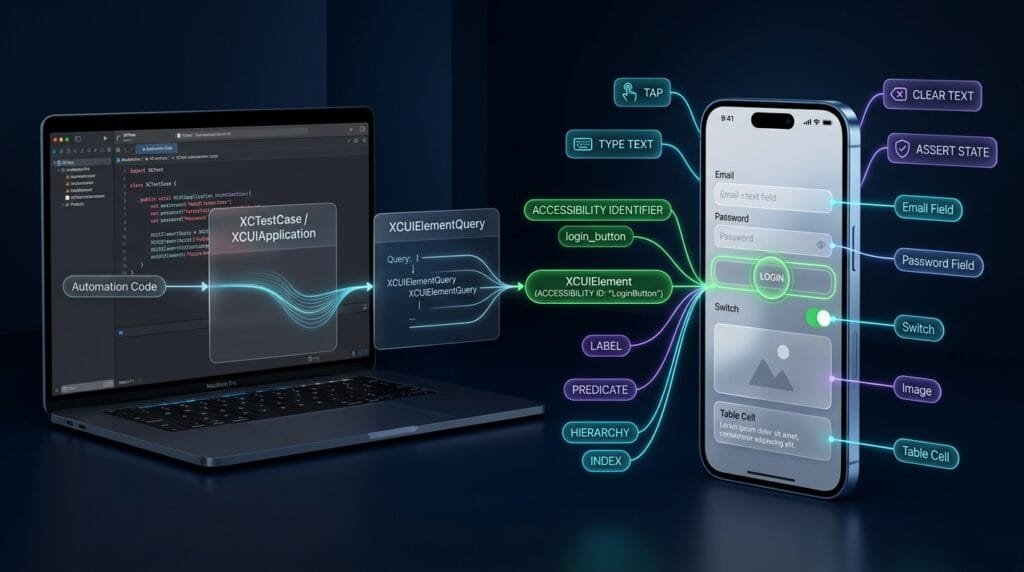
XCUIElement is the core XCUITest object for locating and interacting with UI elements in an iOS application. For SDETs, understanding XCUIElement means moving beyond simple tap() calls toward reliable element queries, accessibility identifiers, synchronization, state validation, and maintainable page-object architecture.
What is XCUIElement?
XCUIElement represents a UI element in the application hierarchy exposed through XCUITest. It provides APIs for querying, inspecting, and interacting with elements such as buttons, text fields, labels, images, switches, cells, and other controls.
A basic interaction looks like this:
let app = XCUIApplication()

app.launch()

let loginButton = app.buttons["loginButton"]

loginButton.tap()
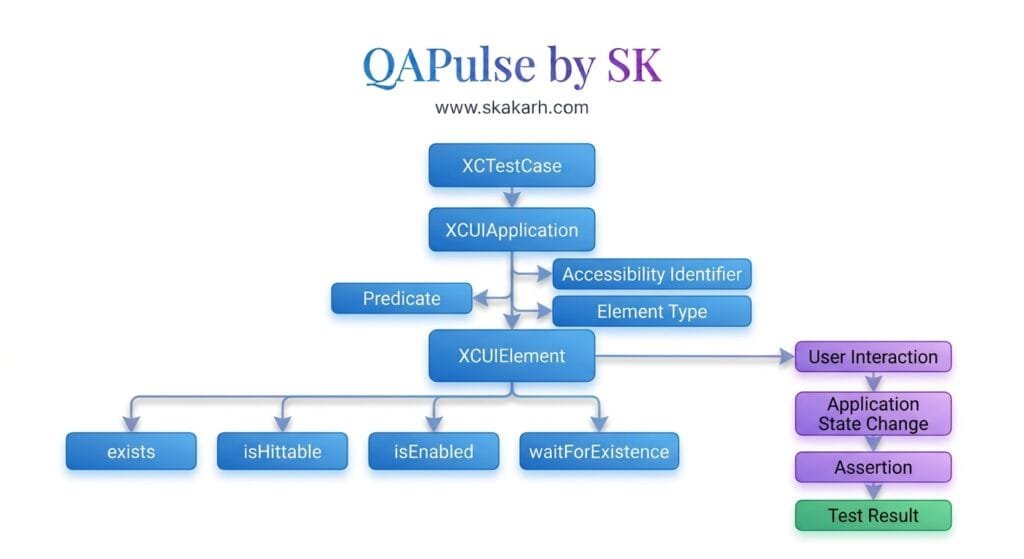
The architecture is:
XCTestCase
    ↓
XCUIApplication
    ↓
XCUIElementQuery
    ↓
XCUIElement
    ↓
Interaction / Assertion
XCUIApplication controls the application.
XCUIElement represents the specific UI object that the test needs to inspect or manipulate.
Key Points
XCUIElementrepresents a UI element.- Elements are normally obtained through
XCUIElementQuery. - Accessibility identifiers provide stable selectors.
existschecks whether an element currently exists.isHittablechecks whether an element can currently receive interaction.tap()performs a tap interaction.typeText()enters text into supported elements.clearText()removes existing text from supported text fields.waitForExistence(timeout:)provides condition-based synchronization.XCUIElementsupports assertions against UI state.- Reliable selectors are more important than simply finding an element.
XCUIElement vs XCUIElementQuery
These concepts are closely related but have different responsibilities.
XCUIElementQuery
A query identifies elements:
let loginButton = app.buttons["loginButton"]XCUIElement
The resulting object represents the element that the test can inspect or interact with:
loginButton.tap()Conceptually:
XCUIElementQuery
       ↓
Find
       ↓
XCUIElement
       ↓
Inspect / Interact
This distinction becomes important when designing scalable XCUITest frameworks.
Finding UI Elements
XCUITest provides several query strategies.
Buttons
let loginButton = app.buttons["loginButton"]Text Fields
let emailField = app.textFields["emailField"]Secure Text Fields
let passwordField = app.secureTextFields["passwordField"]Static Text
let welcomeMessage = app.staticTexts["Welcome"]Images
let logo = app.images["appLogo"]Switches
let notificationsSwitch = app.switches["notificationsSwitch"]Cells
let firstCell = app.cells.element(boundBy: 0)The selector should describe the UI element’s automation identity rather than relying on its visual position.
Accessibility Identifiers
For production-grade automation, accessibility identifiers are usually the preferred way to create stable selectors.
In the application:
loginButton.accessibilityIdentifier = "loginButton"In XCUITest:
let loginButton = app.buttons["loginButton"]

loginButton.tap()
This is significantly more maintainable than depending on visible text:
app.buttons["Log In"].tap()Why?
The visible text might change because of:
- Localization
- Product wording changes
- A/B testing
- Branding changes
- UX redesign
The automation identifier can remain stable.
Recommended Selector Hierarchy
For maintainable XCUITest automation, prefer selectors roughly in this order:
Accessibility Identifier
        ↓
Accessibility Label / Exact Text
        ↓
Predicate Query
        ↓
Hierarchy-Based Query
        ↓
Index-Based Query
The further down the list you go, the more fragile the selector can become.
For example:
app.buttons["loginButton"]is generally preferable to:
app.buttons.element(boundBy: 3)because the third button can change when the UI changes.
Interacting With XCUIElement
Once an element has been located, XCUITest provides interaction APIs.
Tap
let loginButton = app.buttons["loginButton"]

loginButton.tap()
Double Tap
loginButton.doubleTap()Long Press
loginButton.press(forDuration: 2)Swipe
app.swipeUp()For element-specific gestures:
loginButton.swipeLeft()The interaction should normally occur only after the test has established that the element is available.
Waiting for an Element
One of the most important synchronization APIs is:
waitForExistence(timeout:)Example:
let loginButton = app.buttons["loginButton"]

XCTAssertTrue(
    loginButton.waitForExistence(timeout: 10)
)

loginButton.tap()
This is better than:
sleep(5)

loginButton.tap()
The difference is fundamental.
sleep()
    ↓
Wait fixed duration

waitForExistence()
    ↓
Wait until condition becomes true
Condition-based synchronization generally produces more resilient automation.
Checking Element Existence
You can inspect:
if loginButton.exists {
    loginButton.tap()
}
For assertions:
XCTAssertTrue(
    loginButton.exists
)
However, exists is an immediate state check.
For asynchronous UI loading, prefer:
XCTAssertTrue(
    loginButton.waitForExistence(timeout: 10)
)
Checking Whether an Element Is Hittable
An element can exist without being interactable.
Use:
XCTAssertTrue(
    loginButton.isHittable
)
For example, an element could be:
- Behind another view
- Outside the visible viewport
- Disabled
- Not currently actionable
- Part of a transition
Therefore:
existsand:
isHittableanswer different questions.
exists
  ↓
Does the element exist?

isHittable
  ↓
Can the element currently receive interaction?
Reading Element Properties
XCUIElement exposes properties that can be useful for assertions and diagnostics.
Example:
let emailField = app.textFields["emailField"]

XCTAssertTrue(emailField.exists)
XCTAssertTrue(emailField.isEnabled)
XCTAssertTrue(emailField.isHittable)
A test can therefore validate both presence and usability.
Typing Into Text Fields
A common XCUITest workflow is:
let emailField = app.textFields["emailField"]

emailField.tap()
emailField.typeText("qa@example.com")
For password fields:
let passwordField = app.secureTextFields["passwordField"]

passwordField.tap()
passwordField.typeText("Secret123!")
The test should identify the field using a stable selector.
Clearing Existing Text
When supported by the SDK and element type, text can be cleared before entering a new value.
For example:
emailField.tap()
emailField.clearText()
emailField.typeText("new@example.com")
This is preferable to blindly appending text to an existing value.
Keyboard Interaction
After entering text, the keyboard may affect subsequent interactions.
For example:
emailField.tap()
emailField.typeText("qa@example.com")

app.keyboards.buttons["Return"].tap()
The exact keyboard hierarchy can vary depending on the application and keyboard configuration, so selectors should be verified against the accessibility hierarchy.
Element Queries
XCUITest allows elements to be queried by type.
Examples:
app.buttons
app.textFields
app.staticTexts
app.images
app.cells
app.switches
app.sliders
You can then select an element:
let firstButton = app.buttons.element(boundBy: 0)Or identify it directly:
let loginButton = app.buttons["loginButton"]Direct identification is usually preferable when a stable identifier is available.
Predicate-Based Queries
For more advanced selection logic, use predicates.
Example:
let predicate = NSPredicate(
    format: "label BEGINSWITH 'Login'"
)

let loginElement = app.buttons.element(
    matching: predicate
)
Predicate queries are useful when simple identifier-based selection is insufficient.
However, avoid unnecessarily complex predicates.
A selector should be:
- Stable
- Readable
- Specific
- Easy to diagnose
Matching Multiple Elements
Sometimes an application contains multiple elements matching the same selector.
You can inspect the query:
let buttons = app.buttons["actionButton"]

print(buttons.count)
Then access a specific element:
let firstButton = buttons.element(boundBy: 0)However, relying heavily on indexes makes tests sensitive to UI ordering.
A better application design provides unique accessibility identifiers where possible.
Collection and Table Testing
For table-based interfaces:
let cells = app.cells

XCTAssertGreaterThan(
    cells.count,
    0
)
You can locate a cell:
let profileCell = app.cells["profileCell"]

profileCell.tap()
For dynamic lists, stable identifiers are especially important.
Avoid:
app.cells.element(boundBy: 7).tap()unless the test specifically validates position.
Handling Dynamic UI
Modern iOS applications frequently load content asynchronously.
A weak approach:
sleep(3)

app.buttons["Continue"].tap()
A stronger approach:
let continueButton = app.buttons["continueButton"]

XCTAssertTrue(
    continueButton.waitForExistence(timeout: 15)
)

continueButton.tap()
For more advanced workflows, combine existence and interaction state:
XCTAssertTrue(
    continueButton.waitForExistence(timeout: 15)
)

XCTAssertTrue(
    continueButton.isHittable
)

continueButton.tap()
This makes the synchronization intent explicit.
Assertions With XCUIElement
UI tests should validate outcomes, not simply execute interactions.
Weak:
app.buttons["loginButton"].tap()Stronger:
app.buttons["loginButton"].tap()

XCTAssertTrue(
    app.staticTexts["Dashboard"].waitForExistence(
        timeout: 10
    )
)
The second test validates the business outcome.
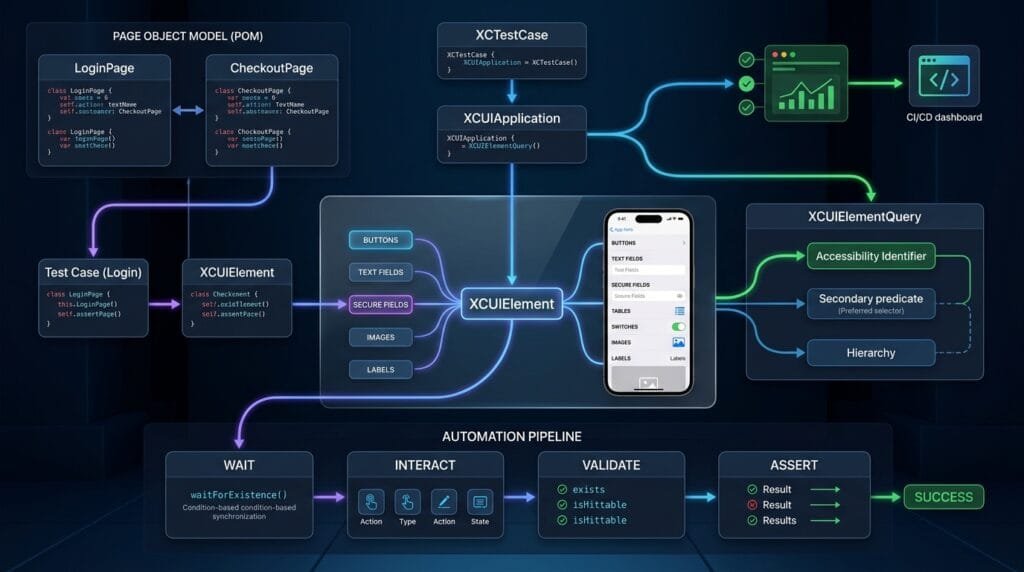
A production test should generally follow:
Arrange
   ↓
Find Element
   ↓
Interact
   ↓
Wait for Result
   ↓
Assert Outcome
XCUIElement in Page Object Model
For larger frameworks, page objects can encapsulate element definitions.
Example:
final class LoginPage {

    private let app: XCUIApplication

    init(app: XCUIApplication) {
        self.app = app
    }

    var emailField: XCUIElement {
        app.textFields["emailField"]
    }

    var passwordField: XCUIElement {
        app.secureTextFields["passwordField"]
    }

    var loginButton: XCUIElement {
        app.buttons["loginButton"]
    }

    func login(
        email: String,
        password: String
    ) {
        emailField.tap()
        emailField.typeText(email)

        passwordField.tap()
        passwordField.typeText(password)

        loginButton.tap()
    }
}
The test becomes:
func testSuccessfulLogin() {

    let loginPage = LoginPage(app: app)

    loginPage.login(
        email: "qa@example.com",
        password: "Secret123!"
    )

    XCTAssertTrue(
        app.staticTexts["Dashboard"]
            .waitForExistence(timeout: 10)
    )
}
This separates:
Test Intent
    ↓
Page Object
    ↓
XCUIElement
    ↓
Application UI
6 Core Pillars of XCUIElement
1. Element Discovery
Find UI elements using reliable queries.
2. Stable Identification
Prefer accessibility identifiers over positional selectors.
3. Interaction
Use actions such as tap, press, type, swipe, and other supported gestures.
4. Synchronization
Wait for application conditions instead of relying on arbitrary delays.
5. State Validation
Validate existence, hittability, enabled state, and expected outcomes.
6. Framework Architecture
Encapsulate elements and interactions in maintainable page or screen objects.
Key Architectural Takeaways for SDETs
Use Accessibility IDs as an Automation Contract
The development and QA teams should treat accessibility identifiers as part of the application’s automation contract.
For example:
button.accessibilityIdentifier = "checkoutButton"Then:
app.buttons["checkoutButton"].tap()This creates a stable interface between the application and automation framework.
Separate Discovery From Interaction
Avoid deeply nested one-line expressions:
app.buttons["loginButton"].tap()when debugging complex flows.
Prefer:
let loginButton = app.buttons["loginButton"]

XCTAssertTrue(
    loginButton.waitForExistence(timeout: 10)
)

loginButton.tap()
The latter provides better diagnostics.
Build Reusable Screen Objects
Instead of duplicating:
app.textFields["emailField"]throughout hundreds of tests, expose it through a page object.
Synchronize With UI Conditions
Use:
waitForExistence(timeout:)instead of fixed delays whenever possible.
Validate Outcomes
The purpose of UI automation is not merely to click controls.
It should verify meaningful application behavior.
Common XCUIElement Mistakes
Mistake 1: Using Indexes as Primary Selectors
Avoid:
app.buttons.element(boundBy: 2).tap()Prefer:
app.buttons["checkoutButton"].tap()Mistake 2: Using Fixed Sleeps
Avoid:
sleep(5)Prefer:
XCTAssertTrue(
    element.waitForExistence(timeout: 10)
)
Mistake 3: Assuming Existence Means Interactivity
An element can exist but not be hittable.
Validate appropriately:
XCTAssertTrue(element.exists)
XCTAssertTrue(element.isHittable)
Mistake 4: Coupling Tests to Visible Text
Instead of:
app.buttons["Submit Order"].tap()consider:
app.buttons["submitOrderButton"].tap()when the application provides a stable accessibility identifier.
Mistake 5: Putting All Selectors Directly in Tests
Large suites become difficult to maintain when every test contains raw element queries.
Use screen/page objects.
Production-Ready XCUIElement Pattern
A practical screen object can combine selectors, synchronization, interactions, and assertions:
final class LoginPage {

    private let app: XCUIApplication

    init(app: XCUIApplication) {
        self.app = app
    }

    private var emailField: XCUIElement {
        app.textFields["emailField"]
    }

    private var passwordField: XCUIElement {
        app.secureTextFields["passwordField"]
    }

    private var loginButton: XCUIElement {
        app.buttons["loginButton"]
    }

    func verifyLoaded() {
        XCTAssertTrue(
            emailField.waitForExistence(timeout: 10)
        )

        XCTAssertTrue(
            passwordField.exists
        )

        XCTAssertTrue(
            loginButton.exists
        )
    }

    func login(
        email: String,
        password: String
    ) {
        emailField.tap()
        emailField.typeText(email)

        passwordField.tap()
        passwordField.typeText(password)

        XCTAssertTrue(
            loginButton.isHittable
        )

        loginButton.tap()
    }
}
Test:
func testSuccessfulLogin() {

    let loginPage = LoginPage(app: app)

    loginPage.verifyLoaded()

    loginPage.login(
        email: "qa@example.com",
        password: "Secret123!"
    )

    XCTAssertTrue(
        app.staticTexts["Dashboard"]
            .waitForExistence(timeout: 10)
    )
}
This approach creates a clear separation between test intent and UI implementation.
AI Overview & Answer Engine Optimization
XCUIElement is the XCUITest representation of a UI element that enables automated tests to query, inspect, interact with, and validate elements in an iOS application.
Key Points
XCUIElementrepresents an individual UI element.XCUIElementQueryis used to find elements.- Accessibility identifiers provide stable selectors.
existschecks element presence.isHittablechecks whether an element can receive interaction.waitForExistence(timeout:)provides condition-based synchronization.tap(),typeText(), and gesture APIs enable interaction.- Page Object Model improves maintainability.
How Do You Find an Element in XCUITest?
Use an element query:
let loginButton = app.buttons["loginButton"]How Do You Tap an XCUIElement?
let loginButton = app.buttons["loginButton"]

XCTAssertTrue(
    loginButton.waitForExistence(timeout: 10)
)

loginButton.tap()
How Do You Check Whether an XCUIElement Exists?
XCTAssertTrue(
    app.buttons["loginButton"].exists
)
How Do You Wait for an XCUIElement?
XCTAssertTrue(
    app.buttons["loginButton"]
        .waitForExistence(timeout: 10)
)
What is the Best Selector for XCUIElement?
For production XCUITest automation, a stable accessibility identifier is generally preferable to positional selectors such as element(boundBy:).
AI Overview Summary
XCUIElement is the core XCUITest object for interacting with iOS UI elements. SDETs use XCUIElement with XCUIElementQuery to locate controls, validate UI state, perform actions, synchronize with dynamic interfaces, and build maintainable Page Object Model automation.
People Asked Questions
What is XCUIElement?
XCUIElement represents an individual UI element exposed to XCUITest for inspection and interaction.
How do I find an XCUIElement?
Use an element query such as:
app.buttons["loginButton"]What is the difference between XCUIElement and XCUIApplication?
XCUIApplication represents and controls the application, while XCUIElement represents a specific UI element inside that application.
How do I tap an XCUIElement?
app.buttons["loginButton"].tap()How do I check if an XCUIElement exists?
XCTAssertTrue(
    app.buttons["loginButton"].exists
)
What is isHittable?
isHittable indicates whether XCUITest considers the element currently capable of receiving user interaction.
Should I use element(boundBy:)?
Use it when position is genuinely what the test needs to validate. Avoid it as the primary selector strategy when stable identifiers are available.
Why use accessibility identifiers?
They provide a stable automation contract that is less sensitive to visible text, localization, and UI wording changes.
Should I use sleep() with XCUIElement?
Avoid fixed sleeps when possible. Prefer condition-based synchronization such as waitForExistence(timeout:).
Can XCUIElement be used in Page Object Model?
Yes. Screen/page objects can expose XCUIElement properties and encapsulate interactions, making large XCUITest suites easier to maintain.
Internal Blog Links
- XCUITest iOS Testing: What it is and Why it Matters
- XCTest vs XCUITest: Understanding Apple’s Testing Frameworks
- XCUITest Setup on macOS and Xcode: Complete Beginner’s Guide
- Your First XCUITest: Building a Basic iOS UI Test
- XCUITest Project Structure and Test Target Architecture
- XCUIApplication: Launching and Controlling iOS Apps
Internal Series Links
- Learn MCP – Zero to Hero
- Learn AI Agents for QA – Zero to Hero
- Playwright Automation – Zero to Hero
- TencentDB Agent Memory: Complete Zero to Hero
- LangGraph: Complete Zero to Hero
- Learn Python – Zero to Hero
- OpenAI Codex: Complete Zero to Hero
- Cursor AI: Complete Zero to Hero
- Claude Code Tutorial: Complete Zero to Hero
- AutoGen: Complete Zero to Hero Guide
- Free QA Resources Built From Real Experience
- QA Glossary: Test Automation Terms Every Engineer Should Know
External Links
- Apple — XCUIElement — Official API documentation for representing, querying, inspecting, and interacting with UI elements in XCUITest.
- Apple — XCUIElementQuery — Official documentation for querying and locating UI elements.
- Apple — XCUIApplication — Official documentation for controlling the application under test.
- Apple — XCUITest Documentation — Apple’s UI testing documentation covering Xcode and XCTest UI automation.
- Apple — Accessibility — Apple’s accessibility resources for building interfaces that can also support reliable UI automation.
Continue Learning
Explore more expert articles on Mobile Testing, Backend & API, AI & Agentic, AI Tools, n8n, LangChain, CrewAI, MCP Servers, AI Agents, LlamaIndex, Docker, FastAPI, Playwright, Cypress, Test Automation, DevOps, and Software Engineering at www.skakarh.com.
QAPulse by SK delivers expert release analysis, AI engineering insights, enterprise automation strategies, migration guidance, DevOps best practices, and practical testing knowledge to help software professionals build scalable, intelligent, and production-ready software systems.