 QA
QA
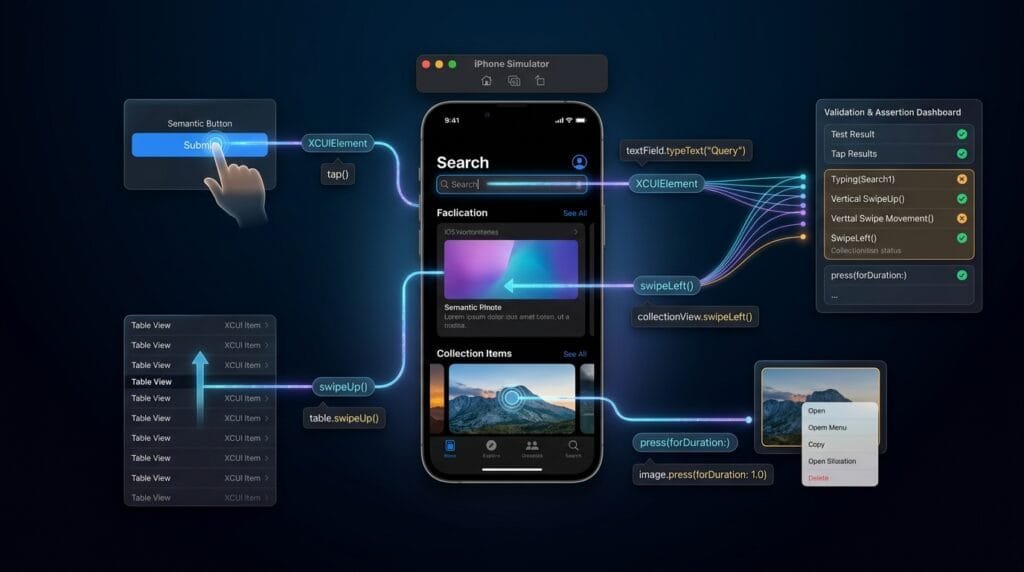
XCUITest Actions are the interaction layer of iOS UI automation. After a test locates an XCUIElement, actions such as tap(), typeText(), swipeUp(), swipeDown(), and long press allow the test to reproduce real user behavior and validate application responses.
What are XCUITest Actions?
XCUITest actions are APIs provided by Apple’s XCUITest framework for interacting with UI elements during automated iOS tests.
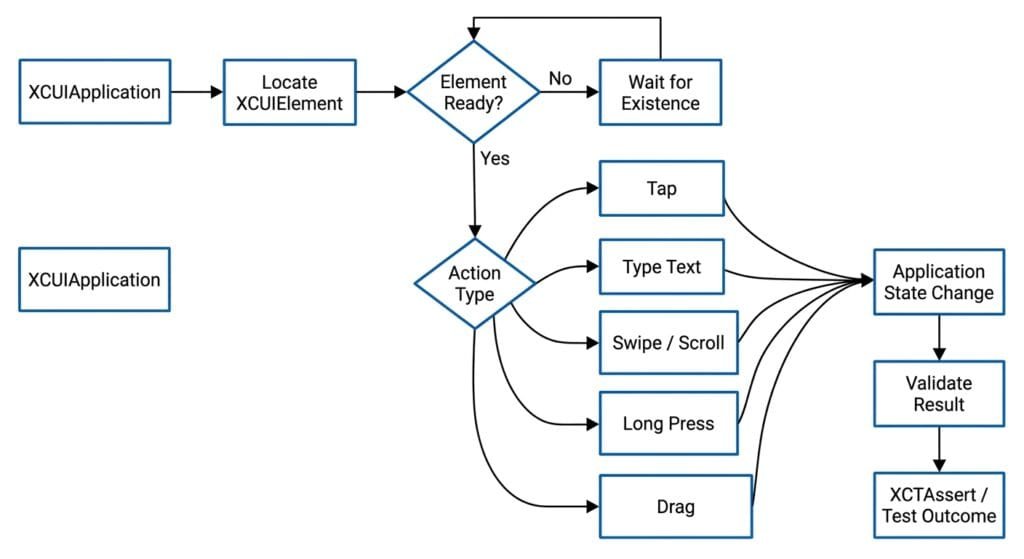
A typical automation flow looks like this:
XCUIApplication
      ↓
XCUIElementQuery
      ↓
XCUIElement
      ↓
XCUITest Action
      ↓
Application State Change
      ↓
Assertion
For example:
let app = XCUIApplication()

let loginButton =
    app.buttons["login.submitButton"]

loginButton.tap()
The test first identifies the element and then performs an action against it.
Definition
XCUITest actions are interaction methods used to tap, type, swipe, scroll, press, and otherwise manipulate iOS UI elements during automated UI tests.
They allow SDETs to validate complete user journeys instead of testing application screens only through static assertions.
Key Points
tap()performs a standard tap.doubleTap()performs a double tap.typeText()enters text into supported controls.swipeUp()andswipeDown()perform common swipe gestures.swipeLeft()andswipeRight()support horizontal gestures.press(forDuration:)performs long press interactions.swipe(to:)supports element-to-element drag interactions.waitForExistence()helps synchronize interactions.isHittablehelps determine whether an element can currently receive interaction.- Coordinate-based gestures should be used only when element-level interaction is insufficient.
- Every important action should lead to a meaningful assertion.
The XCUITest Action Model
A reliable test should separate four responsibilities:
Find
  ↓
Wait
  ↓
Act
  ↓
Verify
For example:
let app = XCUIApplication()

let emailField =
    app.textFields["login.emailField"]

XCTAssertTrue(
    emailField.waitForExistence(timeout: 10)
)

emailField.tap()
emailField.typeText("qa@example.com")

XCTAssertEqual(
    emailField.value as? String,
    "qa@example.com"
)
The test does not simply interact with the UI.
It establishes that the UI is ready, performs the action, and validates the resulting state.
1. Tap Actions
The most common interaction is:
element.tap()Example:
let app = XCUIApplication()

let loginButton =
    app.buttons["login.submitButton"]

XCTAssertTrue(
    loginButton.waitForExistence(timeout: 10)
)

loginButton.tap()
For a test framework, this is preferable to coordinate tapping because the action is associated with the semantic UI element.
Double Tap
Some applications use double-tap interactions.
let image =
    app.images["profile.avatar"]

image.doubleTap()
This can be used for behaviors such as:
- Zoom
- Favorite actions
- Image interactions
- Custom gestures
Use it only when double tapping is part of the actual product behavior.
2. Type Actions
Text entry is another core XCUITest interaction.
let emailField =
    app.textFields["login.emailField"]

emailField.tap()
emailField.typeText("qa@example.com")
For secure fields:
let passwordField =
    app.secureTextFields["login.passwordField"]

passwordField.tap()
passwordField.typeText("Password123!")
Clear Existing Text
A field may already contain text.
A common approach is:
let field =
    app.textFields["profile.nameField"]

field.tap()

field.press(forDuration: 1.0)
However, long pressing does not universally provide a reliable “select all” behavior across application implementations.
A more robust test architecture is to start from a known application state.
For example:
func testUpdateName() {

    let app = XCUIApplication()
    app.launchArguments = ["-UITestResetState"]
    app.launch()

    let nameField =
        app.textFields["profile.nameField"]

    XCTAssertTrue(
        nameField.waitForExistence(timeout: 10)
    )

    nameField.tap()
    nameField.typeText("Shahnawaz")

    XCTAssertEqual(
        nameField.value as? String,
        "Shahnawaz"
    )
}
The principle is important:
Control test state instead of relying on unpredictable editing behavior.
3. Swipe Actions
XCUITest provides directional swipe methods.
element.swipeUp()
element.swipeDown()
element.swipeLeft()
element.swipeRight()
Example:
let app = XCUIApplication()

let table =
    app.tables["settings.table"]

table.swipeUp()
A swipe is useful for:
- Moving through lists
- Revealing content
- Navigating collection views
- Testing horizontally scrolling interfaces
- Triggering swipe-based UI behavior
4. Scroll Actions
Scrolling deserves special attention because a scroll is often used to make another element available for interaction.
Example:
let app = XCUIApplication()

let settings =
    app.tables["settings.table"]

settings.swipeUp()

let logoutButton =
    app.buttons["settings.logoutButton"]

XCTAssertTrue(
    logoutButton.waitForExistence(timeout: 5)
)

logoutButton.tap()
The test performs:
Settings Table
      ↓
Swipe Up
      ↓
Logout Becomes Available
      ↓
Wait
      ↓
Tap
      ↓
Verify
Repeated Scrolling
Avoid arbitrary fixed numbers of swipes when possible.
Weak:
settings.swipeUp()
settings.swipeUp()
settings.swipeUp()
settings.swipeUp()
This assumes the UI always has the same layout and content.
A better approach is to synchronize against the target state.
let logoutButton =
    app.buttons["settings.logoutButton"]

for _ in 0..<5 {

    if logoutButton.exists &&
       logoutButton.isHittable {
        break
    }

    settings.swipeUp()
}

XCTAssertTrue(
    logoutButton.waitForExistence(timeout: 5)
)

XCTAssertTrue(
    logoutButton.isHittable
)

logoutButton.tap()
The loop has a bounded limit, preventing an infinite test.
5. Long Press
Long press is available through:
element.press(forDuration:)Example:
let message =
    app.staticTexts["message.item"]

message.press(forDuration: 1.5)
This can be useful for:
- Context menus
- Reordering
- Selection
- Text interaction
- Custom long-press features
The duration should reflect the application’s intended interaction rather than being arbitrarily large.
For example:
message.press(forDuration: 1.0)is usually easier to reason about than:
message.press(forDuration: 7.0)6. Drag and Drop
Some interactions require moving one UI element toward another.
Conceptually:
let source =
    app.otherElements["item.source"]

let destination =
    app.otherElements["item.destination"]

source.press(
    forDuration: 0.5,
    thenDragTo: destination
)
This type of interaction is useful for:
- Reordering lists
- Moving cards
- Drag-and-drop workflows
- Custom UI interactions
The exact API available depends on the XCUITest/XCUIElement APIs used by your Xcode version.
Action Comparison
| Action | Primary Use | Stability | Common Example |
|---|---|---|---|
tap() | Button/control interaction | High | Submit |
doubleTap() | Double-tap behavior | High | Zoom |
typeText() | Text entry | High | Login |
swipeUp() | Vertical navigation | High | Scroll list |
swipeDown() | Reverse vertical navigation | High | Refresh/reveal |
swipeLeft() | Horizontal interaction | High | Delete/reveal |
swipeRight() | Horizontal interaction | High | Navigation |
press(forDuration:) | Long press | High | Context menu |
| Drag interaction | Reordering/moving | Medium | Move item |
| Coordinate gesture | Exceptional cases | Low | Custom canvas |
Synchronization Before Actions
One of the biggest causes of unreliable UI tests is interacting with an element before it is ready.
Weak:
sleep(5)

app.buttons["checkout.payButton"].tap()
Better:
let payButton =
    app.buttons["checkout.payButton"]

XCTAssertTrue(
    payButton.waitForExistence(timeout: 10)
)

payButton.tap()
waitForExistence(timeout:) provides a condition-based mechanism for waiting for an element to exist.
Existence Is Not the Same as Hittability
An element can exist in the accessibility hierarchy but not currently be interactable.
For example:
XCTAssertTrue(
    button.exists
)
does not necessarily mean:
button.isHittableis true.
For interaction-heavy tests:
XCTAssertTrue(
    button.waitForExistence(timeout: 10)
)

XCTAssertTrue(
    button.isHittable
)

button.tap()
This creates a stronger interaction contract.
Waiting for Scroll Targets
Suppose a button is initially outside the visible area.
This can fail:
let deleteButton =
    app.buttons["item.deleteButton"]

deleteButton.tap()
Instead:
let deleteButton =
    app.buttons["item.deleteButton"]

let list =
    app.collectionViews["items.collection"]

for _ in 0..<6 {

    if deleteButton.exists &&
       deleteButton.isHittable {
        break
    }

    list.swipeUp()
}

XCTAssertTrue(
    deleteButton.exists
)

XCTAssertTrue(
    deleteButton.isHittable
)

deleteButton.tap()
This pattern combines:
- Locator
- Bounded scrolling
- Visibility detection
- Interaction
- Assertion
Testing a Complete Login Interaction
A technical XCUITest should model the complete workflow.
func testSuccessfulLogin() {

    let app = XCUIApplication()
    app.launch()

    let email =
        app.textFields["login.emailField"]

    let password =
        app.secureTextFields["login.passwordField"]

    let login =
        app.buttons["login.submitButton"]

    XCTAssertTrue(
        email.waitForExistence(timeout: 10)
    )

    email.tap()
    email.typeText("qa@example.com")

    password.tap()
    password.typeText("Password123!")

    XCTAssertTrue(
        login.isHittable
    )

    login.tap()

    let dashboard =
        app.staticTexts["Dashboard"]

    XCTAssertTrue(
        dashboard.waitForExistence(timeout: 10)
    )
}
The action sequence is:
Launch
  ↓
Find Email
  ↓
Tap
  ↓
Type
  ↓
Find Password
  ↓
Tap
  ↓
Type
  ↓
Tap Login
  ↓
Wait for Dashboard
  ↓
Assert
This is the core pattern behind most end-to-end mobile UI tests.
Combining Actions With Assertions
An action without verification is incomplete.
Weak:
loginButton.tap()Better:
loginButton.tap()

XCTAssertTrue(
    app.staticTexts["Dashboard"]
        .waitForExistence(timeout: 10)
)
For scrolling:
settings.swipeUp()

XCTAssertTrue(
    app.buttons["settings.logoutButton"]
        .waitForExistence(timeout: 5)
)
For typing:
emailField.tap()
emailField.typeText("qa@example.com")

XCTAssertEqual(
    emailField.value as? String,
    "qa@example.com"
)
The test should validate the result of the action, not merely execute it.
Action Abstraction With Helper Methods
Large automation suites should avoid repeating synchronization and interaction code.
Example:
extension XCUIElement {

    func tapWhenReady(
        timeout: TimeInterval = 10
    ) {
        XCTAssertTrue(
            waitForExistence(timeout: timeout)
        )

        XCTAssertTrue(isHittable)

        tap()
    }
}
Now tests can use:
app.buttons["login.submitButton"]
    .tapWhenReady()
Text input can also be abstracted:
extension XCUIElement {

    func typeTextWhenReady(
        _ text: String,
        timeout: TimeInterval = 10
    ) {
        XCTAssertTrue(
            waitForExistence(timeout: timeout)
        )

        XCTAssertTrue(isHittable)

        tap()
        typeText(text)
    }
}
Test:
app.textFields["login.emailField"]
    .typeTextWhenReady("qa@example.com")
This creates a reusable action layer.
Page Object Action Layer
A Page Object can expose business actions instead of low-level UI interactions.
final class LoginPage {

    private let app: XCUIApplication

    init(app: XCUIApplication) {
        self.app = app
    }

    private var emailField:
        XCUIElement {
        app.textFields["login.emailField"]
    }

    private var passwordField:
        XCUIElement {
        app.secureTextFields[
            "login.passwordField"
        ]
    }

    private var loginButton:
        XCUIElement {
        app.buttons["login.submitButton"]
    }

    func enterEmail(_ email: String) {

        emailField.tapWhenReady()
        emailField.typeText(email)
    }

    func enterPassword(_ password: String) {

        passwordField.tapWhenReady()
        passwordField.typeText(password)
    }

    func submit() {

        loginButton.tapWhenReady()
    }
}
Test:
func testLogin() {

    let loginPage =
        LoginPage(app: app)

    loginPage.enterEmail(
        "qa@example.com"
    )

    loginPage.enterPassword(
        "Password123!"
    )

    loginPage.submit()

    XCTAssertTrue(
        app.staticTexts["Dashboard"]
            .waitForExistence(timeout: 10)
    )
}
The test now expresses business behavior rather than implementation details.
Handling Swipe and Scroll Reliability
Scrolling can be particularly sensitive to UI layout.
Avoid:
for _ in 0..<20 {
    list.swipeUp()
}
unless the test genuinely requires 20 gestures.
Instead, define a bounded search:
func scrollTo(
    _ element: XCUIElement,
    in container: XCUIElement,
    maxSwipes: Int = 8
) -> Bool {

    for _ in 0..<maxSwipes {

        if element.exists &&
           element.isHittable {
            return true
        }

        container.swipeUp()
    }

    return element.exists &&
           element.isHittable
}
Usage:
let logoutButton =
    app.buttons["settings.logoutButton"]

let settings =
    app.tables["settings.table"]

XCTAssertTrue(
    scrollTo(
        logoutButton,
        in: settings
    )
)

logoutButton.tap()
This approach is reusable across screens.
Gesture Strategy
A practical gesture strategy is:
Semantic Element Interaction
          ↓
      tap / type
          ↓
Element Swipe / Scroll
          ↓
Long Press
          ↓
Drag Interaction
          ↓
Coordinate Gesture
The closer the action is to the semantic UI element, the easier the test is generally to maintain.
6 Core Pillars of XCUITest Actions
1. Semantic Interaction
Interact with elements through their meaningful UI representation.
2. Synchronization
Wait for the element to exist and become actionable.
3. Realistic Gestures
Use gestures that represent actual user behavior.
4. Bounded Scrolling
Avoid infinite or arbitrary gesture loops.
5. Action Abstraction
Centralize repeated interaction patterns.
6. Result Validation
Every important action should produce a testable outcome.
Key Architectural Takeaways for SDETs
Actions Are Not Test Outcomes
Calling:
button.tap()does not prove the feature works.
The test should verify what happened after the interaction.
Synchronization Belongs in the Action Layer
Instead of repeating:
wait
tap
throughout hundreds of tests, centralize reliable interaction patterns.
Scrolling Should Be State-Driven
Do not scroll because a fixed number of gestures “usually works.”
Scroll until the required element becomes available, with a safe maximum.
Gestures Should Represent User Intent
A test should communicate:
Open checkout
↓
Scroll to payment
↓
Tap Pay
↓
Verify confirmation
rather than:
Swipe
Swipe
Swipe
Tap coordinate
Wait 5 seconds
Stable Actions Produce Stable Automation
Locator quality and action quality are connected.
Stable Locator
      +
Reliable Synchronization
      +
Semantic Action
      +
Meaningful Assertion
      =
Maintainable XCUITest
Production-Grade XCUITest Action Pattern
A maintainable action should follow this pattern:
let button =
    app.buttons["checkout.payButton"]

XCTAssertTrue(
    button.waitForExistence(timeout: 10)
)

XCTAssertTrue(
    button.isHittable
)

button.tap()

let confirmation =
    app.staticTexts["payment.successMessage"]

XCTAssertTrue(
    confirmation.waitForExistence(timeout: 10)
)
For scrolling:
let confirmation =
    app.staticTexts["payment.successMessage"]

let checkout =
    app.scrollViews["checkout.scrollView"]

for _ in 0..<6 {

    if confirmation.exists &&
       confirmation.isHittable {
        break
    }

    checkout.swipeUp()
}

XCTAssertTrue(
    confirmation.isHittable
)
For text:
let email =
    app.textFields["login.emailField"]

XCTAssertTrue(
    email.waitForExistence(timeout: 10)
)

email.tap()
email.typeText("qa@example.com")

XCTAssertEqual(
    email.value as? String,
    "qa@example.com"
)
These patterns keep the interaction deterministic and observable.
AI Overview & Answer Engine Optimization
XCUITest actions are interaction APIs used to perform taps, text entry, swipes, scrolling, long presses, and other UI gestures against iOS elements during automated tests.
What Are the Main XCUITest Actions?
The most common actions include:
tap()
doubleTap()
typeText()
swipeUp()
swipeDown()
swipeLeft()
swipeRight()
press(forDuration:)
How Do You Tap an Element in XCUITest?
Use tap() on an XCUIElement:
app.buttons["login.submitButton"].tap()For reliable automation, wait for the element and verify that it is hittable before tapping.
How Do You Type Text in XCUITest?
Locate a text field, tap it, and use typeText():
let email =
    app.textFields["login.emailField"]

email.tap()
email.typeText("qa@example.com")
How Do You Swipe in XCUITest?
Use directional swipe methods:
element.swipeUp()
element.swipeDown()
element.swipeLeft()
element.swipeRight()
How Do You Scroll to an Element in XCUITest?
Scroll the relevant container until the target becomes available and hittable, while using a bounded number of gestures.
How Do You Perform a Long Press in XCUITest?
Use:
element.press(forDuration: 1.0)The duration should reflect the intended application behavior.
How Do You Make XCUITest Actions Reliable?
Use this sequence:
Locate
  ↓
Wait
  ↓
Check Hittability
  ↓
Interact
  ↓
Validate
Avoid fixed sleep() calls, excessive coordinate interactions, and unbounded scrolling.
AI Overview Summary
XCUITest actions allow iOS UI tests to reproduce user interactions such as tapping, typing, swiping, scrolling, long pressing, and dragging. Reliable XCUITest actions combine stable element locators, condition-based synchronization, realistic gestures, bounded scrolling, reusable action helpers, and assertions that validate the resulting application state.
People Asked Questions
What are XCUITest actions?
They are interaction methods used by XCUITest to manipulate iOS UI elements during automated tests.
How do I tap a button in XCUITest?
Use the button’s XCUIElement and call:
button.tap()How do I type text in XCUITest?
Use tap() followed by typeText():
field.tap()
field.typeText("Hello")
How do I swipe up in XCUITest?
Call:
element.swipeUp()How do I scroll to an element in XCUITest?
Swipe the appropriate scrollable container until the target element exists and becomes hittable, using a bounded loop.
How do I perform a long press in XCUITest?
Use:
element.press(forDuration: 1.0)Why should I avoid sleep() in XCUITest?
Fixed delays do not synchronize with actual UI state. They can make tests slower and still fail when the application takes longer than expected.
What is isHittable in XCUITest?
isHittable indicates whether an element is currently positioned so that it can receive user interaction.
Should XCUITest actions use coordinates?
Only when element-level interaction is insufficient. Semantic element actions are generally easier to maintain.
How do I make scrolling tests less flaky?
Use a stable target locator, scroll the correct container, check exists and isHittable, and limit the maximum number of swipes.
Internal Blog Links
- XCUITest iOS Testing: What it is and Why it Matters
- XCTest vs XCUITest: Understanding Apple’s Testing Frameworks
- XCUITest Setup on macOS and Xcode: Complete Beginner’s Guide
- Your First XCUITest: Building a Basic iOS UI Test
- XCUITest Project Structure and Test Target Architecture
- XCUIApplication: Launching and Controlling iOS Apps
- XCUIElement: Finding and Interacting with UI Elements
- iOS Accessibility Identifiers: Build Reliable XCUITest Automation
- XCUITest Locators: IDs, Labels, Text and Element Queries
Internal Series Links
- Learn MCP – Zero to Hero
- Learn AI Agents for QA – Zero to Hero
- Playwright Automation – Zero to Hero
- TencentDB Agent Memory: Complete Zero to Hero
- LangGraph: Complete Zero to Hero
- Learn Python – Zero to Hero
- OpenAI Codex: Complete Zero to Hero
- Cursor AI: Complete Zero to Hero
- Claude Code Tutorial: Complete Zero to Hero
- AutoGen: Complete Zero to Hero Guide
- Free QA Resources Built From Real Experience
- QA Glossary: Test Automation Terms Every Engineer Should Know
External Links
- Apple — XCUIElement — Official documentation for interacting with and querying UI elements in XCUITest.
- Apple — XCUIElementQuery — Official documentation for creating queries that identify UI elements.
- Apple — XCUIApplication — Official documentation for launching and controlling the application under test.
- Apple — XCUIElementAttributes — Official documentation for UI element attributes used during automation.
- Apple — XCUITest — Apple’s documentation for user interface testing with XCTest and XCUITest.
Continue Learning
Explore more expert articles on Mobile Testing, Backend & API, AI & Agentic, AI Tools, n8n, LangChain, CrewAI, MCP Servers, AI Agents, LlamaIndex, Docker, FastAPI, Playwright, Cypress, Test Automation, DevOps, and Software Engineering at www.skakarh.com.
QAPulse by SK delivers expert release analysis, AI engineering insights, enterprise automation strategies, migration guidance, DevOps best practices, and practical testing knowledge to help software professionals build scalable, intelligent, and production-ready software systems.