 QA
QA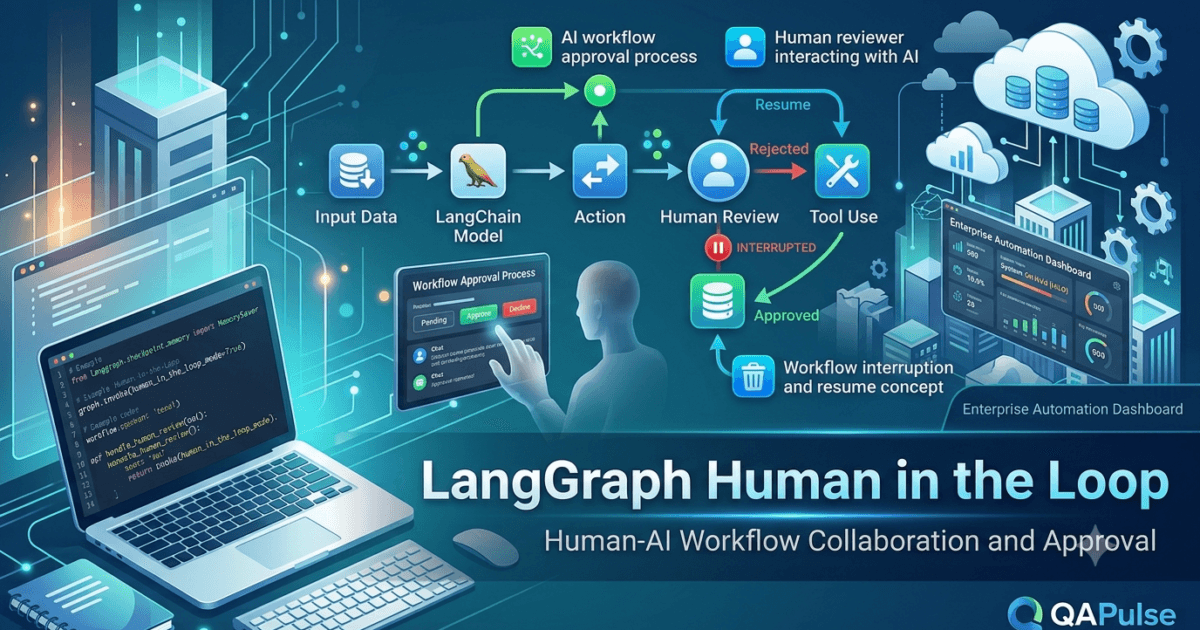
What Is Human in the Loop?
Artificial Intelligence has become increasingly capable of generating text, writing code, analysing documents, answering questions, and automating business processes. However, even the most advanced AI models are not perfect. They can misunderstand user intent, produce inaccurate information, make risky decisions, or perform actions that require human judgement.
This is why many production AI systems are designed around the concept of LangGraph Human in the Loop.
LangGraph Human in the Loop allows developers to pause an AI workflow at critical decision points, request human review or approval, receive feedback, and then safely continue execution from the exact point where the workflow stopped. Instead of replacing people, AI collaborates with them to achieve better accuracy, reliability, and accountability.
For enterprise AI applications, Human in the Loop (HITL) is one of the most valuable features provided by LangGraph.
You can also read about: LangGraph Durable Execution: Build Reliable Agents with Human-in-the-Loop
Why Human in the Loop Is Important
Imagine an AI assistant responsible for reviewing legal contracts.
The workflow can:
- Read the contract.
- Identify potential risks.
- Generate recommendations.
- Highlight suspicious clauses.
However, should the AI automatically approve the contract?
In most organisations, the answer is no.
A legal expert should review the AI’s findings before the workflow continues.
Similarly, Human in the Loop is essential for:
- Financial approvals
- Healthcare recommendations
- Software deployment decisions
- Customer support escalations
- Security incident response
- Regulatory compliance
- Enterprise procurement
- HR recruitment workflows
Rather than allowing AI to make every decision independently, organisations define stages where human expertise becomes part of the workflow.
How LangGraph Human in the Loop Works
A Human in the Loop workflow follows a structured execution model.
Start Workflow

↓

AI Processing

↓

Pause Workflow

↓

Human Review

↓

Approval or Feedback

↓

Resume Workflow

↓

Complete Execution
The workflow pauses safely while preserving its current execution state. Once the reviewer responds, execution resumes without repeating completed work.
Human in the Loop and Checkpointing
Human approval often takes minutes, hours, or even days.
Without checkpointing, the workflow would need to restart from the beginning after every approval.
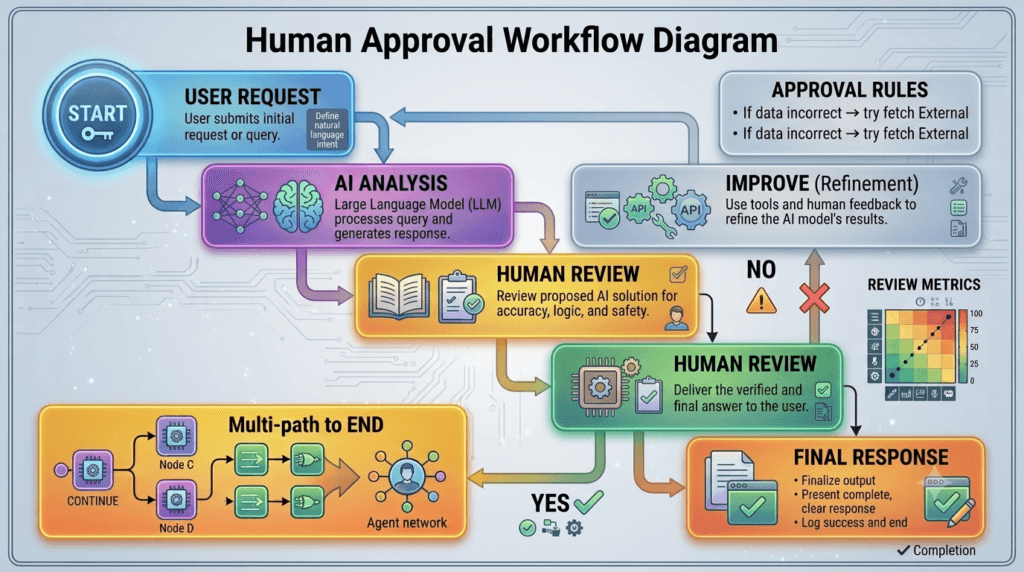
This is why LangGraph Human in the Loop works closely with checkpointing.
The workflow:
- Saves the current execution state.
- Waits for human input.
- Restores the saved state.
- Continues execution.
This approach makes long-running AI workflows practical for enterprise environments.
Human in the Loop and Memory
Human reviewers frequently provide valuable corrections.
Instead of discarding this information, LangGraph can store it within persistent memory.
Examples include:
- Preferred approval style
- Business rules
- Previous reviewer decisions
- Common corrections
- Organisation policies
- Customer-specific preferences
Over time, the AI assistant becomes better aligned with organisational expectations.
Typical Human in the Loop Workflow
Consider an AI coding assistant.
Developer Request

↓

Code Generation

↓

Automated Testing

↓

Human Review

↓

Approved?

↙              ↘

No             Yes

↓

Improve Code

↓

Deploy
Instead of deploying automatically, the workflow requires developer approval before release.
Common Human Approval Scenarios
Human intervention is useful in many production applications.
Document Review
AI extracts and summarises information.
A human verifies important details before publication.
Software Deployment
AI prepares deployment recommendations.
An engineer approves production deployment.
Customer Support
AI drafts a response.
A support representative reviews sensitive communications.
Financial Transactions
AI analyses payment requests.
A finance manager approves high-value transactions.
Healthcare
AI assists with diagnosis.
Medical professionals make the final clinical decision.
Cybersecurity
AI detects suspicious behaviour.
Security analysts determine the appropriate response.
These workflows combine AI speed with human expertise.
Designing Effective Human Review Stages
Not every workflow requires manual approval.
Human intervention should be reserved for decisions involving:
- High financial value
- Regulatory compliance
- Customer impact
- Ethical considerations
- Safety risks
- Business-critical operations
Routine tasks can often remain fully automated.
Best Practices for LangGraph Human in the Loop
When designing Human in the Loop workflows:
- Pause only when human judgement adds value.
- Save workflow progress before waiting.
- Present reviewers with relevant context.
- Record reviewer decisions.
- Store valuable feedback in persistent memory.
- Design clear approval and rejection paths.
- Define timeout strategies.
- Audit all human decisions.
- Test approval workflows regularly.
- Keep review interfaces simple and informative.
Following these practices improves both efficiency and reliability.
Common Mistakes
Developers frequently introduce unnecessary complexity into Human in the Loop workflows.
Requesting Too Many Approvals
Excessive manual reviews slow down automation.
Only pause for meaningful decisions.
Losing Workflow Context
Human reviewers need sufficient information to make informed decisions.
Always present relevant workflow data.
Ignoring Reviewer Feedback
Human corrections represent valuable organisational knowledge.
Persist important feedback whenever appropriate.
No Recovery Strategy
If a reviewer rejects an action, the workflow should clearly define what happens next.
Never leave rejected workflows in an undefined state.
Enterprise Applications
Many industries rely on Human in the Loop to meet business and regulatory requirements.
Examples include:
- Banking
- Insurance
- Healthcare
- Government
- Legal services
- Manufacturing
- E-commerce
- Software engineering
These organisations combine automation with expert oversight to improve both efficiency and trust.
Preparing for Advanced Workflow Control
Human approval is only one aspect of advanced workflow orchestration. In the next lessons, you will explore additional LangGraph capabilities such as interrupts, commands, advanced tool calling, and dynamic execution control. These features provide developers with even greater flexibility when designing intelligent AI systems capable of adapting to real-world business processes while maintaining reliability and transparency.
Real-World Importance
LangGraph Human in the Loop enables organisations to combine the speed of artificial intelligence with the judgement, experience, and accountability of human experts. Whether building enterprise copilots, customer support platforms, healthcare assistants, financial automation systems, or software engineering workflows, Human in the Loop ensures that important decisions receive appropriate oversight without sacrificing the efficiency of AI-driven automation. By integrating checkpointing, memory, and structured approval processes, developers can build production-ready AI applications that are trustworthy, compliant, and capable of operating safely in complex real-world environments.
LangGraph Interrupts: Pausing and Resuming AI Workflows with Precision
What Are Interrupts in LangGraph?
As AI workflows become increasingly sophisticated, there are many situations where execution cannot continue immediately. An AI application may need to wait for a user’s response, request approval from a manager, collect additional information, or pause until an external event occurs. Instead of terminating the workflow or repeatedly polling for updates, LangGraph provides a powerful mechanism known as interrupts.
LangGraph Interrupts allow a workflow to intentionally pause execution at a specific point, preserve the current workflow state, and resume from exactly the same location once the required information becomes available.
Unlike traditional error handling or process termination, interrupts are a planned part of the workflow design. They enable AI systems to remain responsive while supporting long-running and event-driven processes.
For production AI applications, interrupts are a fundamental building block for creating interactive and reliable workflows.
Why Interrupts Are Important
Imagine an AI travel assistant helping a customer book an international trip.
The assistant has already:
- Analysed travel preferences.
- Compared flight options.
- Selected suitable hotels.
- Calculated estimated costs.
Before confirming the booking, it needs the customer’s approval.
Rather than restarting the entire workflow after receiving approval, the application simply pauses and waits.
Other common scenarios include:
- Waiting for customer confirmation
- Human approval workflows
- Payment verification
- External API callbacks
- Document uploads
- Authentication processes
- Regulatory approval
- Scheduled business events
Interrupts allow workflows to remain efficient without losing progress.
How LangGraph Interrupts Work
A typical interrupt-based workflow follows this sequence.
Start Workflow

↓

Execute Nodes

↓

Interrupt Triggered

↓

Save Workflow State

↓

Wait for Event

↓

Resume Workflow

↓

Complete Execution
Execution pauses safely while preserving all workflow information.
When the required event occurs, LangGraph restores the saved state and continues processing.
Interrupts and Checkpointing
Interrupts rely heavily on LangGraph Checkpointing.
Before pausing execution, the workflow creates a checkpoint that stores:
- Current workflow state
- Active node
- Execution history
- Tool outputs
- User context
- Session information
After resuming, the workflow continues from the checkpoint instead of repeating completed operations.
Checkpointing makes interrupts practical for workflows that may remain paused for hours, days, or even weeks.
Interrupts and Human-in-the-Loop
Interrupts are one of the core technologies behind Human-in-the-Loop workflows.
Example:
AI Analysis

↓

Interrupt

↓

Human Approval

↓

Resume

↓

Final Decision
Instead of continuously checking whether approval has been granted, the workflow simply waits until the reviewer responds.
This approach is significantly more efficient.
Common Interrupt Scenarios
Interrupts are widely used in enterprise AI systems.
Customer Approval
Pause until the customer confirms an order or accepts a proposal.
Manager Review
Wait for managerial approval before continuing a business process.
Identity Verification
Interrupt execution while waiting for authentication or document verification.
External API Response
Some external services respond asynchronously.
Interrupts allow workflows to wait without consuming unnecessary computing resources.
File Uploads
Pause while waiting for users to upload required documents.
Scheduled Events
Resume execution at a predefined time or after receiving a system notification.
Each scenario demonstrates how interrupts support real-world business processes.
Designing Effective Interrupt Points
Interrupts should occur only when necessary.
Good interrupt locations include:
- Before high-risk decisions
- Before financial transactions
- During approval workflows
- Before irreversible actions
- While waiting for external events
Avoid interrupting workflows during routine processing where automation can safely continue.
Interrupt Lifecycle
Every interrupt generally follows the same lifecycle.
Workflow Running

↓

Interrupt Requested

↓

Checkpoint Created

↓

Workflow Suspended

↓

External Event

↓

Restore Checkpoint

↓

Resume Processing
This predictable lifecycle makes interrupts easy to understand and debug.
Best Practices for LangGraph Interrupts
When implementing interrupts:
- Create checkpoints before every interrupt.
- Clearly define the condition for resuming execution.
- Present users with sufficient context.
- Handle timeout scenarios gracefully.
- Validate incoming information after resuming.
- Log interrupt events for auditing.
- Test interruption and recovery extensively.
- Design workflows to support long waiting periods.
- Secure suspended workflow data.
These practices improve workflow reliability and simplify maintenance.
Common Mistakes
Developers often encounter several issues when using interrupts.
Interrupting Too Frequently
Excessive interruptions reduce automation efficiency.
Pause only when genuinely required.
Losing Context
Users and reviewers should receive enough information to continue the workflow confidently.
Missing context often results in unnecessary delays.
Ignoring Timeout Conditions
Applications should define what happens if no response is received within an acceptable timeframe.
Possible strategies include:
- Cancel the workflow
- Send reminders
- Escalate to another reviewer
- Retry after a specified period
Forgetting Validation
After resuming execution, validate all newly received information before continuing.
External data may have changed while the workflow was paused.
Interrupts in Multi-Agent Systems
Interrupts are equally valuable when multiple AI agents collaborate.
Example:
Planner Agent

↓

Research Agent

↓

Interrupt

↓

Human Feedback

↓

Coding Agent

↓

Reviewer

↓

Final Output
The workflow pauses between specialised agents whenever external guidance is required, ensuring that collaboration remains accurate and aligned with business objectives.
Preparing for Advanced Workflow Commands
Interrupts provide controlled workflow suspension, but production AI systems often require even greater flexibility. In the next lesson, you will explore LangGraph Commands, which allow developers to dynamically control workflow execution, redirect graph navigation, update workflow state programmatically, and create highly adaptive AI applications capable of responding intelligently to changing runtime conditions.
Real-World Importance
LangGraph Interrupts enable AI workflows to pause intelligently without losing execution progress, making them essential for enterprise automation, Human-in-the-Loop systems, asynchronous processing, and event-driven applications. Whether waiting for customer approval, regulatory review, external API responses, or user input, interrupts allow workflows to remain efficient, reliable, and fault tolerant. By combining interrupts with checkpointing, persistent memory, and structured workflow design, developers can build production-ready AI systems that seamlessly integrate automation with real-world business processes.
LangGraph Commands: Dynamically Controlling AI Workflow Execution
What Are Commands in LangGraph?
As AI workflows become more advanced, simply connecting nodes with edges is no longer sufficient. Enterprise applications often need to modify workflow behaviour while execution is already in progress. An AI agent may need to skip unnecessary steps, redirect execution to another node, update workflow data, or terminate execution based on newly discovered information.
This dynamic behaviour is made possible through LangGraph Commands.
LangGraph Commands allow developers to control workflow execution programmatically from within a node. Instead of relying solely on predefined graph connections, commands enable the workflow to decide what should happen next at runtime. They can update the workflow state, navigate to another node, interrupt execution, or end the workflow based on current conditions.
Commands make LangGraph applications significantly more flexible, allowing them to adapt intelligently to changing situations.
Why LangGraph Commands Are Important
Consider an AI technical support assistant.
The workflow begins by analysing a user’s issue.
During execution, the assistant discovers that:
- The issue is already solved.
- A specialised troubleshooting agent is required.
- Human approval is necessary.
- An external API is temporarily unavailable.
Instead of following the original execution path, the workflow should immediately adapt.
This is exactly what LangGraph Commands enable.
Common benefits include:
- Dynamic workflow navigation
- Runtime decision-making
- Flexible execution control
- Reduced workflow complexity
- Better error recovery
- Improved scalability
- Smarter AI orchestration
- Easier maintenance
Commands eliminate the need to create dozens of fixed workflow branches for every possible scenario.
How LangGraph Commands Work
Commands are generated inside a node after analysing the current workflow state.
A simplified execution model looks like this.
Current Node

↓

Evaluate State

↓

Generate Command

↓

Update Workflow

↓

Navigate to Next Node

↓

Continue Execution
Instead of blindly following predefined edges, execution is controlled intelligently.
Common Types of Commands
LangGraph supports several command-driven actions.
Navigate to Another Node
A command can redirect execution to a different node.
Example scenarios include:
- Skip unnecessary processing.
- Route to a specialist agent.
- Retry failed operations.
- Continue with an alternative workflow.
This creates highly adaptive AI systems.
Update Workflow State
Commands can modify shared workflow data before execution continues.
Examples include:
- Updating user preferences
- Recording tool results
- Storing AI decisions
- Saving validation outcomes
Updating state allows later nodes to make better decisions.
Pause Execution
Commands can temporarily suspend workflow execution.
Typical use cases include:
- Human approval
- Waiting for customer input
- External events
- Payment confirmation
This integrates naturally with LangGraph Interrupts and Checkpointing.
Finish Workflow
Sometimes the workflow no longer needs additional processing.
Commands can terminate execution early.
Examples include:
- Successful completion
- Duplicate requests
- Invalid input
- Business rule violations
Ending workflows early saves computational resources.
Example Command Workflow
A customer support assistant may behave as follows.
Customer Request

↓

Intent Analysis

↓

Command Decision

↙         ↓         ↘

Search   Specialist   End Workflow

↘         ↓         ↙

Generate Response
The workflow selects the most appropriate action instead of executing every possible step.
Commands and Shared State
Commands work closely with the workflow state.
A node may:
- Read existing state.
- Analyse available information.
- Update state.
- Generate a command.
- Continue execution.
This combination allows workflows to respond dynamically to new information without rebuilding the graph.
Commands in Multi-Agent Systems
Commands become even more valuable when coordinating multiple AI agents.
Example:
Planner Agent

↓

Analyse Task

↓

Command

↙          ↓          ↘

Research   Coding   Testing

↘          ↓          ↙

Reviewer

↓

Final Output
The planner dynamically selects the most suitable specialist agent based on the current task.
This improves both efficiency and scalability.
Commands for Error Recovery
Production AI systems must handle unexpected situations gracefully.
Commands can redirect execution after failures.
Example:
Tool Execution

↓

Failure?

↙          ↘

Yes         No

↓

Retry

↓

Fallback Tool

↓

Continue
Instead of terminating the workflow, commands guide recovery automatically.
Designing Effective Commands
Well-designed commands should be:
- Predictable
- Easy to understand
- Based on workflow state
- Focused on one decision
- Consistent across workflows
Simple command logic is generally easier to maintain than deeply nested decision structures.
Common Mistakes
Developers frequently encounter several issues.
Overusing Commands
Not every workflow requires dynamic control.
Sequential workflows are often sufficient for straightforward tasks.
Mixing Business Logic and Navigation
Commands should primarily control workflow execution.
Business rules should remain inside well-defined processing nodes.
Updating Too Much State
Commands should modify only the information required for future workflow decisions.
Unnecessary updates increase workflow complexity.
Ignoring Unexpected Conditions
Applications should define fallback behaviour for unknown or invalid command outcomes.
Robust workflows always anticipate unexpected situations.
Best Practices for LangGraph Commands
When implementing commands:
- Generate commands based on the current workflow state.
- Keep command logic simple.
- Use descriptive command names.
- Update only necessary state values.
- Validate command outcomes.
- Log important execution decisions.
- Design recovery paths.
- Test every possible command branch.
- Document workflow behaviour thoroughly.
These practices improve reliability and simplify debugging.
Preparing for Tool Calling
Commands provide developers with powerful runtime control over workflow execution. In the next lesson, you will learn how LangGraph Tool Calling allows AI agents to invoke external tools, APIs, databases, search engines, and custom Python functions. Combined with commands, tool calling enables intelligent AI systems that can reason, decide, act, and dynamically interact with the outside world while maintaining structured workflow execution.
Real-World Importance
LangGraph Commands provide the dynamic execution control required for production-grade AI workflows. Whether coordinating multiple AI agents, recovering from failures, redirecting execution, updating workflow state, or terminating unnecessary processing, commands enable applications to adapt intelligently as conditions change. By combining commands with nodes, edges, checkpointing, memory, interrupts, and Human-in-the-Loop workflows, developers can build flexible, scalable, and resilient AI systems capable of handling complex real-world business processes with confidence.
LangGraph Tool Calling: Empowering AI Agents to Interact with the Real World
What Is LangGraph Tool Calling?
Large Language Models are excellent at reasoning, generating text, writing code, and analysing information. However, they have one significant limitation—they cannot directly interact with external systems on their own. They cannot search the web in real time, query databases, send emails, execute Python code, call APIs, or retrieve live business data unless they are given access to external tools.
This capability is provided through LangGraph Tool Calling.
LangGraph Tool Calling enables AI agents to invoke external tools during workflow execution. Instead of relying solely on the knowledge stored within the language model, the workflow can dynamically access live information, perform calculations, interact with business systems, execute custom functions, and return accurate, up-to-date results.
Tool Calling transforms an AI assistant from a conversational model into an intelligent agent capable of taking meaningful actions.
Why Tool Calling Is Important
Imagine asking an AI assistant:
- “What’s today’s weather in London?”
- “Create a Jira ticket for this bug.”
- “Search our company documentation.”
- “Send this report to my manager.”
- “Find the latest exchange rate.”
- “Query the customer database.”
A language model alone cannot reliably perform these tasks.
Instead, it must use external tools to:
- Retrieve live information
- Execute business logic
- Communicate with external services
- Perform secure operations
- Return verified results
This is why Tool Calling is one of the most powerful features in modern AI agent frameworks.
How LangGraph Tool Calling Works
A Tool Calling workflow generally follows this sequence.
User Request

↓

LLM Analysis

↓

Select Appropriate Tool

↓

Execute Tool

↓

Receive Result

↓

Generate Final Response
Rather than answering immediately, the AI first determines whether an external tool is required.
The Tool Calling Decision Process
Every request does not require a tool.
The AI agent first analyses the user’s intent.
Typical decision flow:
User Question

↓

Reasoning

↓

Tool Needed?

↙             ↘

Yes            No

↓

Execute Tool

↓

Return Result
If existing knowledge is sufficient, the workflow responds directly.
Otherwise, the appropriate tool is selected.
Common Types of Tools
LangGraph supports virtually any external capability that can be exposed through a function or API.
Search Tools
Useful for:
- Web search
- Enterprise search
- Documentation lookup
- Knowledge retrieval
These tools provide current information unavailable to the language model.
API Tools
Applications frequently integrate with REST or GraphQL APIs.
Examples include:
- Payment gateways
- CRM systems
- Weather services
- Maps
- News providers
- Cloud platforms
APIs allow AI agents to interact with external business systems.
Database Tools
Database tools retrieve structured information.
Examples include:
- Customer records
- Product catalogues
- Inventory
- Sales reports
- User profiles
This enables AI assistants to answer organisation-specific questions.
Python Tools
Python functions allow AI agents to perform complex operations.
Typical tasks include:
- Data processing
- File generation
- Image manipulation
- Statistical analysis
- Report creation
- Automation scripts
Python significantly expands an AI application’s capabilities.
Custom Business Tools
Many organisations develop tools tailored to their own workflows.
Examples include:
- HR systems
- ERP platforms
- Manufacturing software
- Healthcare applications
- Compliance systems
- Internal automation services
Custom tools allow AI agents to operate within enterprise environments.
Tool Calling and Workflow State
Every tool interacts with the shared workflow state.
The workflow typically follows these steps:
- Read the current state.
- Determine the required tool.
- Execute the selected tool.
- Store the tool output.
- Continue workflow execution.
The tool’s results become available to subsequent nodes.
Tool Calling in Multi-Agent Systems
Tool Calling becomes even more powerful when combined with specialised AI agents.
Example:
Planner Agent

↓

Select Specialist

↙          ↓          ↘

Search     Database     Python

↘          ↓          ↙

Reviewer

↓

Final Response
Each specialist agent can access the tools needed for its specific responsibilities.
This modular architecture improves scalability and maintainability.
Error Handling During Tool Execution
External systems are not always available.
A production workflow should anticipate:
- Network failures
- API timeouts
- Authentication errors
- Missing data
- Invalid requests
- Service outages
Instead of terminating execution, the workflow should:
- Retry operations
- Switch to backup tools
- Inform the user
- Record diagnostic information
Proper error handling increases workflow reliability.
Security Considerations
Tool Calling introduces powerful capabilities, but it also requires careful security design.
Recommended practices include:
- Authenticate all external requests.
- Validate tool inputs.
- Restrict tool permissions.
- Protect sensitive credentials.
- Log important actions.
- Apply rate limiting.
- Audit tool usage.
- Encrypt confidential data where appropriate.
Security should be considered throughout the workflow lifecycle.
Common Mistakes
Developers often make similar errors when implementing Tool Calling.
Calling Tools Unnecessarily
Not every request requires an external service.
Simple questions can often be answered directly.
Using the Wrong Tool
The workflow should carefully evaluate which tool best matches the user’s intent.
Poor tool selection reduces accuracy.
Ignoring Tool Failures
Every external dependency can fail.
Always design fallback and recovery strategies.
Returning Raw Tool Data
Tool output often requires additional reasoning before being presented to users.
AI should interpret and explain retrieved information clearly.
Best Practices for LangGraph Tool Calling
When designing Tool Calling workflows:
- Choose tools based on user intent.
- Minimise unnecessary tool usage.
- Keep tools focused on a single responsibility.
- Validate inputs and outputs.
- Handle failures gracefully.
- Protect sensitive information.
- Log important tool activity.
- Test external integrations thoroughly.
- Monitor tool performance over time.
Following these practices helps developers build secure, scalable, and reliable AI systems.
Preparing for Advanced AI Agent Architectures
Tool Calling allows AI agents to interact with external systems, but enterprise applications often require multiple agents working together while sharing tools, memory, and workflow state. In the next lessons, you will explore advanced LangGraph architectures, including specialised agent collaboration, supervisor patterns, and multi-agent orchestration. These capabilities enable developers to build sophisticated AI systems that coordinate reasoning, tool execution, and decision-making across complex business workflows.
Real-World Importance
LangGraph Tool Calling is one of the most important capabilities for building production-ready AI agents. By enabling workflows to access APIs, databases, Python functions, search engines, and custom enterprise tools, developers can create AI applications that move beyond conversation and perform meaningful real-world actions. Whether developing coding assistants, customer support platforms, research systems, business automation solutions, or enterprise copilots, Tool Calling provides the bridge between language models and external systems, allowing AI agents to reason, act, and deliver accurate, context-aware results in dynamic environments.
Internal Links:
- Learn MCP – Zero to Hero
- Learn AI Agents for QA – Zero to Hero
- Playwright Automation – Zero to Hero
- LangGraph: Complete Zero to Hero
- Learn Python – Zero to Hero
- OpenAI Codex: Complete Zero to Hero
- Cursor AI: Complete Zero to Hero
- Claude Code Tutorial: Complete Zero to Hero
- Free QA Resources Built From Real Experience
- QA Glossary: Test Automation Terms Every Engineer Should Know
External Resources:
- LangGraph Official Documentation
- LangChain Documentation
- Python Official Documentation
- OpenAI Platform Documentation
- Anthropic Documentation
- Google AI Documentation
- LangGraph GitHub Repository
People Also Ask
What is LangGraph Human in the Loop?
LangGraph Human in the Loop enables AI workflows to pause execution, request human review or approval, receive feedback, and safely resume execution without losing workflow progress.
Why is LangGraph Human in the Loop important?
LangGraph Human in the Loop combines AI automation with human judgement, making AI systems more accurate, reliable, transparent, and suitable for enterprise applications where critical decisions require oversight.
How do interrupts support LangGraph Human in the Loop?
Interrupts temporarily pause execution, preserve workflow state through checkpointing, and resume the workflow after the required human input or external event becomes available.
What are LangGraph Commands?
LangGraph Commands provide dynamic runtime control over workflow execution by allowing AI applications to update workflow state, redirect execution, interrupt workflows, or terminate processing based on current conditions.
What is LangGraph Tool Calling?
LangGraph Tool Calling allows AI agents to securely interact with external APIs, databases, search engines, Python functions, and enterprise systems to perform real-world actions beyond language generation.
Featured Snippet
What Is LangGraph Human in the Loop?
LangGraph Human in the Loop is a workflow capability that allows AI applications to pause execution for human review, approval, or feedback before safely resuming from the same execution point. It combines checkpointing, interrupts, and workflow control to create reliable enterprise AI systems.
AI Overview Answer
LangGraph Human in the Loop enables AI systems to collaborate effectively with people by combining automated reasoning with human expertise. Through interrupts, commands, and tool calling, LangGraph supports approval workflows, dynamic execution control, external integrations, and safe decision-making for enterprise-grade AI applications.
Enjoyed this article? Explore more in-depth guides on AI engineering, automation testing, Model Context Protocol, Playwright, and intelligent software quality at www.skakarh.com. Follow QAPulse by SK for practical, production-focused tutorials designed for QA engineers, SDETs, and AI developers.