How to Install and Set Up Claude Code: A Complete Guide for Windows, macOS & Linux
How to Install Claude Code on Windows, macOS, or Linux with this complete step-by-step guide. Learn system requirements, setup, authentication, verification, troubleshooting, and best practices for developers and QA engineers.
This guide details how to correctly install and configure Claude Code across Windows, macOS, and Linux to ensure robust AI assistance in your development workflow. Prior to installation, verify you have a supported and updated operating system, a modern terminal, and an active Anthropic account ready. Proper environmental preparation is crucial to prevent common issues like authentication failures and guarantee smooth integration for QA engineers and SDETs.
Most Developers Think How to Install Claude Code?
Installing an AI coding assistant is often perceived as a straightforward task—download the software, authenticate your account, and start generating code. While that approach may work for simple demonstrations, professional software engineering demands much more than a successful installation.
A properly configured development environment determines how effectively Claude Code integrates with your existing workflow, understands your repositories, and collaborates with other developer tools. An incomplete or poorly configured setup can lead to permission issues, authentication failures, missing dependencies, inconsistent project behavior, and reduced productivity.
For developers, QA engineers, and SDETs, the installation process should be viewed as the foundation of an AI-assisted development workflow rather than a one-time configuration step.
This guide explains how to install Claude Code correctly on Windows, macOS, and Linux, prepare your development environment, verify the installation, and avoid the common mistakes that slow down new users.
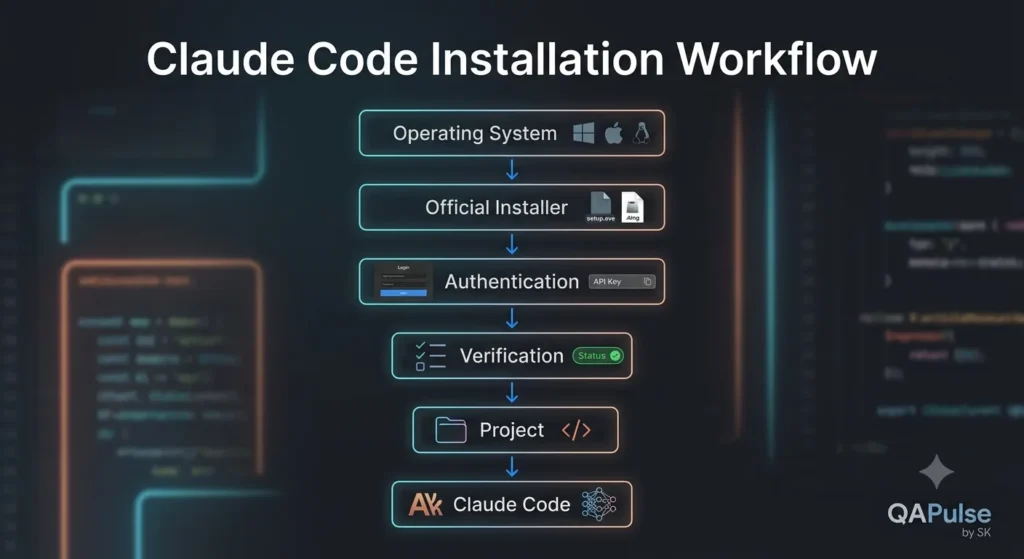
Claude Code Installation Workflow
What is Required Before Installing Claude Code?
Before installing Claude Code, ensure that your machine is ready to support a modern AI-assisted development workflow.
Although installation is relatively simple, a few prerequisites help prevent compatibility issues and provide a smoother experience.
A Supported Operating System
Claude Code is designed to run on modern development environments. Before installation, verify that your operating system is fully updated and supported.
Supported platforms include:
Windows
macOS
Linux distributions commonly used for software development
Running outdated operating systems may introduce compatibility issues with development tools, package managers, or terminal environments.
A Modern Terminal Environment
Claude Code is primarily designed for terminal-based workflows. Familiarity with a command-line interface will make installation, authentication, and day-to-day usage significantly easier.
Depending on your platform, common terminal options include:
Windows
Windows Terminal
PowerShell
macOS
Terminal
iTerm2
Linux
GNOME Terminal
Konsole
Alacritty
Kitty
A reliable terminal environment is essential because many Claude Code operations are performed directly from the command line.
An Anthropic Account
To use Claude Code, you’ll need an active Anthropic account with access to Claude services.
During setup, you’ll authenticate the CLI so it can securely communicate with Claude models.
If you’re deploying Claude Code within an organization, your authentication method may differ depending on your company’s security policies and subscription plan.
Preparing Your Development Environment
One of the biggest mistakes developers make is installing AI tools into an unprepared environment.
Before installing Claude Code, take a few minutes to organize your workspace.
A recommended setup includes:
A dedicated projects directory
Git installed and configured
A preferred code editor or IDE
Access to your repositories
A stable internet connection
Updated development dependencies
This preparation helps Claude Code interact with your projects more effectively from the very first session.
Understanding the Claude Code CLI
Unlike browser-based AI assistants, Claude Code is designed around the command-line interface (CLI), enabling developers to work directly within their local repositories.
This approach offers several advantages:
Faster interaction with existing projects
Better integration with version control
Natural support for terminal-based workflows
Easier automation through scripts
Improved compatibility with modern engineering practices
Rather than switching between a browser and an IDE, developers can collaborate with Claude Code while staying within their normal development environment.
For teams already using terminal-centric workflows, this significantly reduces context switching.
Why Local Development Is Important
Modern AI coding assistants are most effective when they understand the structure of your local project.
Working locally allows Claude Code to:
Analyze your repository structure
Understand existing code organization
Reference project documentation
Follow established coding conventions
Assist with debugging
Generate changes that align with your application’s architecture
Instead of answering isolated programming questions, Claude Code becomes an intelligent collaborator that understands the broader context of your software project.
Typical Installation Workflow
Although the exact installation commands vary depending on your operating system, the overall process remains consistent.
A typical workflow involves:
Preparing your development environment.
Installing the Claude Code CLI.
Authenticating with your Anthropic account.
Verifying the installation.
Opening an existing project.
Testing your first interaction.
Configuring optional preferences.
Each of these stages contributes to a smoother development experience and reduces the likelihood of setup-related issues later.
Choosing the Right Development Workflow
Claude Code supports different styles of software development depending on your role.
Individual Developers
Ideal for feature development, debugging, refactoring, and code exploration.
QA Engineers and SDETs
Useful for generating Playwright tests, API automation, test data, Page Object Models, and debugging automation failures.
DevOps Engineers
Can assist with infrastructure scripts, CI/CD pipelines, configuration files, and deployment automation.
Technical Leads
Helpful for reviewing pull requests, understanding unfamiliar repositories, identifying technical debt, and accelerating onboarding.
Selecting a workflow that aligns with your responsibilities ensures you gain maximum value from Claude Code from the very beginning.
Common Installation Mistakes
Many setup problems are caused by avoidable mistakes rather than software defects.
Some of the most common issues include:
Skipping prerequisite checks
Using outdated development tools
Installing without verifying system requirements
Misconfigured authentication
Running the CLI without appropriate repository access
Ignoring terminal permissions
Failing to verify the installation before starting development
Recognizing these pitfalls early helps create a reliable and frustration-free setup experience.
What You’ll Learn Next
Now that you understand the prerequisites, workflow, and overall installation process, the next section will provide step-by-step installation instructions for Windows, macOS, and Linux, followed by authentication, configuration, verification, troubleshooting, and best practices to ensure Claude Code is fully operational in your development environment.
This hands-on walkthrough will enable you to move from preparation to a fully functional AI-assisted coding setup with confidence.
Great decision. For installation guides, accuracy matters more than creativity. I checked the latest official documentation, and Anthropic now recommends the native installer as the preferred installation method, while the npm installation remains available for some environments. Claude Code also supports automatic updates after installation. (Claude Help Center)
Installing Claude Code on Windows, macOS, and Linux
With the prerequisites in place, it’s time to install Claude Code. Although the installation process differs slightly between operating systems, Anthropic has standardized the experience so developers can get started in just a few minutes.
In this section, we’ll install Claude Code using the recommended methods, verify that everything works correctly, authenticate your account, and prepare your first project.
Installation Methods Overview
Anthropic currently provides multiple installation methods depending on your operating system and workflow.
Method
Windows
macOS
Linux
Recommended
Native Installer
✅
✅
✅
⭐⭐⭐⭐⭐
Homebrew
❌
✅
Linuxbrew
⭐⭐⭐⭐
npm
✅
✅
✅
⭐⭐⭐
Enterprise Deployment
✅
✅
✅
Enterprise Teams
For most new users, the native installer is the recommended choice because it provides a self-contained installation and automatic updates. (Claude Platform Docs)
Installing Claude Code on Windows
Windows developers have several supported options, but the simplest approach is using PowerShell.
Step 1: Open PowerShell
Launch PowerShell as your normal user account. Avoid running the installer with unnecessary administrator privileges unless your organization’s policies require it.
Step 2: Run the Official Installer
Execute the official installation command:
irm https://claude.ai/install.ps1 | iex
This downloads and installs the latest supported version of Claude Code. (Claude Help Center)
Step 3: Verify Installation
After installation completes, confirm that Claude Code is available:
claude --version
If a version number is displayed, the installation completed successfully. (Claude Help Center)
Installing Claude Code on macOS
macOS offers two recommended installation methods.
Option 1: Native Installer (Recommended)
Run:
curl -fsSL https://claude.ai/install.sh | bash
This installs the native Claude Code binary and configures automatic updates. (Claude Platform Docs)
Option 2: Homebrew
If you manage developer tools through Homebrew:
brew install --cask claude-code
Homebrew users often prefer this approach because it integrates naturally with existing package management workflows. (Claude Help Center)
Installing Claude Code on Linux
Linux developers can also use the native installer.
curl -fsSL https://claude.ai/install.sh | bash
Supported distributions include modern Ubuntu and Debian releases, with additional guidance available for other environments in the official documentation. (Claude Platform Docs)
Installing with npm
Some developers already have a Node.js-based workflow and may prefer npm.
Install globally using:
npm install -g @anthropic-ai/claude-code
Do not use:
sudo npm install -g ...
Running global npm installations with sudo can create file permission issues and complicate future updates. Anthropic explicitly recommends avoiding this practice. (Claude Platform Docs)
Verifying the Installation
Always verify that Claude Code is installed correctly before beginning development.
Check the installed version:
claude --version
You can also inspect the installation health using:
claude doctor
The diagnostic command checks your installation and can identify common configuration problems. (Claude Platform Docs)
Signing In to Claude Code
Installation is only the first step.
You must also authenticate your Claude account before using AI-powered features.
Launch Claude Code:
claude
If you’re using an individual account, Claude Code will guide you through a browser-based login flow.
Enterprise users may instead authenticate through Single Sign-On (SSO), depending on how their organization provisions access. (Claude Help Center)
Opening Your First Project
Claude Code is designed to operate inside a project directory rather than from an arbitrary terminal location.
Navigate to an existing repository:
cd my-project
Then launch Claude Code:
claude
Starting Claude Code from the root of your repository allows it to understand the project’s structure and provide repository-aware assistance.
Your First Prompt
Once Claude Code is running, avoid testing it with trivial questions like:
Hello
Instead, use prompts that help it understand your project.
For example:
Explain the architecture of this project.
Or:
Summarize this repository for a new developer.
Or:
Identify the main entry point of this application.
These prompts immediately demonstrate Claude Code’s ability to analyze an existing codebase instead of acting like a general-purpose chatbot.
Updating Claude Code
Keeping Claude Code updated ensures access to the latest features, bug fixes, and security improvements.
For native installations, updates are handled automatically in most cases. If needed, you can also trigger a manual update:
claude update
Users who installed via npm can update by reinstalling the latest package version using npm. (Claude Platform Docs)
Common Installation Issues
Even straightforward installations can encounter problems. The table below summarizes the most common issues and their likely solutions.
Problem
Possible Cause
Recommended Solution
claude command not found
PATH not updated
Restart your terminal or verify the installation location
Permission errors
Using sudo with npm
Reinstall without sudo and correct npm permissions
Login fails
Network restrictions or account issues
Verify internet connectivity and account access
Installation fails
Unsupported operating system or missing dependencies
Confirm system requirements and use the latest installer
CLI behaves unexpectedly
Outdated version
Run claude update or reinstall the latest release
Best Practices After Installation
Before using Claude Code in production projects, establish a few good habits.
Install using the official installer whenever possible.
Verify every installation with claude --version.
Launch Claude Code from the root of your repository.
Keep the CLI updated to benefit from new capabilities.
Review generated code before committing changes.
Never expose secrets, API keys, or production credentials in prompts.
Pair Claude Code with version control, automated testing, and code review processes rather than treating it as a replacement for engineering discipline.
Expert Tip
Many developers judge Claude Code within the first five minutes by asking it to generate a simple function. That rarely showcases its real strengths.
A better approach is to point Claude Code at an existing repository and ask it to explain the application’s architecture, identify technical debt, summarize dependencies, or trace the execution flow of a feature. These tasks demonstrate why repository-aware AI assistants are fundamentally different from traditional code completion tools and deliver far more value in real-world software engineering.
Configuring Claude Code for Maximum Productivity
Installing Claude Code is only the beginning. The real productivity gains come from configuring it to work naturally with your development environment, repositories, version control, and engineering workflow.
Many developers stop after the installation succeeds and immediately begin generating code. While this works, it leaves a significant portion of Claude Code’s capabilities untapped.
Professional engineers treat Claude Code as another member of the development team. That means configuring it correctly, understanding how it interacts with projects, and establishing workflows that improve—not replace—good software engineering practices.
Verify That Claude Code Is Working Correctly
Before configuring anything, ensure the installation is functioning as expected.
Run:
claude --version
The command should return the currently installed version.
Next, run the diagnostic command:
claude doctor
If any issues are reported, resolve them before continuing. A healthy installation prevents unnecessary debugging later and ensures all features operate as expected.
Configure Your Terminal Environment
Claude Code is designed to be used from the terminal, so a well-configured terminal significantly improves the development experience.
A productive terminal setup typically includes:
Git configured correctly
UTF-8 encoding enabled
A modern terminal application
Meaningful shell aliases
A readable prompt
Command history enabled
Auto-completion where supported
The goal is not to customize everything but to create a comfortable environment where switching between Git, your editor, and Claude Code feels natural.
Organize Your Project Structure
Claude Code performs best when projects follow a logical structure.
Consistent folder organization helps both developers and AI assistants understand the project more efficiently.
If your project already follows established conventions, Claude Code is more likely to generate code that fits naturally into the existing architecture.
Work from the Repository Root
One of the most common mistakes is launching Claude Code from the wrong directory.
Instead of opening an arbitrary folder, navigate to the root of your repository before starting Claude Code.
This allows the tool to understand:
Source code
Documentation
Configuration files
Dependency management
Project structure
Existing coding patterns
Repository awareness is one of Claude Code’s biggest strengths, so always give it access to the full project whenever possible.
Configure Git Before Using Claude Code
Claude Code works best alongside Git rather than independently.
Before making AI-assisted changes, ensure your Git configuration is ready.
A recommended workflow is:
Pull the latest changes.
Create a feature branch.
Launch Claude Code.
Implement changes.
Review every modification.
Run automated tests.
Commit manually.
Avoid asking Claude Code to generate large changes directly on your main branch.
Small, reviewable commits remain the safest approach.
Improve Prompt Quality
Claude Code’s responses depend heavily on the information you provide.
Instead of writing short prompts like:
Build a login page.
Describe the engineering context.
For example:
Build a login page using React and TypeScript. Follow our existing component library, reuse the authentication service, include accessibility attributes, validate inputs, and generate Playwright tests covering positive and negative scenarios.
This additional context dramatically improves output quality.
Create a Prompt Library
Experienced teams reuse successful prompts.
Instead of rewriting complex requests every week, maintain a collection of prompts for common engineering tasks.
Examples include:
Architecture Review
Explain the architecture of this repository and identify areas that could benefit from refactoring.
Review this REST API implementation for security, validation, and error-handling improvements.
Documentation
Generate developer documentation explaining how this service works.
Reusable prompts improve consistency across engineering teams.
Use Claude Code for Code Reviews
Claude Code should assist code reviews rather than replace them.
Before opening a pull request, ask it to review your changes.
Useful review prompts include:
Identify readability issues.
Suggest performance improvements.
Detect duplicated logic.
Review error handling.
Check for security concerns.
Recommend better variable names.
Highlight potential edge cases.
This preliminary review often catches issues before human reviewers see the code.
Configure Your Development Workflow
Claude Code fits naturally into an existing software development lifecycle.
A typical workflow looks like this:
Requirements
↓
Architecture Discussion
↓
Feature Development
↓
AI Review
↓
Developer Review
↓
Unit Testing
↓
Playwright Testing
↓
CI/CD Pipeline
↓
Production
Claude Code supports each stage without replacing engineering processes.
Configure Claude Code for QA Automation
For QA engineers, Claude Code becomes especially valuable when integrated into automation workflows.
Typical tasks include:
Building Page Object Models
Generating reusable fixtures
Creating API testing utilities
Improving assertions
Refactoring brittle tests
Explaining failed test cases
Generating mock data
Documenting automation frameworks
Rather than generating one test at a time, ask Claude Code to improve the overall maintainability of your automation framework.
Integrate with Your IDE
Although Claude Code operates through the command line, it works alongside modern development environments.
Common editor choices include:
Visual Studio Code
JetBrains IntelliJ IDEA
WebStorm
PyCharm
Rider
Neovim
Zed
Many developers keep the terminal and editor open simultaneously, allowing them to discuss implementation with Claude Code while editing files in their preferred IDE.
Security Best Practices
Never assume AI-generated code is secure by default.
Before accepting changes:
Review authentication logic.
Validate authorization rules.
Check input validation.
Verify secret handling.
Review dependency usage.
Scan for vulnerabilities.
Run static analysis.
AI should accelerate secure development—not bypass it.
Common Configuration Mistakes
Avoid these mistakes after installation.
Working Outside the Repository
Claude Code loses valuable context.
Providing Minimal Prompts
Generic requests produce generic code.
Skipping Documentation
Project documentation helps Claude Code understand architecture.
Ignoring Existing Coding Standards
Generated code should match your team’s conventions.
Accepting Large Refactors Without Review
Review every significant change before merging.
Productivity Workflow Example
A practical daily workflow might look like this:
Morning
Pull latest changes.
Launch Claude Code.
Review assigned feature.
Development
Ask Claude Code to explain relevant modules.
Implement the feature.
Generate unit tests.
Improve documentation.
Testing
Generate Playwright scenarios.
Review assertions.
Execute automation.
Code Review
Ask Claude Code for a self-review.
Fix identified issues.
Open a pull request.
This workflow allows engineers to focus on solving problems rather than repeatedly writing boilerplate code.
Expert Tips
Use Claude Code as a Design Partner
Before writing code, discuss the architecture with Claude Code. Better design decisions often save more time than faster coding.
Keep Conversations Focused
Work on one feature or problem at a time instead of mixing unrelated requests into a single session.
Verify Every Suggestion
Claude Code accelerates development, but responsibility for correctness remains with the engineering team.
Think in Workflows, Not Commands
The most productive developers don’t use Claude Code to generate isolated snippets. They use it to understand systems, plan implementations, improve testing, review code, and document software throughout the entire development lifecycle.
Advanced Configuration, Team Workflows, and Enterprise Best Practices
Installing and configuring Claude Code is relatively straightforward. Scaling it across multiple developers, repositories, and engineering teams is where real challenges—and opportunities—begin.
Individual developers often focus on writing code faster, while engineering organizations prioritize consistency, security, maintainability, and collaboration. Claude Code should enhance these goals rather than disrupt established development practices.
In this section, we’ll explore advanced workflows, enterprise recommendations, security considerations, common pitfalls, and practical strategies for integrating Claude Code into professional software engineering environments.
Build an AI-Assisted Development Standard
One of the biggest mistakes organizations make is allowing every developer to use AI tools differently.
Without clear standards, teams quickly encounter:
Inconsistent coding styles
Unpredictable AI-generated patterns
Duplicate implementations
Security concerns
Poor documentation
Difficult code reviews
Instead, establish a shared AI development standard that defines how Claude Code should be used throughout the software development lifecycle.
A typical policy should answer questions such as:
When should developers use Claude Code?
Which tasks require manual implementation?
How should AI-generated code be reviewed?
What project information can safely be shared?
Which repositories are approved for AI assistance?
What testing is required before merging AI-assisted code?
Treat AI usage as part of your engineering standards, just like coding conventions and pull request guidelines.
Standardize Prompt Templates Across Teams
As organizations grow, prompt quality becomes just as important as coding quality.
Rather than allowing every engineer to create prompts from scratch, maintain a shared prompt library for common tasks.
Examples include:
Feature Development
Generate a new feature following our existing architecture, coding standards, logging conventions, validation rules, and testing strategy.
Bug Investigation
Analyze this exception, identify possible root causes, explain why it occurs, and recommend the safest fix without changing existing business logic.
Review this pull request for readability, maintainability, performance, security, and alignment with our coding standards.
Standardized prompts improve consistency and reduce onboarding time for new engineers.
Integrate Claude Code into Git Workflows
Claude Code should complement Git—not replace it.
A recommended workflow looks like this:
Create a feature branch.
Understand the relevant codebase using Claude Code.
Implement small, incremental changes.
Review AI-generated modifications.
Run automated tests.
Commit logically grouped changes.
Open a pull request.
Complete human review before merging.
Avoid generating large, repository-wide changes in a single session. Smaller, focused commits are easier to review and significantly reduce the risk of introducing regressions.
Pair Claude Code with Continuous Integration
Claude Code accelerates development, but CI/CD pipelines remain responsible for enforcing quality.
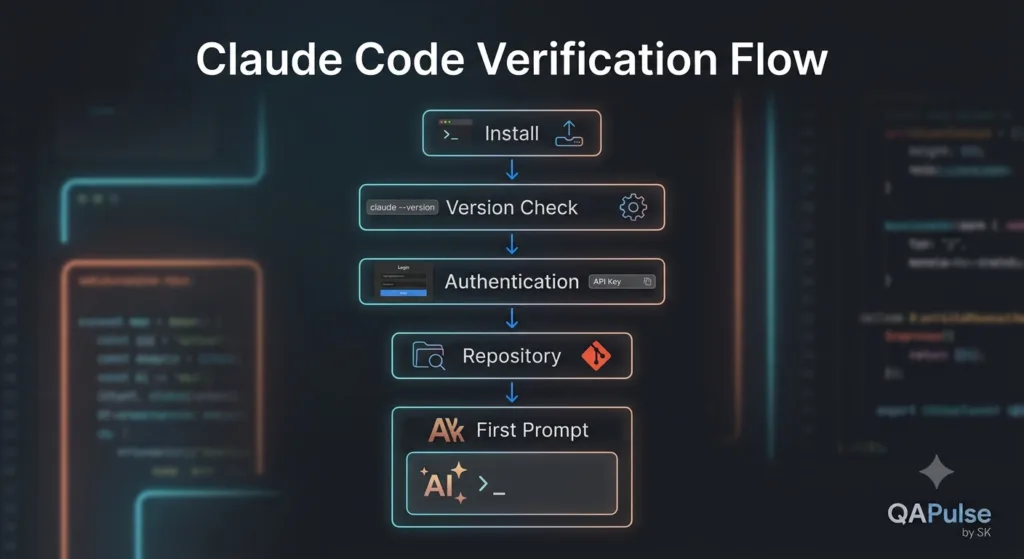
Claude Code verification flow
Every AI-assisted pull request should automatically execute:
Build verification
Static code analysis
Unit tests
Integration tests
Playwright end-to-end tests
Security scans
Dependency checks
Code coverage reporting
AI-generated code should meet exactly the same quality gates as manually written code.
Use Claude Code During Code Reviews
Many teams only use Claude Code before writing code.
A more valuable approach is using it during code reviews.
Before requesting human feedback, ask Claude Code to evaluate the proposed changes.
Useful review prompts include:
Identify duplicated logic.
Explain complex methods.
Suggest clearer naming.
Highlight potential performance issues.
Review exception handling.
Detect missing validation.
Recommend additional test scenarios.
This self-review often improves pull request quality before teammates begin reviewing the code.
Secure Sensitive Information
AI tools should never become a pathway for exposing confidential information.
Before sharing project context, confirm that prompts do not include:
Production passwords
API keys
Access tokens
Customer data
Personally identifiable information (PII)
Financial records
Proprietary business secrets
Where possible, replace sensitive values with placeholders while preserving the technical context needed for meaningful assistance.
Security awareness is a responsibility of every engineer—not the AI tool.
Claude Code for Large Legacy Applications
Legacy systems often present the greatest challenge for engineering teams.
Documentation may be outdated, architectural decisions forgotten, and business rules spread across hundreds of files.
Claude Code can significantly reduce the time required to understand these systems.
Useful activities include:
Explaining module responsibilities
Mapping service dependencies
Summarizing business workflows
Identifying unused code
Highlighting duplicated logic
Suggesting modernization opportunities
Rather than attempting a complete rewrite, use Claude Code to support incremental improvements that reduce technical debt over time.
Enterprise Onboarding
Onboarding new developers is one of the most expensive engineering activities.
Instead of assigning dozens of documentation pages, encourage new team members to use Claude Code as an interactive learning assistant.
For example:
Explain this repository.
Describe the authentication flow.
Which service owns payment processing?
Where are validation rules implemented?
Which tests cover this module?
Summarize the deployment process.
This conversational approach accelerates onboarding while helping developers become productive more quickly.
Common Troubleshooting Scenarios
Even after installation, developers may encounter issues during daily use.
Claude Command Not Found
Possible causes:
Installation path not configured
Terminal session not refreshed
Installation incomplete
Verify the installation and restart your terminal before troubleshooting further.
Authentication Problems
If login fails:
Confirm your Anthropic account is active.
Verify network connectivity.
Check firewall or proxy restrictions.
Reauthenticate if necessary.
Repository Context Seems Incomplete
Ensure Claude Code is launched from the root directory of the project.
Opening the tool from a nested folder may prevent it from understanding the full repository structure.
Unexpected AI Responses
Poor responses are often caused by incomplete prompts rather than AI limitations.
Provide:
Project context
Framework details
Expected output
Constraints
Coding standards
The additional information usually leads to significantly better results.
Common Mistakes Developers Make
Avoid these habits when working with Claude Code.
Treating It Like a Search Engine
Claude Code is most effective when collaborating on real engineering tasks, not answering isolated syntax questions.
Accepting Code Without Understanding It
Always understand generated implementations before committing them.
If you cannot explain the code during a review, it should not be merged.
Asking for Entire Applications
Large, open-ended requests often produce inconsistent results.
Break complex features into smaller, well-defined tasks.
Ignoring Existing Project Architecture
Generated code should extend the current architecture rather than introduce conflicting design patterns.
Skipping Testing
AI-generated code should pass the same validation process as any other contribution.
Best Practices for Long-Term Success
Teams that successfully integrate Claude Code tend to follow a consistent set of practices.
Use Claude Code to understand systems before modifying them.
Keep prompts specific and context-rich.
Maintain a shared prompt library.
Review all AI-generated code.
Keep repositories well documented.
Pair AI assistance with automated testing.
Encourage knowledge sharing across the team.
Continuously refine workflows based on experience.
These habits help organizations realize sustained productivity improvements rather than short-term gains.
Expert Tips
Start with Questions, Not Code
Before asking Claude Code to implement a feature, ask it to explain the existing solution. Understanding the current architecture often leads to cleaner implementations and fewer regressions.
Generate Alternatives
When solving complex problems, request multiple implementation approaches and compare their trade-offs instead of accepting the first suggestion.
Let AI Handle Repetition
Use Claude Code for repetitive engineering tasks—boilerplate, test generation, documentation, and refactoring—while reserving architectural decisions and business-critical logic for human expertise.
Review Like a Senior Engineer
Treat every AI-generated change as if it came from a new team member. Review it carefully, ask questions, validate assumptions, and ensure it aligns with your team’s standards.
Conclusion
Installing Claude Code is only the first step toward AI-assisted software engineering. The real value emerges when it is thoughtfully integrated into your daily development workflow, testing strategy, documentation process, and team collaboration practices.
For individual developers, Claude Code reduces repetitive work and accelerates learning by helping explain unfamiliar code, generate high-quality implementations, and assist with debugging. For QA engineers and SDETs, it streamlines automation development, improves test coverage, and simplifies maintenance of complex testing frameworks. At the organizational level, it supports faster onboarding, more consistent code reviews, and better documentation while allowing engineering teams to focus on solving business problems rather than rewriting boilerplate code.
However, Claude Code should never replace sound engineering principles. Successful teams combine AI assistance with code reviews, automated testing, security validation, and continuous integration pipelines to ensure every change meets production-quality standards.
As AI continues to reshape software development, the engineers who gain the greatest advantage will be those who treat AI as a collaborative partner rather than an autonomous developer. By establishing clear workflows, maintaining high engineering standards, and using Claude Code strategically, teams can increase productivity without sacrificing reliability, security, or maintainability.
With Claude Code now installed, configured, and integrated into your workflow, you’re ready to move beyond setup and begin exploring advanced productivity techniques, prompt engineering, repository-aware development, and real-world software engineering scenarios that unlock the full potential of AI-assisted development.
Frequently Asked Questions
How do I install Claude Code?
Claude Code can be installed using Anthropic’s official installer for Windows, macOS, and Linux. After installation, authenticate your Anthropic account, verify the installation, and launch Claude Code from your project directory.
Does Claude Code work on Windows?
Yes. Claude Code officially supports Windows through PowerShell using Anthropic’s native installer.
Can I install Claude Code using npm?
Yes. Anthropic provides an npm package, although the native installer is generally recommended for most developers because it simplifies updates and setup.
Is Claude Code free?
Claude Code availability depends on your Anthropic account and subscription. Check Anthropic’s official pricing page for the latest plans and usage details.
Does Claude Code require Node.js?
Only if you choose the npm installation method. The native installer does not require a separate Node.js installation.
Can QA engineers use Claude Code?
Absolutely. Claude Code can generate Playwright automation, API tests, Page Object Models, test data, documentation, debugging assistance, and code reviews, making it a valuable tool for QA engineers and SDETs.
Enjoyed this article? Explore more in-depth guides on AI engineering, automation testing, Model Context Protocol, Playwright, and intelligent software quality at www.skakarh.com. Follow QAPulse by SK for practical, production-focused tutorials designed for QA engineers, SDETs, and AI developers.
Frequently Asked Questions
Why is proper installation of Claude Code important for QA engineers?
For QA engineers, the installation process should be viewed as the foundation of an AI-assisted development workflow. An incomplete or poorly configured setup can lead to permission issues, authentication failures, missing dependencies, and inconsistent project behavior. This ensures effective integration and avoids reduced productivity.
What are the required prerequisites before installing Claude Code?
Before installing Claude Code, ensure your machine is ready for a modern AI-assisted development workflow. You need a supported and fully updated operating system, a modern terminal environment, and an active Anthropic account. These prerequisites help prevent compatibility issues and provide a smoother experience.
What common problems can occur due to an incomplete Claude Code setup?
An incomplete or poorly configured setup can lead to permission issues, authentication failures, and missing dependencies. This can result in inconsistent project behavior and reduced productivity. Installing AI tools into an unprepared environment is a common mistake that causes these issues.
10+ years in software development and QA, with the last 5 years focused on test automation. Building production-grade frameworks with Playwright, Cypress, Selenium and PyTest for clients worldwide. PhD candidate. Founder of QA Pulse.
 QA
QA