 QA
QA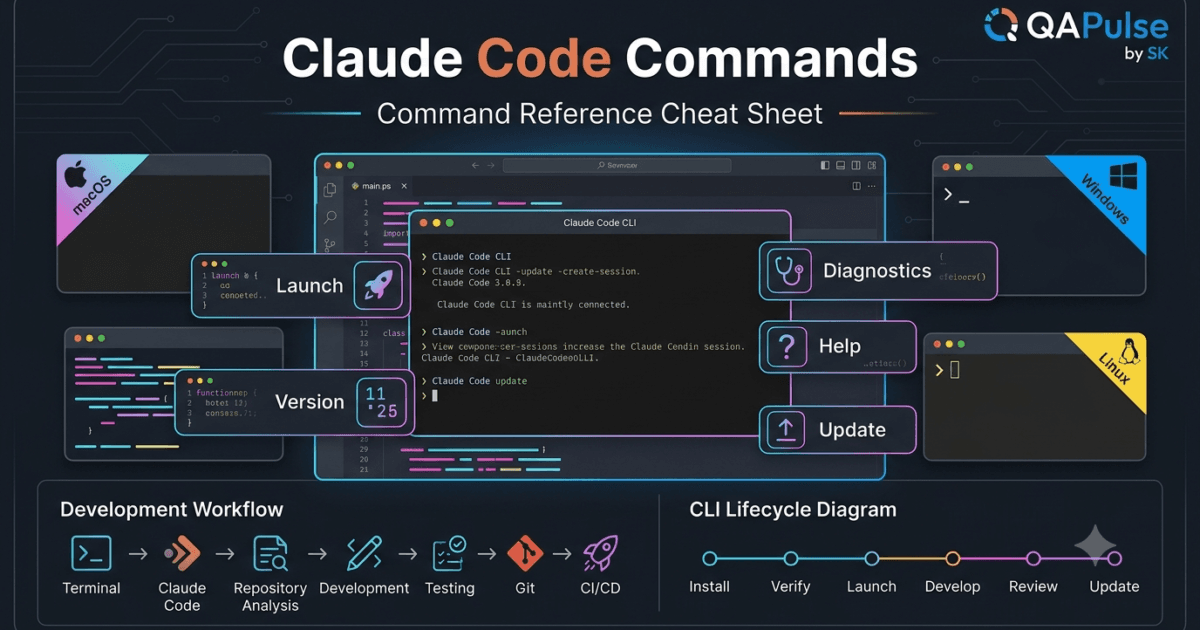
Learning the available Claude Code commands is the fastest way to become productive. While natural language is the primary way to interact with Claude Code, understanding the command-line interface helps you verify installations, diagnose problems, keep the tool updated, and work more efficiently in daily development.
Many beginners only learn how to start Claude Code, but experienced developers know the CLI offers much more than launching an interactive session. It provides commands for version management, diagnostics, authentication, updates, and troubleshooting, making it an essential part of a professional workflow.
This guide covers the most important Claude Code commands every developer, QA engineer, and SDET should know, explains when to use them, and highlights practical scenarios where they save time.
Why Claude Code Commands Matter
Graphical interfaces are convenient, but command-line tools remain the foundation of professional software development. Whether you’re building applications, running automated tests, or managing CI/CD pipelines, you’ll spend a significant amount of time in the terminal.
Knowing the right Claude Code commands allows you to:
- Verify installations in seconds.
- Troubleshoot environment issues quickly.
- Keep Claude Code up to date.
- Launch sessions from the correct repository.
- Integrate Claude Code into existing developer workflows.
- Diagnose configuration problems before they interrupt development.
Instead of searching documentation every time you encounter an issue, understanding the available commands helps you resolve common problems independently.
Understanding the Claude Code CLI
Claude Code is designed as a command-line application. Every interaction begins in your terminal, where the CLI acts as the bridge between your local development environment and Claude’s AI capabilities.
A typical workflow looks like this:
Open Terminal
        ↓
Navigate to Project
        ↓
Run Claude Code
        ↓
Analyze Repository
        ↓
Develop, Test, Review
Because Claude Code works directly with your repository, launching it from the correct project directory is one of the most important habits you can develop.
Essential Claude Code Commands
Although Claude Code supports conversational interactions, there are a handful of CLI commands that every developer should recognize.
| Command | Purpose |
|---|---|
claude | Starts an interactive Claude Code session in the current directory. |
claude --version | Displays the installed version. |
claude doctor | Checks your installation and reports configuration issues. |
claude update | Updates Claude Code to the latest available version (where supported). |
claude help | Displays available commands and usage information. |
These commands form the foundation of daily usage and should be familiar before exploring advanced workflows.
Verify Your Installation
After installing Claude Code, the first step should always be confirming that everything is working correctly.
Check the installed version:
claude --version
A successful response confirms that Claude Code is correctly installed and available in your system’s PATH.
Next, perform a health check:
claude doctor
This diagnostic command identifies common problems such as missing dependencies, authentication issues, or configuration errors before they affect your development workflow.
Launch Claude Code from the Correct Directory
Before starting Claude Code, navigate to the root directory of your project.
Example:
cd my-project
claude
Launching Claude Code from the repository root gives it access to your application’s structure, configuration files, documentation, and source code, allowing it to provide repository-aware assistance instead of generic responses.
Use the Built-In Help Command
Whenever you’re unsure about a command or available options, use the built-in help system.
claude help
The help output provides a quick reference for supported commands and is often the fastest way to verify syntax without leaving your terminal.
Command Categories
Understanding commands by category makes them easier to remember.
| Category | Examples |
|---|---|
| Launch | claude |
| Information | claude --version, claude help |
| Diagnostics | claude doctor |
| Maintenance | claude update |
| Authentication | Account-related commands when available in future releases |
Grouping commands by purpose helps developers quickly identify the appropriate tool for each situation.
Build Good CLI Habits
Developers who work efficiently with command-line tools tend to follow a consistent routine:
- Start from the repository root.
- Verify the installation after updates.
- Run diagnostics when unexpected behavior occurs.
- Keep Claude Code updated.
- Read command output instead of ignoring warnings.
- Combine CLI knowledge with effective prompting for the best results.
These habits reduce troubleshooting time and make daily development more predictable.
Expert Tip
Don’t memorize every available command. Focus on understanding what each command does and when to use it. In practice, a small set of well-understood Claude Code commands will cover the majority of your daily development tasks while providing a solid foundation for more advanced workflows.
Starting and Managing Claude Code Sessions
Knowing individual commands is useful, but professional developers spend most of their time inside an active Claude Code session. Understanding how to start, manage, and navigate these sessions makes daily development significantly more efficient.
A Claude Code session is not simply a chat window. It is an interactive workspace where Claude analyzes your repository, understands your requests, remembers the ongoing discussion, and helps you complete engineering tasks with project awareness.
Start a New Claude Code Session
The simplest command starts Claude Code in the current project.
claude
Always execute this command from the root directory of your repository.
For example:
cd ecommerce-api
claude
Launching Claude Code from the repository root allows it to understand:
- Project structure
- Source code
- Configuration files
- Documentation
- Package management
- Existing coding patterns
- Testing framework
Without this context, responses become much more generic.
Verify Your Current Working Directory
Before launching Claude Code, confirm you’re in the correct location.
Linux and macOS:
pwd
Windows PowerShell:
Get-Location
This simple habit prevents many common problems, especially when working with multiple repositories.
Switching Between Projects
Many engineers work on several repositories throughout the day.
Instead of keeping one long conversation for unrelated projects, start a fresh Claude Code session for each repository.
Example workflow:
cd frontend-app
claude
Complete your work.
Then switch:
cd ../backend-api
claude
Each repository deserves its own context.
Keep Conversations Focused
Avoid discussing multiple unrelated features within the same session.
Instead of:
- Authentication bug
- Payment integration
- Docker optimization
- API documentation
- UI redesign
Handle one engineering objective at a time.
Focused conversations produce more accurate recommendations and reduce unnecessary context switching.
Ask Claude Code to Explore Before Coding
One of the best ways to begin a session is with exploration prompts.
Examples:
Explain the overall architecture.
Summarize the folder structure.
Which modules are responsible for authentication?
How are API requests handled?
Identify the main business services.
Understanding the existing application first usually results in better implementation suggestions later.
Use Claude Code as a Technical Reviewer
A session does not always need to involve writing code.
Useful review requests include:
Review this service for readability.
Identify duplicated logic.
Explain this complex method.
Recommend performance improvements.
Highlight potential security concerns.
This turns Claude Code into an engineering reviewer instead of only a code generator.
Maintain Context Throughout the Session
As development progresses, continue building on previous discussions instead of restarting the conversation.
For example:
- Understand the architecture.
- Identify affected files.
- Design the implementation.
- Generate code.
- Review the implementation.
- Generate tests.
- Improve documentation.
This progressive workflow produces better results than isolated prompts.
Working with Large Repositories
Enterprise applications may contain thousands of files.
Instead of asking Claude Code to explain the entire repository, narrow the scope.
Better prompts include:
- Explain the authentication module.
- Review the payment service.
- Analyze the notification system.
- Describe the reporting component.
- Summarize the API layer.
Breaking large applications into logical sections makes analysis faster and more useful.
Continue Existing Features
When returning to unfinished work, briefly remind Claude Code about the objective before continuing.
Example:
Yesterday we designed a user notification service. Continue by implementing email delivery while following the existing architecture and testing conventions.
Providing a concise recap helps maintain consistency throughout longer development efforts.
Organize Work by Engineering Tasks
Professional developers often separate sessions based on activity.
Examples include:
| Session | Objective |
|---|---|
| Architecture | Understand the repository |
| Development | Implement a new feature |
| Debugging | Investigate production issues |
| Testing | Generate unit and Playwright tests |
| Refactoring | Improve maintainability |
| Documentation | Update technical documentation |
| Code Review | Review pull request changes |
Separating work by objective keeps conversations focused and easier to review.
Combine Claude Code with Git
A productive workflow combines Claude Code with version control.
A common sequence is:
Pull latest changes

↓

Create a feature branch

↓

Launch Claude Code

↓

Implement changes

↓

Run automated tests

↓

Review generated code

↓

Commit changes

↓

Open a pull request
This approach integrates Claude Code into existing engineering practices instead of replacing them.
Avoid These Session Management Mistakes
Launching Claude Code Outside the Repository
Without access to the project structure, Claude Code cannot provide repository-aware recommendations.
Mixing Multiple Features
Large conversations covering unrelated work reduce response quality.
Ignoring Existing Architecture
Generated implementations should follow established project conventions.
Restarting Sessions Unnecessarily
Continue related work within the same conversation whenever practical to preserve context.
Requesting Massive Features
Break large implementations into smaller milestones that are easier to review and test.
Expert Tips
Build Context Before Building Features
Spend a few minutes helping Claude Code understand the repository before requesting implementations. That investment often leads to cleaner code, better architectural alignment, and fewer follow-up corrections.
Treat Every Session as an Engineering Conversation
The most productive developers don’t simply ask Claude Code to generate code. They discuss design decisions, compare approaches, evaluate trade-offs, and refine solutions together. This collaborative workflow consistently produces higher-quality software than treating Claude Code as a one-command code generator.
Advanced Claude Code Commands Every Developer Should Know
Once you’re comfortable with the basic Claude Code commands, the next step is learning how to use them effectively in real-world development. Advanced usage isn’t about memorizing more commands—it’s about knowing when to verify your environment, diagnose problems, update the tool, and combine Claude Code with your existing engineering workflow.
Many developers only use the claude command to start a session. However, the surrounding CLI commands help maintain a stable, reliable, and productive development environment.
Check the Installed Version
One of the simplest yet most useful commands is checking the installed version.
claude --version
This command is useful when:
- Confirming a successful installation
- Comparing versions across team members
- Reporting issues
- Verifying an update
- Following documentation that requires a minimum version
Knowing the installed version is often the first step when troubleshooting unexpected behavior.
Run a Health Check
If Claude Code behaves unexpectedly, run the built-in diagnostic tool before making configuration changes.
claude doctor
This command checks your local environment and helps identify issues such as:
- Missing dependencies
- Configuration problems
- Authentication issues
- Installation inconsistencies
- Environment-related errors
Running diagnostics early can save considerable troubleshooting time.
Update Claude Code
Like most developer tools, Claude Code receives improvements, bug fixes, and new capabilities over time.
When your installation method supports updates, use:
claude update
Keeping Claude Code updated ensures you benefit from the latest improvements and remain compatible with current documentation and features.
After updating, verify the installation again:
claude --version
This confirms that the update completed successfully.
Access Built-In Help
If you’re unsure about available options or command syntax, use the help command.
claude help
Rather than searching online for basic command usage, the help output provides a quick reference directly from the terminal.
Combine Commands During Troubleshooting
Professional developers rarely execute commands in isolation.
A common troubleshooting sequence looks like this:
claude --version

↓

claude doctor

↓

claude help

↓

claude
This workflow verifies the installation, checks the environment, reviews available options if needed, and finally launches an interactive session.
Following a consistent sequence makes diagnosing issues much easier.
Verify Before Reporting Problems
Before assuming Claude Code is at fault, verify the local development environment.
Useful checks include:
| Verification | Purpose |
|---|---|
| Claude Code version | Confirm installed release |
| Current directory | Ensure you’re in the project root |
| Authentication | Verify account access |
| Project structure | Confirm repository is available |
| Terminal output | Look for warnings or errors |
Many reported issues are caused by incorrect project locations or incomplete setup rather than problems with Claude Code itself.
Use Commands as Part of Your Daily Routine
A productive daily routine often begins with a few quick verification steps.
Example:
Open Terminal

↓

Navigate to Repository

↓

claude --version

↓

claude

↓

Begin Development
Although checking the version every day isn’t mandatory, verifying your environment before starting work becomes especially valuable after updates or environment changes.
Integrate Claude Code into Existing Terminal Workflows
Most developers already rely on terminal commands throughout the day.
A typical workflow might include:
git pull
npm install
npm test
claude
git status
Rather than replacing these tools, Claude Code complements them by providing intelligent assistance during development.
Know When a Command Is Enough
Not every problem requires an AI conversation.
For example:
- Want to confirm the installed version? Use
claude --version. - Need to diagnose setup issues? Run
claude doctor. - Looking for command syntax? Use
claude help.
Reserve interactive conversations for engineering tasks such as understanding architecture, debugging, feature development, testing, and documentation.
Common Command-Line Mistakes
Running Commands from the Wrong Directory
Always confirm you’re inside the correct repository before launching Claude Code.
Ignoring Diagnostic Output
If claude doctor reports issues, resolve them before continuing with development.
Delaying Updates
Outdated installations may lack recent improvements or behave differently from the latest documentation.
Depending Entirely on Memory
Even experienced developers occasionally use claude help to verify command usage. Relying on built-in documentation reduces mistakes.
Command Reference
| Command | Description | Typical Use Case |
|---|---|---|
claude | Launches an interactive session | Daily development |
claude --version | Displays installed version | Installation verification |
claude doctor | Runs environment diagnostics | Troubleshooting |
claude update | Updates Claude Code | Maintenance |
claude help | Displays available commands | Learning and reference |
Expert Tips
Use Diagnostics Before Reinstalling
When Claude Code behaves unexpectedly, start with claude doctor. Reinstalling should be considered only after diagnostics identify a problem that cannot be resolved through configuration.
Keep Your Development Environment Consistent
Use the same versions of Claude Code, programming languages, and project dependencies across your team whenever possible. Consistent environments reduce unexpected issues and make collaboration more predictable.
Treat the CLI as Part of Your Toolchain
Claude Code works best alongside Git, package managers, testing frameworks, and build tools. Mastering a small set of essential CLI commands helps create a smooth, efficient workflow where AI assistance naturally fits into your existing development process rather than interrupting it.
Claude Code Command Best Practices, Productivity Tips, and Common Mistakes
Learning Claude Code commands is only part of becoming productive. The biggest improvements come from using those commands consistently within a structured engineering workflow. Developers who combine command-line knowledge with good software engineering practices spend less time troubleshooting and more time delivering reliable software.
This section focuses on practical habits, productivity techniques, and common mistakes that separate occasional users from developers who rely on Claude Code every day.
Create a Repeatable Development Workflow
Professional developers rarely start coding immediately after opening a project. A predictable workflow helps reduce mistakes and ensures every task begins with the right context.
A typical workflow looks like this:
| Step | Action |
|---|---|
| 1 | Open the terminal |
| 2 | Navigate to the project root |
| 3 | Pull the latest changes from Git |
| 4 | Create or switch to the appropriate branch |
| 5 | Verify the Claude Code installation if required |
| 6 | Launch Claude Code |
| 7 | Understand the affected modules |
| 8 | Implement the required changes |
| 9 | Run automated tests |
| 10 | Review the generated code before committing |
Following the same process for every feature reduces context switching and improves code quality.
Keep Repositories Organized
Claude Code performs best when repositories are structured logically.
A clean project typically includes:
project-root/
├── src/
├── tests/
├── docs/
├── scripts/
├── package.json
├── README.md
└── .gitignore
Well-organized repositories make it easier for both developers and Claude Code to locate components, understand dependencies, and recommend appropriate implementations.
Verify Before You Modify
Before making changes to an unfamiliar project, spend a few minutes understanding its architecture.
Useful questions include:
- Where does the application start?
- Which modules handle authentication?
- How are API requests processed?
- Which services contain business logic?
- How are automated tests organized?
- What coding conventions are already in use?
Understanding existing patterns usually produces cleaner implementations than immediately requesting new code.
Combine Claude Code with Version Control
Version control remains the foundation of professional software development.
A recommended workflow is:
git pull

↓

Create Feature Branch

↓

Launch Claude Code

↓

Implement Changes

↓

Run Tests

↓

Review Code

↓

Commit

↓

Push

↓

Open Pull Request
Claude Code should assist development while Git continues to manage version history and collaboration.
Review Every AI-Generated Change
Even when Claude Code produces excellent code, review every modification before committing it.
Check for:
- Business logic accuracy
- Readability
- Error handling
- Security considerations
- Naming consistency
- Performance implications
- Test coverage
- Alignment with project standards
AI accelerates implementation, but developers remain responsible for software quality.
Write Better Technical Prompts
Good prompts generally contain four elements:
| Element | Example |
|---|---|
| Objective | Add user profile editing |
| Context | Existing React and TypeScript application |
| Constraints | Preserve current API contracts |
| Expected Output | Production-ready code with Playwright tests |
Including these details produces significantly more useful responses than short, generic requests.
Keep Conversations Focused
Avoid mixing unrelated engineering tasks into a single session.
Instead of combining:
- API development
- Database optimization
- UI redesign
- Documentation updates
- Deployment automation
Complete one objective before moving to the next.
Focused conversations produce more accurate and maintainable results.
Use Claude Code Beyond Code Generation
Many developers underestimate the range of tasks Claude Code can assist with.
Examples include:
| Engineering Task | Claude Code Assistance |
|---|---|
| Architecture review | Explain system design |
| Debugging | Analyze logs and identify root causes |
| Refactoring | Improve readability and reduce duplication |
| Test automation | Generate Playwright and unit tests |
| Documentation | Create technical guides and API documentation |
| Code review | Identify quality and security concerns |
| Learning | Explain unfamiliar frameworks and libraries |
Thinking beyond code generation unlocks much greater productivity.
Common Mistakes
Starting Claude Code Outside the Repository
Launching Claude Code from an unrelated directory prevents it from understanding the complete project structure.
Requesting Entire Applications
Large requests such as “Build a CRM” often produce inconsistent results.
Break complex work into smaller features.
Ignoring Existing Coding Standards
Generated code should follow the project’s architecture, naming conventions, formatting rules, and testing strategy.
Skipping Automated Testing
Every AI-assisted change should pass the same testing process as manually written code.
Updating Production Code Without Review
Never merge AI-generated code directly into production.
Code reviews remain essential regardless of how the implementation was created.
Productivity Tips
Create a Personal Prompt Library
Store prompts that consistently produce useful results.
Examples include:
- Explain this architecture.
- Review this pull request.
- Generate Playwright tests.
- Suggest performance improvements.
- Refactor while preserving functionality.
- Improve documentation.
A reusable prompt library saves time and encourages consistent engineering practices.
Use Claude Code During Code Reviews
Instead of waiting for teammates to identify issues, ask Claude Code to review your implementation before creating a pull request.
This often catches readability problems, duplicated logic, and missing validation early in the process.
Keep Documentation Updated
Whenever a feature changes, update the associated documentation.
Claude Code can help generate:
- README updates
- API documentation
- Architecture summaries
- Migration guides
- Release notes
- Setup instructions
Maintaining documentation alongside development improves long-term maintainability.
Security Recommendations
When working with Claude Code:
- Never include production credentials.
- Remove API keys before sharing code.
- Replace sensitive values with placeholders.
- Avoid exposing confidential customer information.
- Follow your organization’s security policies regarding AI tools.
Security practices should remain unchanged regardless of whether code is written manually or with AI assistance.
Measuring Success
Instead of judging Claude Code by how quickly it generates code, evaluate measurable engineering outcomes.
Useful metrics include:
| Metric | Why It Matters |
|---|---|
| Development time | Indicates productivity improvements |
| Bug resolution time | Measures debugging efficiency |
| Pull request review time | Reflects code quality |
| Test coverage | Demonstrates software reliability |
| Documentation quality | Improves maintainability |
| Onboarding time | Accelerates knowledge transfer |
These indicators provide a more meaningful assessment of long-term value than simply counting generated lines of code.
Expert Tips
Master the Essential Commands First
Most developers rely on a small number of Claude Code commands every day. Understanding when and why to use these commands is more valuable than trying to memorize every available option.
Combine Commands with Engineering Discipline
The best results come from combining Claude Code with version control, automated testing, peer reviews, and clear development standards. AI should strengthen these practices, not replace them.
Focus on Solving Problems, Not Generating Code
Experienced engineers use Claude Code to understand systems, investigate bugs, compare implementation approaches, improve software quality, and automate repetitive work. Writing code is only one part of the engineering process, and Claude Code delivers the greatest value when it supports the entire software development lifecycle.
Frequently Asked Questions
What are Claude Code Commands?
Claude Code Commands are command-line instructions used to launch Claude Code, verify installations, diagnose issues, update the CLI, and interact with repositories from the terminal.
How do I start Claude Code?
Navigate to the root directory of your project and run the claude command to launch an interactive Claude Code session.
How can I check my Claude Code version?
Run:
claude --versionto display the installed version.
What does claude doctor do?
It performs diagnostic checks to identify installation, configuration, and environment issues that may affect Claude Code.
How do I update Claude Code?
If supported by your installation method, use the update command provided by Claude Code, then verify the installed version afterward.
Most Important Claude Code Commands
| Command | Purpose |
|---|---|
claude | Launch Claude Code |
claude --version | Display installed version |
claude doctor | Run diagnostics |
claude update | Update Claude Code |
claude help | Show available commands |
AI Overview Answer
Claude Code Commands help developers manage and use Claude Code efficiently from the terminal. The most commonly used commands allow you to start interactive sessions, verify installations, troubleshoot configuration problems, update the CLI, and access built-in documentation. Learning these commands improves productivity and integrates Claude Code naturally into modern software development workflows.
Internal Links:
- Learn MCP – Zero to Hero
- Learn AI Agents for QA – Zero to Hero
- Playwright Automation – Zero to Hero
- Learn Python – Zero to Hero
- Free QA Resources Built From Real Experience
- QA Glossary: Test Automation Terms Every Engineer Should Know
External Resources:
- Anthropic Claude documentation
- Anthropic API documentation
- Model Context Protocol documentation
- Playwright documentation
- GitHub documentation
- TypeScript documentation
Enjoyed this article? Explore more in-depth guides on AI engineering, automation testing, Model Context Protocol, Playwright, and intelligent software quality at www.skakarh.com. Follow QAPulse by SK for practical, production-focused tutorials designed for QA engineers, SDETs, and AI developers.