 QA
QA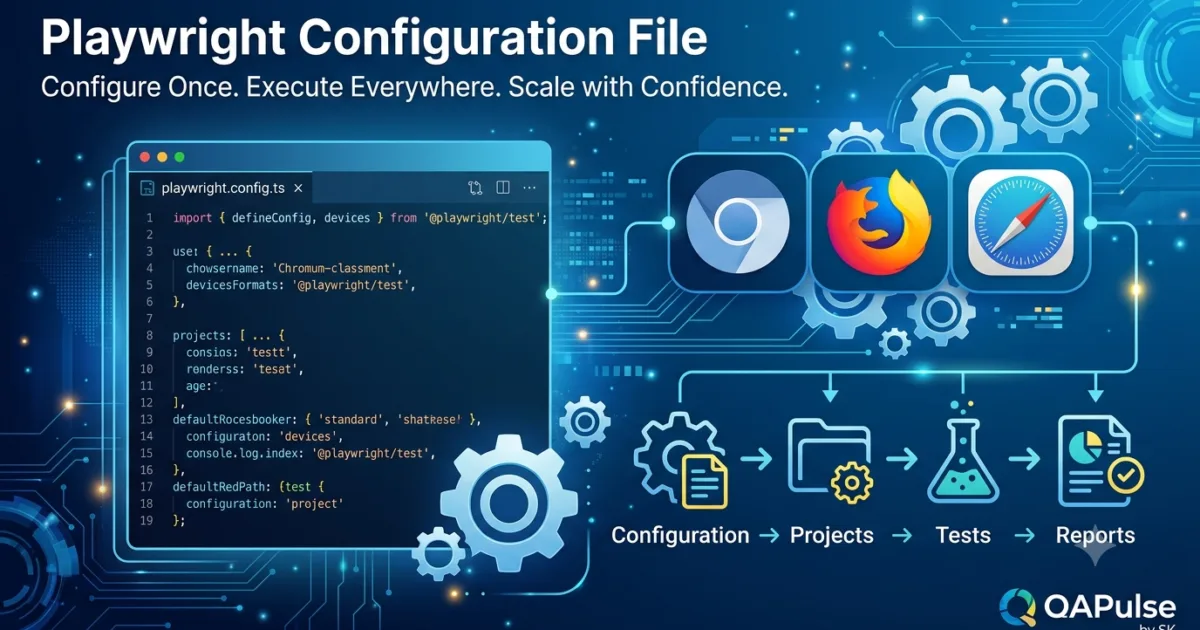
The Playwright Configuration File is the central control point of every Playwright automation framework. Instead of configuring browsers, timeouts, retries, reporters, screenshots, videos, traces, and execution settings inside individual test files, Playwright allows all these options to be managed from a single configuration file named playwright.config.ts.
Whether you are running a small automation project or an enterprise regression suite with thousands of tests, understanding the Playwright Configuration File is essential for building scalable, maintainable, and CI/CD-ready automation frameworks.
What Is the Playwright Configuration File?
The Playwright Configuration File is a TypeScript or JavaScript file that stores global settings used by the Playwright Test Runner.
It controls how Playwright executes your tests, including:
- Browser selection
- Base URL
- Timeouts
- Retries
- Parallel execution
- Reporters
- Screenshots
- Videos
- Traces
- Projects
- Test directories
- Environment settings
Instead of repeating these settings throughout the project, they are defined once and automatically applied to every test.
Default Configuration File
When Playwright is installed, it creates a configuration file in the project’s root directory.
Example project structure:
playwright-framework/

├── tests/

├── pages/

├── fixtures/

├── data/

├── playwright.config.ts

├── package.json

└── tsconfig.json
The playwright.config.ts file becomes the heart of the automation framework.
Why Do We Need a Configuration File?
Imagine writing the following inside every test.
Launch Chromium

↓

Set Timeout

↓

Set Base URL

↓

Enable Screenshots

↓

Enable Traces

↓

Execute Test
Repeating these settings across hundreds of tests creates unnecessary duplication.
Using the Playwright Configuration File, the workflow becomes:
playwright.config.ts

↓

Global Settings

↓

All Tests
Every test automatically inherits the global configuration.
Responsibilities of the Playwright Configuration File
A professional Playwright framework uses the configuration file to manage:
Test Execution
Controls how tests are discovered and executed.
Browser Configuration
Defines which browsers participate in test execution.
Global Timeouts
Prevents tests from running indefinitely.
Parallel Execution
Improves execution speed by running tests simultaneously.
Reporting
Generates HTML, JSON, JUnit, or custom reports.
Artifact Collection
Automatically captures screenshots, videos, and traces.
Environment Configuration
Provides reusable settings for multiple environments.
Basic Configuration Structure
A minimal configuration file looks like this:
import { defineConfig } from '@playwright/test';

export default defineConfig({

});
The defineConfig() helper improves readability and provides TypeScript support for Playwright configuration options.
How Playwright Uses the Configuration File
Whenever the Playwright Test Runner starts, it follows this sequence:
Read playwright.config.ts

↓

Load Global Settings

↓

Find Test Files

↓

Initialize Browser

↓

Execute Tests

↓

Generate Reports
Every test uses these settings unless overridden.
Global Configuration vs Local Configuration
Playwright supports both global and test-level settings.
Global Configuration
Configured once inside playwright.config.ts.
Examples:
- Base URL
- Browser projects
- Reporters
- Retries
- Timeouts
Local Configuration
Applied only to specific tests when unique behavior is required.
Enterprise teams keep most settings inside the Playwright Configuration File to maintain consistency.
Benefits of Centralized Configuration
Using a centralized configuration provides several advantages.
Consistency
Every test executes using identical settings.
Maintainability
Configuration changes are made in one location.
Scalability
New projects and browsers can be added without modifying existing tests.
Faster Development
Developers focus on business scenarios instead of framework setup.
CI/CD Compatibility
The same configuration can be reused across local machines and automated pipelines.
Relationship with Previous Lessons
By now, your Playwright framework consists of several architectural layers.
Configuration

↓

Test Data

↓

Fixtures

↓

Page Objects

↓

Business Tests
Each layer has a specific responsibility.
- Configuration manages execution.
- Test Data supplies business values.
- Fixtures prepare reusable resources.
- Page Objects handle UI interactions.
- Tests validate application behavior.
This layered architecture is widely adopted in enterprise automation frameworks.
Real Enterprise Example
Consider a banking application tested across multiple browsers and environments.
The QA team needs:
- Chromium
- Firefox
- WebKit
- Different execution environments
- Screenshots on failure
- Video recording
- Retry failed tests
- HTML reports
- Parallel execution
Without a centralized Playwright Configuration File, every test suite would require repetitive setup.
With a single configuration file, these settings are managed globally, ensuring consistency and reducing maintenance effort.
When Should You Configure Playwright?
The Playwright Configuration File should be created and maintained from the beginning of every automation project.
Typical configuration responsibilities include:
- Browser selection
- Global timeout management
- Base URL configuration
- Parallel execution
- Retry strategy
- Reporting
- Screenshots
- Videos
- Traces
- Multi-browser projects
Establishing these settings early creates a stable foundation that supports future framework growth.
Playwright Configuration File: Configuring Browsers, Timeouts, Reporters, and Execution Settings
In the previous lesson, you learned that the Playwright Configuration File acts as the central control point for an automation framework. Now it’s time to build a practical configuration and understand the most commonly used options that enterprise teams configure inside playwright.config.ts.
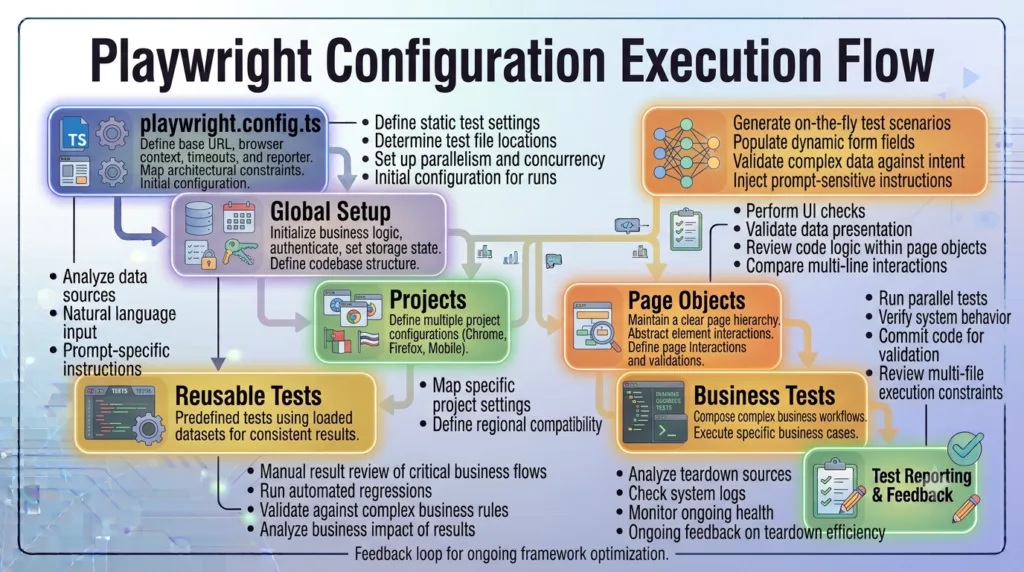
A well-structured configuration file eliminates repetitive setup, standardizes execution across environments, and ensures every test follows the same execution rules.
Creating the Configuration File
The configuration file is normally placed in the project’s root directory.
playwright-framework/

├── tests/

├── pages/

├── fixtures/

├── data/

├── playwright.config.ts

└── package.json
Playwright automatically detects this file when tests are executed.
Basic Configuration
A simple configuration begins with defineConfig().
import { defineConfig } from '@playwright/test';

export default defineConfig({

    use: {

    }

});
The use section contains settings that apply to every test unless explicitly overridden.
Configuring the Base URL
Most applications use the same website throughout the test suite.
Instead of writing:
await page.goto(
    "https://example.com"
);
inside every test, configure a global Base URL.
use: {

    baseURL: 'https://example.com'

}
Now tests become shorter.
await page.goto('/');
Playwright automatically combines the Base URL with the relative path.
Benefits include:
- Cleaner test code
- Easier environment switching
- Centralized URL management
Configuring Global Timeouts
Automation should never wait forever.
Playwright allows global timeout configuration.
timeout: 30000
This means each test can run for a maximum of 30 seconds.
Timeouts help detect:
- Infinite loading
- Slow applications
- Hanging tests
- Network failures
Configuring Action Timeout
Individual actions can also have their own timeout.
Example:
use: {

    actionTimeout: 10000

}
This limits actions such as:
- Click
- Fill
- Select
- Hover
to ten seconds.
Configuring Navigation Timeout
Navigation often takes longer than user interactions.
use: {

    navigationTimeout: 30000

}
This controls:
- page.goto()
- page.reload()
- page.goBack()
- page.goForward()
Configuring Retries
Applications occasionally fail because of temporary network or infrastructure issues.
Instead of failing immediately, Playwright can retry failed tests.
retries: 2
Execution flow:
Test

↓

Fail

↓

Retry 1

↓

Retry 2

↓

Final Result
Retries improve reliability in CI/CD environments while still reporting unstable tests.
Configuring Parallel Execution
One of Playwright’s biggest strengths is parallel execution.
Enable multiple workers.
workers: 4
Execution becomes:
Worker 1

Worker 2

Worker 3

Worker 4

↓

Execute Tests Simultaneously
Parallel execution dramatically reduces regression testing time.
Configuring Reporters
After execution, Playwright generates reports.
Example:
reporter: 'html'
Additional reporters include:
- HTML
- JSON
- JUnit
- List
- Dot
- Line
Different organizations choose reporters depending on their CI/CD pipeline and reporting requirements.
Configuring Screenshots
Screenshots are valuable when diagnosing failures.
Example:
use: {

    screenshot: 'only-on-failure'

}
Options include:
- on
- off
- only-on-failure
Capturing screenshots only when failures occur reduces storage usage while preserving useful debugging information.
Configuring Video Recording
Videos help reproduce intermittent failures.
Example:
use: {

    video: 'retain-on-failure'

}
Playwright records browser sessions only for failed tests.
This minimizes storage consumption while improving debugging.
Configuring Trace Collection
Traces provide detailed execution history.
Example:
use: {

    trace: 'on-first-retry'

}
Trace Viewer includes:
- Page snapshots
- Network requests
- Console logs
- Screenshots
- User actions
- Timing information
Trace collection is one of Playwright’s most powerful debugging capabilities.
Configuring Browser Viewport
Applications should execute using a consistent browser size.
Example:
use: {

    viewport: {

        width: 1440,

        height: 900

    }

}
Maintaining a standard viewport ensures consistent UI rendering during automated testing.
Configuring Headless Mode
Playwright supports both headless and headed execution.
Example:
use: {

    headless: true

}
Headless mode is typically used in CI/CD pipelines because it executes faster and consumes fewer resources.
Headed mode is useful during local debugging.
Enterprise Configuration Example
A typical enterprise configuration controls:
Configuration

↓

Base URL

↓

Browser

↓

Timeout

↓

Retries

↓

Workers

↓

Screenshots

↓

Videos

↓

Traces

↓

Reports
Every automated test inherits these settings automatically.
This creates consistency across the entire framework.
Common Mistakes
Avoid these mistakes when configuring Playwright.
Hardcoding URLs
Always use the Base URL.
Excessively Long Timeouts
Large timeouts hide performance problems.
Disabling Retries Completely
Temporary infrastructure issues may cause false failures.
Recording Videos for Every Test
Video files consume significant storage.
Use failure-based recording whenever possible.
Using One Worker for Large Suites
Parallel execution is one of Playwright’s greatest strengths.
Take advantage of it where application stability permits.
Enterprise Perspective
A well-designed Playwright Configuration File centralizes browser settings, execution behavior, retries, reporting, screenshots, videos, traces, and timeouts into a single location. This configuration-driven approach keeps business tests clean, simplifies maintenance, improves CI/CD integration, and ensures that every automated test executes consistently regardless of the environment or browser being used.
Playwright Configuration File: Projects, Multiple Browsers, Devices, and Environment Configuration
One of the most powerful capabilities of the Playwright Configuration File is the ability to execute the same automation suite across multiple browsers, devices, and environments without modifying the test code. This is achieved using Projects, which allow each execution target to have its own configuration while sharing the same test suite.
Enterprise automation teams use projects to validate applications on Chromium, Firefox, WebKit, mobile devices, staging environments, production-like environments, and different user configurations.
What Are Playwright Projects?
A Project is an independent execution configuration defined inside the Playwright Configuration File.
Each project can have its own:
- Browser
- Device
- Viewport
- Base URL
- Locale
- Timezone
- Permissions
- Browser channel
- Environment variables
The same test runs once for every configured project.
Why Use Projects?
Suppose your application supports three browsers.
Without projects:
Chromium Tests

↓

Firefox Tests

↓

WebKit Tests
You would need separate execution commands or duplicate configurations.
With Playwright Projects:
Projects

↓

Chromium

Firefox

WebKit

↓

Same Test Suite
Playwright executes every project automatically.
Configuring Multiple Browsers
A typical browser configuration looks like this.
projects: [

    {
        name: 'Chromium',

        use: {

            browserName: 'chromium'

        }

    },

    {
        name: 'Firefox',

        use: {

            browserName: 'firefox'

        }

    },

    {
        name: 'WebKit',

        use: {

            browserName: 'webkit'

        }

    }

]
The same test executes independently for all three browsers.
Execution Flow
When multiple projects exist, Playwright performs the following sequence.
Read Configuration

↓

Chromium

↓

Execute Tests

↓

Firefox

↓

Execute Tests

↓

WebKit

↓

Execute Tests
Each browser receives its own isolated execution environment.
Browser Isolation
Every project creates its own:
- Browser instance
- Browser context
- Page
- Cookies
- Local Storage
- Session Storage
No browser shares data with another.
This guarantees independent execution.
Device Emulation
The Playwright Configuration File can emulate mobile and tablet devices.
Typical examples include:
- iPhone
- Pixel
- Galaxy
- iPad
- Surface Duo
Example:
use: {

    ...devices['iPhone 15']

}
The browser automatically applies:
- Screen size
- User agent
- Touch support
- Device scale factor
- Mobile viewport
This allows desktop and mobile testing using the same automation scripts.
Browser Channels
Projects can execute different browser channels.
Examples include:
- Chrome
- Microsoft Edge
- Chromium
Example:
use: {

    channel: 'chrome'

}
Testing against real browser channels helps validate production behavior.
Environment Configuration
Applications usually have multiple deployment environments.
Examples:
Development

↓

QA

↓

Staging

↓

Pre-Production

↓

Production
Each environment may use different:
- Base URLs
- Credentials
- APIs
- Feature flags
- Test data
The Playwright Configuration File centralizes these settings so the same automation suite can execute in every environment.
Base URL Per Project
Projects can define different application URLs.
Example:
Project A

↓

https://dev.example.com


Project B

↓

https://qa.example.com


Project C

↓

https://staging.example.com
Business tests remain unchanged.
Only the configuration differs.
Project-Specific Settings
Each project may customize additional options.
Examples include:
- Viewport
- Locale
- Timezone
- Permissions
- Color scheme
- Geolocation
- Storage state
This flexibility allows extensive compatibility testing without duplicating automation code.
Combining Projects with Previous Lessons
At this stage, your Playwright framework follows a layered architecture.
Configuration

↓

Projects

↓

Fixtures

↓

Test Data

↓

Page Objects

↓

Business Tests
Projects determine where tests execute.
Fixtures prepare resources.
Test data supplies business values.
Page Objects perform UI interactions.
Business tests validate application functionality.
Running Cross-Browser Testing
With projects configured, one test can validate multiple browsers automatically.
Workflow:
Write One Test

↓

Chromium

↓

Firefox

↓

WebKit

↓

Execution Complete
This significantly reduces development effort while improving browser coverage.
Common Enterprise Use Cases
Organizations commonly create projects for:
- Chromium desktop
- Firefox desktop
- WebKit desktop
- Google Chrome
- Microsoft Edge
- Mobile Chrome
- Mobile Safari
- Tablet devices
- Development environment
- QA environment
- Staging environment
Each project shares the same automation code while using different execution settings.
Common Mistakes
Avoid these mistakes when configuring Playwright Projects.
Duplicating Test Files
One test suite should support multiple projects.
Hardcoding Browser Logic
Allow the configuration file to select browsers.
Mixing Environment Data with Business Data
Environment configuration belongs in configuration files, not JSON business datasets.
Ignoring Mobile Testing
Many production defects occur only on mobile devices.
Include mobile projects whenever possible.
Sharing Browser Sessions
Every project should execute independently.
Avoid dependencies between browsers or environments.
Enterprise Perspective
Enterprise Playwright frameworks rely on Projects inside the Playwright Configuration File to support cross-browser testing, device emulation, browser channels, and multi-environment execution. This configuration-driven architecture allows one automation suite to validate multiple execution targets while maintaining a single codebase, reducing maintenance costs, improving browser coverage, and enabling reliable CI/CD execution across modern software delivery pipelines.
Playwright Configuration File: Global Setup, Global Teardown, Best Practices, and Enterprise Architecture
As Playwright automation frameworks become larger, the Playwright Configuration File evolves beyond browser settings and execution options. Enterprise frameworks use it to initialize environments, authenticate users, prepare test data, optimize execution, and manage the entire test lifecycle. A well-designed configuration file becomes the foundation of a scalable, maintainable, and CI/CD-ready automation framework.
Global Setup
Many automation suites require preparation before any test begins.
Examples include:
- Creating test users
- Authenticating applications
- Preparing databases
- Loading environment configuration
- Creating storage state
- Initializing external services
Instead of performing these tasks before every test, Playwright provides Global Setup.
Execution flow:
Start Test Run

↓

Global Setup

↓

Execute All Tests

↓

Global Teardown
Initialization occurs once before the first test starts.
This improves execution speed and keeps test files clean.
Global Teardown
Some resources must be released after the entire test suite finishes.
Typical examples include:
- Removing temporary users
- Closing database connections
- Stopping mock servers
- Cleaning test environments
- Generating final reports
Global Teardown performs these tasks automatically.
Workflow:
All Tests Complete

↓

Cleanup Resources

↓

Close Connections

↓

Execution Finished
Centralized cleanup prevents resource leaks and keeps environments stable.
Storage State
Many enterprise applications require authentication before testing.
Instead of logging in before every test, Playwright can save an authenticated browser session.
Workflow:
Login

↓

Save Storage State

↓

Reuse Session

↓

Execute Tests
The stored session contains information such as:
- Cookies
- Local Storage
- Session Storage
Using storage state significantly reduces execution time for large regression suites.
Environment Variables
Automation projects rarely execute against only one environment.
Environment variables allow configuration values to change without modifying the test code.
Typical values include:
- Base URLs
- User credentials
- API endpoints
- Database connections
- Feature flags
- Authentication tokens
Keeping these values outside the automation scripts improves flexibility and security.
Managing Multiple Environments
Enterprise organizations commonly maintain several environments.
Development

↓

QA

↓

Staging

↓

Pre-Production

↓

Production
The Playwright Configuration File selects the correct configuration for each environment while the automation code remains unchanged.
Folder Organization
A production-ready framework should keep configuration files organized.
Example:
playwright-framework/

├── config/

│   ├── dev.ts

│   ├── qa.ts

│   ├── staging.ts

│   └── production.ts

├── fixtures/

├── data/

├── pages/

├── tests/

└── playwright.config.ts
This structure simplifies maintenance as additional environments are introduced.
Configuration Flow
The complete execution lifecycle typically follows this sequence.
Configuration

↓

Global Setup

↓

Projects

↓

Fixtures

↓

Page Objects

↓

Business Tests

↓

Reports

↓

Global Teardown
Every layer contributes to a reliable automation process.
Configuration Best Practices
Professional automation frameworks follow several important principles.
Keep Configuration Centralized
All execution settings should remain inside the Playwright Configuration File whenever possible.
Avoid Hardcoded Values
URLs, credentials, and environment-specific information should be loaded from configuration sources instead of test scripts.
Separate Business Logic
Tests should validate application behavior.
Configuration files should control execution.
Enable Failure Diagnostics
Capture useful artifacts such as:
- Screenshots
- Videos
- Traces
- Logs
These resources simplify debugging after failed executions.
Optimize Parallel Execution
Configure workers according to the application’s stability and available system resources.
Balanced parallel execution reduces regression time without introducing unnecessary failures.
Common Configuration Mistakes
Avoid these mistakes when building a Playwright framework.
Duplicating Configuration
Do not repeat browser or timeout settings inside individual tests.
Mixing Test Data with Configuration
Configuration controls execution.
Business datasets belong in dedicated data files.
Using Excessively Large Timeouts
Long timeouts often hide performance issues rather than solving them.
Recording Every Artifact
Recording screenshots, videos, and traces for every successful test consumes unnecessary storage.
Enable them strategically.
Ignoring Global Setup
Repeated authentication and environment preparation increase execution time.
Move reusable initialization into Global Setup.
Enterprise Framework Architecture
A modern Playwright framework commonly follows this architecture.
Configuration

↓

Environment

↓

Projects

↓

Storage State

↓

Fixtures

↓

Test Data

↓

Page Objects

↓

Business Tests

↓

Reports
Each layer performs a dedicated responsibility, making the framework easier to understand and extend.
Interview Questions
Experienced Automation Engineers should be able to explain:
- What is the Playwright Configuration File?
- Why is
defineConfig()used? - What is the purpose of the
usesection? - How do Playwright Projects work?
- What is Global Setup?
- What is Global Teardown?
- What is Storage State?
- Why should environment variables be used?
- How can Playwright execute multiple browsers?
- Why is centralized configuration important?
These questions evaluate framework architecture knowledge rather than basic Playwright syntax.
Enterprise Checklist
Before considering your configuration production-ready, verify the following:
- Centralized configuration
- Browser projects
- Base URL configured
- Global timeout
- Action timeout
- Navigation timeout
- Parallel execution
- Retry strategy
- HTML reporting
- Screenshot configuration
- Video recording
- Trace collection
- Storage State
- Global Setup
- Global Teardown
- Environment variables
- Multi-environment support
- CI/CD compatibility
Following these practices ensures that the Playwright Configuration File remains scalable as applications, automation suites, and engineering teams continue to grow.
Looking Ahead
With the framework architecture, Page Objects, Fixtures, Test Data Management, and Configuration now established, the next stage focuses on executing tests efficiently. You will learn how Playwright discovers test files, filters tests, groups related scenarios, uses tags, and runs targeted executions to improve productivity during local development and large-scale CI/CD regression pipelines.
AI Search Optimized Answers
What Is the Playwright Configuration File?
The Playwright Configuration File is a centralized file named playwright.config.ts that controls browser settings, projects, timeouts, retries, reporters, screenshots, videos, traces, environment variables, and global execution behavior for Playwright automation.
Why Is playwright.config.ts Important?
Using playwright.config.ts eliminates repetitive configuration inside test files, ensures consistent execution across environments, simplifies maintenance, and supports scalable automation in CI/CD pipelines.
What Can Be Configured in Playwright?
The Playwright Configuration File can configure browsers, projects, Base URL, timeouts, retries, parallel execution, workers, reporters, screenshots, videos, traces, storage state, environment variables, global setup, and global teardown.
What Are Playwright Projects?
Projects allow the same Playwright test suite to execute across multiple browsers, devices, operating systems, or environments without changing the test code.
What Is Global Setup in Playwright?
Global Setup executes once before the test suite begins. It is commonly used to authenticate users, prepare databases, generate storage state, initialize test data, and configure external services.
Practical Assignment
Create a production-ready Playwright Configuration File for your automation framework.
Tasks
- Configure a global Base URL.
- Set global test, action, and navigation timeouts.
- Enable retries for failed tests.
- Configure HTML reporting.
- Capture screenshots only on failure.
- Retain videos only for failed tests.
- Enable traces on the first retry.
- Create projects for Chromium, Firefox, and WebKit.
- Configure headless execution.
- Run the same test suite across all configured browsers.
Bonus Challenge
Create separate configurations for Development, QA, and Staging environments using environment variables. Configure Global Setup to generate an authenticated Storage State and reuse it across all browser projects.
Common Mistakes
Avoid these mistakes when configuring the Playwright Configuration File:
- Hardcoding URLs inside tests instead of using a Base URL.
- Duplicating browser configuration across multiple files.
- Using excessive timeout values that hide application performance issues.
- Recording screenshots and videos for every successful test.
- Mixing business data with execution configuration.
- Ignoring Global Setup and repeatedly logging in before each test.
- Running large regression suites with a single worker when safe parallel execution is possible.
- Storing sensitive credentials directly inside
playwright.config.ts.
Frequently Asked Questions
Where is the Playwright Configuration File located?
By default, the Playwright Configuration File is named playwright.config.ts and is stored in the root directory of the Playwright project.
Can Playwright run multiple browsers from one configuration?
Yes. By defining multiple Projects in playwright.config.ts, Playwright can execute the same test suite across Chromium, Firefox, WebKit, and other browser configurations.
What is the purpose of the use section?
The use section defines shared settings such as Base URL, viewport, screenshots, videos, traces, browser options, and headless mode that apply to every test.
Should I use Global Setup for authentication?
Yes. Global Setup is commonly used to authenticate users once, save the Storage State, and reuse the authenticated session across all tests, improving execution speed.
Can I configure different environments in Playwright?
Yes. Environment variables and separate configuration files allow Playwright to execute the same tests against Development, QA, Staging, or Production environments without modifying the test logic.
Internal Links
- Day 1: What is Playwright and Why Everyone is Talking About It
- Day 2: How to Install Playwright: Complete Beginner Setup Guide for 2026
- Day 3: Your First Playwright Test: Understanding Every Line Before You Write Code
- Day 4: How Playwright Works Behind the Scenes: Complete Architecture Guide for Beginners
- Day 5: Playwright Locators: Stop Writing Fragile Selectors Forever
- Day 6: Playwright Auto Waiting: Complete Guide to Reliable Test Synchronization
- Day 7: Playwright Assertions: Complete Guide to Reliable Test Validation
- Day 8: Playwright Test Hooks: Complete Guide to beforeAll, beforeEach, afterEach, and afterAll Explained
- Day 9: Playwright Projects and Multi-Browser Testing: Complete Guide to Cross-Browser Automation
- Day 10: Playwright Page Object Model (POM): Build a Scalable Test Framework
- Day 11: Playwright Fixtures: Build Reusable and Maintainable Test Setup
- Day 12: Playwright Test Data Management: Build Reliable and Scalable Test Data Strategies
- Playwright: Zero to Hero Series
External Links
- Playwright Hooks Documentation: https://playwright.dev/docs/api/class-test
- Playwright Test Runner: https://playwright.dev/docs/test-intro
- Playwright Best Practices: https://playwright.dev/docs/best-practices
- Playwright Configuration: https://playwright.dev/docs/test-configuration
- Playwright Projects: https://playwright.dev/docs/test-projects
- Playwright Devices: https://playwright.dev/docs/emulation
Conclusion
The Playwright Configuration File provides a centralized and configuration-driven approach to managing browser settings, execution behavior, projects, environment variables, reporting, debugging artifacts, and authentication. By designing a well-structured playwright.config.ts, automation teams can build scalable, maintainable, and CI/CD-ready Playwright frameworks that execute consistently across browsers, devices, and environments while keeping business tests clean and reusable.