 QA
QA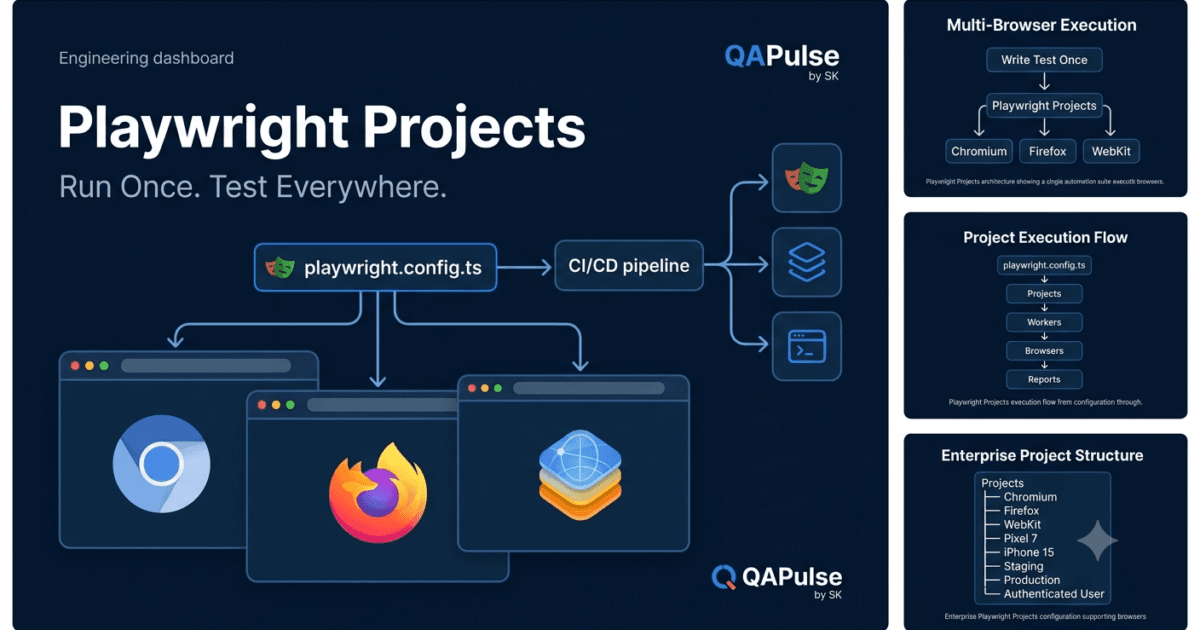
Playwright Projects are one of the most powerful features of Playwright because they allow you to execute the same test suite across multiple browsers, devices, operating systems, and configurations without modifying your test code. Modern web applications are expected to work consistently for every user regardless of the browser they use, and Playwright Projects make cross-browser automation straightforward, scalable, and maintainable.
Without Playwright Projects, teams often create duplicate test suites for different browsers, increasing maintenance costs and introducing inconsistencies. Playwright solves this problem through a project-based execution model.
Why Cross-Browser Testing Matters
Users access web applications using different browsers.
The same application may behave differently on:
- Google Chrome
- Microsoft Edge
- Mozilla Firefox
- Apple Safari
Differences in rendering engines, JavaScript execution, CSS implementation, fonts, browser security policies, and feature support can introduce browser-specific defects.
A feature working perfectly in Chromium does not automatically guarantee identical behavior in Firefox or WebKit.
Cross-browser testing ensures that users receive a consistent experience regardless of their browser choice.
Traditional Cross-Browser Testing
Before Playwright, automation frameworks often managed browsers separately.
Chrome Tests

↓

Maintain Scripts

↓

Firefox Tests

↓

Maintain Scripts

↓

Safari Tests

↓

Maintain Scripts
Every browser required its own execution pipeline.
As applications evolved, maintaining separate suites became increasingly difficult.
Cross-Browser Testing with Playwright Projects
Playwright introduces the concept of Projects.
Instead of creating multiple automation suites, one test suite can execute against multiple browser configurations.
Write Tests Once

↓

Playwright Projects

↓

Chromium

Firefox

WebKit
The automation code remains the same while Playwright manages browser execution.
This dramatically reduces duplication and maintenance effort.
What Is a Playwright Project?
A Playwright Project is a named configuration that defines how a group of tests should execute.
A project can specify:
- Browser
- Device
- Screen resolution
- Locale
- Time zone
- Permissions
- Authentication state
- Environment variables
- Custom configuration
Each project represents one execution environment.
For example:
Project

↓

Browser

↓

Device

↓

Configuration
When the test suite runs, Playwright executes every test using each configured project.
Default Browser Projects
Playwright supports three browser engines.
| Browser Engine | Represents |
|---|---|
| Chromium | Google Chrome and Microsoft Edge |
| Firefox | Mozilla Firefox |
| WebKit | Apple Safari |
These engines cover the majority of modern browser usage.
Testing against all three provides strong confidence that an application behaves consistently.
Browser Engines
Understanding browser engines helps explain why cross-browser testing is necessary.
Chromium
Chromium powers:
- Google Chrome
- Microsoft Edge
- Brave
- Opera
It is currently the most widely used browser engine.
Firefox
Firefox uses Mozilla’s Gecko engine.
Although browser market share differs from Chromium, Firefox remains widely used in enterprise, education, and privacy-focused environments.
Testing with Firefox helps identify compatibility issues that Chromium-based browsers may not reveal.
WebKit
WebKit powers Safari.
Mac and iPhone users rely heavily on Safari.
Testing WebKit helps detect layout, rendering, and interaction issues specific to Apple’s browser engine.
How Playwright Executes Projects
Suppose you have three test cases.
Login Test

Dashboard Test

Checkout Test
You configure three Playwright Projects.
Chromium

Firefox

WebKit
Execution becomes:
Chromium

↓

Login

Dashboard

Checkout


Firefox

↓

Login

Dashboard

Checkout


WebKit

↓

Login

Dashboard

Checkout
Nine executions occur automatically without duplicating a single test.
Benefits of Playwright Projects
Using Playwright Projects provides several advantages.
Single Source of Truth
Automation engineers maintain only one test suite.
Every browser shares the same implementation.
Consistent Validation
All supported browsers execute identical business scenarios.
This improves confidence in release quality.
Easier Maintenance
Bug fixes occur once instead of being repeated across browser-specific scripts.
Better Scalability
Adding another browser or device requires configuration rather than rewriting tests.
CI/CD Friendly
Projects integrate naturally into continuous integration pipelines.
Tests can execute sequentially or in parallel across multiple environments.
Common Enterprise Use Cases
Organizations commonly use Playwright Projects for:
- Cross-browser compatibility
- Responsive testing
- Mobile emulation
- Staging and production environments
- Multiple user roles
- Localization testing
- Accessibility verification
- Feature flag validation
Each scenario represents a different execution configuration while reusing the same automation logic.
Project-Based Thinking
Instead of asking:
“Which browser should I write this test for?”
Playwright encourages a different mindset.
Write the test once.
Configure where it should run.
Execution environments become configuration rather than code.
This separation makes automation frameworks cleaner and easier to scale.
Common Mistakes
Teams new to Playwright often make mistakes such as:
- Creating separate folders for Chrome and Firefox tests.
- Duplicating identical test scripts.
- Writing browser-specific business logic.
- Hardcoding browser assumptions.
- Ignoring WebKit during testing.
Playwright Projects eliminate the need for these approaches by centralizing browser configuration.
Enterprise Perspective
Large organizations rarely support only one browser.
A typical enterprise application may require testing across:
- Chromium on Windows
- Chromium on Linux
- Firefox
- WebKit
- Mobile Chrome
- Mobile Safari
- Tablet browsers
Managing these environments manually would require enormous effort.
Playwright Projects provide a unified configuration model that scales from a few browsers to dozens of execution environments without increasing code complexity.
Understanding Playwright Projects is a major milestone in building production-grade automation frameworks. Once you understand the project model, you can execute the same high-quality tests across browsers, devices, and environments with minimal additional effort, making your automation framework both scalable and future-ready.
Playwright Projects: Configuring Multi-Browser Testing Step by Step
Playwright Projects are configured inside the playwright.config.ts file. Instead of writing separate automation scripts for different browsers, devices, or environments, you define multiple projects and allow Playwright to execute the same test suite using each configuration automatically.
This section explains how to configure Playwright Projects, understand every configuration option, and build a scalable multi-browser automation framework.
Understanding playwright.config.ts
Every Playwright project contains a configuration file.
Project

│

├── tests/

├── playwright.config.ts

├── package.json

└── node_modules/
The playwright.config.ts file controls how Playwright executes your automation suite.
It defines:
- Browsers
- Projects
- Timeouts
- Reporters
- Test directory
- Retries
- Screenshots
- Videos
- Trace collection
- Base URL
Almost every enterprise framework customizes this file.
Default Playwright Configuration
A simplified configuration looks like this.
import { defineConfig } from '@playwright/test';

export default defineConfig({

    testDir: './tests',

});
This tells Playwright where test files are located.
Additional configuration can be added gradually as the framework grows.
Adding Playwright Projects
Multiple browser projects are configured using the projects property.
import {
    defineConfig,
    devices
} from '@playwright/test';

export default defineConfig({

    projects: [

        {
            name: 'Chromium',

            use: {
                ...devices['Desktop Chrome']
            }

        },

        {
            name: 'Firefox',

            use: {
                ...devices['Desktop Firefox']
            }

        },

        {
            name: 'WebKit',

            use: {
                ...devices['Desktop Safari']
            }

        }

    ]

});
One configuration now supports three browser engines.
Execution Flow
Suppose the project contains two tests.
login.spec.ts

checkout.spec.ts
Running Playwright produces the following execution.
Chromium

↓

login.spec.ts

checkout.spec.ts


Firefox

↓

login.spec.ts

checkout.spec.ts


WebKit

↓

login.spec.ts

checkout.spec.ts
Each browser executes the same test suite independently.
Understanding the name Property
Every project has a unique name.
{
    name: 'Chromium'
}
The name appears in:
- Test reports
- Console output
- HTML reports
- CI/CD logs
Meaningful names make execution results easier to understand.
Example:
✓ Chromium

✓ Firefox

✓ WebKit
Understanding the use Property
The use section defines browser-specific configuration.
Example:
use: {

    ...devices['Desktop Chrome']

}
The selected device provides settings such as:
- Browser engine
- Viewport
- User agent
- Screen size
- Device scale factor
- Touch support
This allows Playwright to emulate realistic browser environments.
Using Built-In Devices
Playwright includes numerous predefined device profiles.
Examples include:
devices['Desktop Chrome']

devices['Desktop Firefox']

devices['Desktop Safari']
Mobile examples include:
devices['Pixel 7']

devices['iPhone 15']

devices['Galaxy S24']
Tablet examples include:
devices['iPad Pro 11']
These predefined profiles eliminate the need to configure every device manually.
Running a Specific Project
Sometimes only one browser needs to be tested.
Example:
npx playwright test --project=Chromium
Run Firefox only.
npx playwright test --project=Firefox
Run WebKit only.
npx playwright test --project=WebKit
This is useful during development when debugging browser-specific issues.
Running All Projects
To execute every configured browser, simply run:
npx playwright test
Playwright automatically detects every project inside the configuration file.
Execution occurs according to the configured workers and parallelization settings.
Viewing Project Results
The HTML report groups results by project.
Example:
Chromium

✓ Login

✓ Dashboard

✓ Checkout


Firefox

✓ Login

✓ Dashboard

✗ Checkout


WebKit

✓ Login

✓ Dashboard

✓ Checkout
This makes browser-specific failures immediately visible.
Adding a Custom Project
Projects are not limited to browsers.
Example:
{
    name: 'Staging',

    use: {

        baseURL: 'https://staging.example.com'

    }

}
Another project could target production.
{
    name: 'Production',

    use: {

        baseURL: 'https://example.com'

    }

}
The same tests now validate multiple deployment environments.
Combining Browsers and Environments
Projects can represent both browser and environment.
Example:
Chromium - Staging

Firefox - Staging

WebKit - Staging

Chromium - Production

Firefox - Production

WebKit - Production
A single configuration now supports six execution environments without changing test code.
Organizing Large Configurations
As frameworks grow, configurations often include:
Projects

│

├── Desktop Browsers

├── Mobile Devices

├── Tablet Devices

├── Staging

├── Production

├── Smoke Tests

└── Regression Tests
Each project represents a specific execution scenario while sharing the same automation suite.
Common Configuration Mistakes
Duplicating Tests
Avoid creating separate folders like:
chrome-tests/

firefox-tests/

webkit-tests/
Use Playwright Projects instead.
Hardcoding Browser Logic
Poor example:
if(browser === 'Chrome') {

    // Special logic

}
Whenever possible, keep business tests browser-independent.
Ignoring WebKit
Many teams validate only Chromium.
Safari users depend on WebKit, making it an essential part of cross-browser testing.
Best Practices
- Configure browsers through Playwright Projects rather than separate test suites.
- Give every project a meaningful name.
- Reuse Playwright’s built-in device profiles.
- Keep test logic independent of browser implementation.
- Execute all supported browsers in CI/CD.
- Review HTML reports to identify browser-specific failures.
- Add environments through projects instead of modifying tests.
- Organize projects logically as the framework expands.
By mastering Playwright Projects, automation engineers can execute the same high-quality test suite across browsers, devices, and environments without duplicating code. This configuration-driven approach is one of the primary reasons Playwright has become the preferred automation framework for modern enterprise web testing.
Playwright Projects: Advanced Configuration, Device Emulation, Dependencies, and Enterprise Execution
Playwright Projects are not limited to running tests in Chromium, Firefox, and WebKit. In enterprise automation frameworks, projects are used to manage authentication, environments, devices, user roles, dependencies, and execution strategies. Understanding these advanced capabilities allows you to build scalable automation frameworks that can execute thousands of tests across multiple configurations with minimal maintenance.
Customizing Project Configuration
Each Playwright Project can override default settings using the use property.
Example:
import {
    defineConfig,
    devices
} from '@playwright/test';

export default defineConfig({

    use: {
        headless: true,
        screenshot: 'only-on-failure'
    },

    projects: [

        {
            name: 'Chromium',

            use: {
                ...devices['Desktop Chrome']
            }

        }

    ]

});
Project-specific settings override global defaults when necessary.
Custom Viewport Sizes
Desktop applications may need validation on different screen resolutions.
Example:
{
    name: 'Large Desktop',

    use: {

        browserName: 'chromium',

        viewport: {

            width: 1920,

            height: 1080

        }

    }

}
Another project can target smaller laptop screens.
{
    name: 'Laptop',

    use: {

        browserName: 'chromium',

        viewport: {

            width: 1366,

            height: 768

        }

    }

}
Without modifying the test code, Playwright now validates multiple screen sizes.
Mobile Device Emulation
Playwright includes realistic device profiles.
Example:
{
    name: 'Pixel 7',

    use: {

        ...devices['Pixel 7']

    }

}
Another project can emulate an iPhone.
{
    name: 'iPhone 15',

    use: {

        ...devices['iPhone 15']

    }

}
Playwright automatically applies:
- Viewport
- User agent
- Touch events
- Device scale factor
- Mobile browser characteristics
This allows responsive testing without physical devices.
Running Desktop and Mobile Together
A single configuration may include both desktop and mobile projects.
Chromium Desktop

Firefox Desktop

Safari Desktop

Pixel 7

iPhone 15

iPad Pro
Every test executes against every configured device.
This provides excellent coverage for responsive web applications.
Project-Specific Base URLs
Different projects can target different environments.
Example:
{
    name: 'Development',

    use: {

        baseURL: 'https://dev.example.com'

    }

}
Another project:
{
    name: 'Staging',

    use: {

        baseURL: 'https://staging.example.com'

    }

}
Production:
{
    name: 'Production',

    use: {

        baseURL: 'https://example.com'

    }

}
The same automation suite now validates multiple deployment environments.
Using Storage State
Logging in before every test is simple but can increase execution time.
Playwright allows projects to reuse an authenticated session.
Example:
{
    name: 'Authenticated',

    use: {

        storageState: 'playwright/.auth/user.json'

    }

}
Instead of performing a UI login for every test, Playwright loads the saved authentication state.
Benefits include:
- Faster execution
- Reduced server load
- Stable authentication
- Better CI/CD performance
A dedicated lesson later in this series will explore storage state in depth.
Project Dependencies
Some projects depend on setup performed by another project.
Example:
Authentication Project

↓

Generate Storage State

↓

Regression Project

↓

Smoke Project
Playwright can execute setup projects before dependent projects.
This avoids repeating initialization work while keeping tests independent.
Browser-Specific Configuration
Sometimes browser behavior genuinely differs.
Example:
{
    name: 'Firefox',

    use: {

        browserName: 'firefox',

        locale: 'en-US'

    }

}
Another project:
{
    name: 'Chromium',

    use: {

        browserName: 'chromium',

        locale: 'en-US'

    }

}
Configuration differences belong in projects rather than inside test logic.
Running Projects in Parallel
Playwright executes projects efficiently using workers.
Worker 1

Chromium

↓

Tests


Worker 2

Firefox

↓

Tests


Worker 3

WebKit

↓

Tests
Parallel execution significantly reduces overall execution time.
This makes large regression suites practical for CI/CD pipelines.
Organizing Enterprise Projects
A mature Playwright framework may contain projects such as:
Desktop Chrome

Desktop Firefox

Desktop Safari

Pixel 7

Galaxy S24

iPhone 15

iPad Pro

Development

Staging

Production

Authenticated

Guest User

Admin User
Every project represents a specific execution context while sharing the same automation code.
Common Enterprise Scenarios
Playwright Projects are frequently used for:
- Cross-browser testing
- Responsive testing
- Mobile emulation
- Environment switching
- Localization testing
- Multiple user roles
- Authentication reuse
- Accessibility testing
- Feature flag validation
- Smoke and regression execution
Instead of changing tests, engineers simply select the appropriate project.
Common Mistakes
Hardcoding Environment URLs
Poor approach:
await page.goto(
    'https://staging.example.com'
);
Prefer using baseURL in project configuration.
Browser Checks Inside Tests
Avoid patterns such as:
if (browserName === 'firefox') {

    // Different business logic

}
Tests should verify application behavior, not browser implementation.
Creating Separate Automation Suites
Do not maintain independent projects like:
chrome-tests/

firefox-tests/

mobile-tests/
Playwright Projects eliminate this duplication.
Best Practices
- Configure execution environments using Playwright Projects.
- Keep tests browser-independent whenever possible.
- Use built-in device profiles for responsive testing.
- Reuse authentication through storage state instead of repeated UI logins.
- Separate configuration from business logic.
- Execute projects in parallel within CI/CD.
- Use meaningful project names.
- Review project results individually in HTML reports.
- Expand projects as application requirements evolve.
Properly designed Playwright Projects transform a simple automation suite into a flexible execution platform capable of validating browsers, devices, environments, and user roles through configuration rather than duplicated code. This architecture is one of the defining characteristics of production-grade Playwright frameworks used by modern engineering teams.
Playwright Projects: Execution Strategy, Project Dependencies, CI/CD Integration, and Enterprise Best Practices
Playwright Projects become even more powerful when integrated into enterprise automation frameworks and CI/CD pipelines. While beginners often use projects only for running tests in multiple browsers, experienced automation engineers use them to orchestrate authentication, environment management, browser execution, reporting, parallelism, and deployment validation.
Understanding how Playwright Projects behave during execution is essential for designing automation frameworks that scale from a few test cases to tens of thousands of automated tests.
How Playwright Executes Multiple Projects
Suppose your framework contains three projects.
Chromium

Firefox

WebKit
Each project contains three test files.
login.spec.ts

dashboard.spec.ts

checkout.spec.ts
Playwright expands execution like this.
Chromium
    ├── login.spec.ts
    ├── dashboard.spec.ts
    └── checkout.spec.ts

Firefox
    ├── login.spec.ts
    ├── dashboard.spec.ts
    └── checkout.spec.ts

WebKit
    ├── login.spec.ts
    ├── dashboard.spec.ts
    └── checkout.spec.ts
Nine independent executions are created automatically.
Each execution is isolated from every other project.
Understanding Project Isolation
Every Playwright Project has its own execution environment.
Project

↓

Browser Instance

↓

Browser Context

↓

Page

↓

Test Execution
This isolation ensures that:
- Cookies are not shared.
- Local Storage remains independent.
- Session Storage is isolated.
- Browser cache is separated.
- Authentication does not leak between projects unless intentionally configured.
Isolation is one of the reasons Playwright frameworks remain stable during parallel execution.
Project Dependencies
Enterprise frameworks often require one project to prepare resources before another project begins.
Example:
Authentication Project

↓

Generate Storage State

↓

Regression Project

↓

Smoke Project
The setup project creates reusable authentication data.
Other projects consume that data without performing repeated UI logins.
This reduces execution time while maintaining test independence.
Running Projects Sequentially vs Parallel
Sequential Execution
Chromium

↓

Firefox

↓

WebKit
Advantages:
- Lower CPU usage
- Easier debugging
- Suitable for smaller machines
Disadvantages:
- Longer execution time
Parallel Execution
Chromium

      ↓

Firefox

      ↓

WebKit
All projects execute simultaneously.
Advantages:
- Faster regression cycles
- Better CI/CD performance
- Efficient resource utilization
Parallel execution is the preferred strategy for enterprise automation.
Project Execution in CI/CD
Modern DevOps pipelines commonly execute Playwright Projects automatically.
Typical workflow:
Developer Pushes Code

↓

Build Starts

↓

Install Dependencies

↓

Execute Playwright Projects

↓

Generate Reports

↓

Publish Results

↓

Deploy Application
If any project reports failures, the pipeline can stop the deployment.
This prevents browser-specific defects from reaching production.
Using Projects for Multiple Environments
Projects are not limited to browsers.
Example execution:
Development

↓

Chromium

Firefox

WebKit


Staging

↓

Chromium

Firefox

WebKit


Production

↓

Chromium

Firefox

WebKit
A single test suite now validates multiple deployment environments without modifying the tests.
Using Projects for User Roles
Enterprise applications often support multiple user roles.
Projects can represent authenticated users.
Guest User

↓

Customer

↓

Manager

↓

Administrator
Each project loads a different authentication state.
Business tests remain identical while user permissions change automatically.
Reporting Across Projects
Playwright reports results separately for every project.
Example:
Chromium

✓ Login

✓ Checkout

✓ Orders


Firefox

✓ Login

✗ Checkout

✓ Orders


WebKit

✓ Login

✓ Checkout

✓ Orders
This immediately identifies browser-specific failures.
Reports become especially valuable during release validation.
Debugging Browser-Specific Failures
Suppose a test passes in Chromium but fails in WebKit.
The investigation process typically includes:
- Reviewing the HTML report
- Opening Trace Viewer
- Inspecting screenshots
- Watching recorded videos
- Comparing DOM snapshots
- Reviewing console logs
- Verifying network requests
Because every project is isolated, identifying browser-specific issues becomes much easier.
Scaling Playwright Projects
As frameworks evolve, project configurations often expand.
Example:
Desktop Browsers

│

├── Chromium

├── Firefox

└── WebKit


Mobile

│

├── Pixel 7

├── Galaxy S24

└── iPhone 15


Tablet

│

├── iPad Pro

└── Surface Pro


Environments

│

├── Development

├── QA

├── Staging

└── Production
Although dozens of projects exist, the automation code remains unchanged.
Configuration—not duplication—controls execution.
Common Anti-Patterns
Browser-Specific Test Files
Avoid structures like:
chrome-login.spec.ts

firefox-login.spec.ts

webkit-login.spec.ts
Maintain one test and execute it through multiple projects.
Hardcoding Browser Conditions
Avoid:
if (browserName === 'firefox') {

    // Execute different logic

}
Business logic should not depend on browser type unless validating a documented browser-specific behavior.
Duplicating Configuration
Avoid creating multiple configuration files for each browser when a single projects array can manage all execution environments.
Enterprise Best Practices
Large organizations typically follow these standards:
- Write browser-independent tests.
- Configure browsers through Playwright Projects.
- Use meaningful project names.
- Execute projects in parallel within CI/CD.
- Separate environments using project configuration.
- Reuse authentication with storage state.
- Review reports for every project before release.
- Keep browser-specific workarounds inside configuration whenever possible.
- Avoid duplicating tests for different browsers.
Interview Questions
What is a Playwright Project?
A Playwright Project is a named execution configuration that defines how tests should run, including browser, device, environment, authentication state, and other settings.
Why are Playwright Projects important?
They allow a single automation suite to execute across multiple browsers, devices, and environments without duplicating test code.
Can Playwright Projects represent environments instead of browsers?
Yes. Projects can target development, QA, staging, production, different user roles, mobile devices, or any other execution configuration.
Do Playwright Projects support parallel execution?
Yes. Playwright can execute multiple projects simultaneously using workers, significantly reducing regression execution time.
Production Checklist
Before using Playwright Projects in an enterprise automation framework, verify the following:
- All supported browsers are configured as projects.
- Tests remain browser-independent.
- Project names clearly describe their execution purpose.
- Authentication is reused through storage state where appropriate.
- Environment configuration is managed through projects rather than hardcoded URLs.
- Projects execute successfully in CI/CD.
- HTML reports distinguish results for every project.
- Browser-specific failures are investigated using Trace Viewer and screenshots.
- Configuration scales without duplicating test code.
Well-designed Playwright Projects enable automation engineers to validate browsers, devices, environments, and user roles through configuration rather than code duplication. This execution model is a cornerstone of modern Playwright frameworks and a key reason why Playwright has become the preferred choice for enterprise-grade cross-browser automation.
Internal Links
- Day 1: What is Playwright and Why Everyone is Talking About It
- Day 2: How to Install Playwright: Complete Beginner Setup Guide for 2026
- Day 3: Your First Playwright Test: Understanding Every Line Before You Write Code
- Day 4: How Playwright Works Behind the Scenes: Complete Architecture Guide for Beginners
- Day 5: Playwright Locators: Stop Writing Fragile Selectors Forever
- Day 6: Playwright Auto Waiting: Complete Guide to Reliable Test Synchronization
- Day 7: Playwright Assertions: Complete Guide to Reliable Test Validation
- Day 8: Playwright Test Hooks: Complete Guide to beforeAll, beforeEach, afterEach, and afterAll Explained
- Playwright: Zero to Hero Series
External Links
- Playwright Hooks Documentation: https://playwright.dev/docs/api/class-test
- Playwright Test Runner: https://playwright.dev/docs/test-intro
- Playwright Best Practices: https://playwright.dev/docs/best-practices
- Playwright Configuration: https://playwright.dev/docs/test-configuration
- Playwright Projects: https://playwright.dev/docs/test-projects
- Playwright Devices: https://playwright.dev/docs/emulation
AI Search Optimized Section
What Are Playwright Projects?
Playwright Projects are named execution configurations that allow the same automation tests to run across multiple browsers, devices, environments, and user contexts without modifying the test code.
Why Are Playwright Projects Important?
Playwright Projects eliminate duplicate automation scripts by separating execution configuration from business test logic. This makes automation frameworks easier to maintain and scale.
Which Browsers Do Playwright Projects Support?
Playwright Projects support:
- Chromium
- Firefox
- WebKit
Additional projects can emulate mobile devices, tablets, authenticated sessions, and deployment environments.
What Can Be Configured in a Playwright Project?
A Playwright Project can configure:
- Browser engine
- Device profile
- Viewport
- Base URL
- Locale
- Time zone
- Permissions
- Storage state
- Authentication
- Environment variables
- Screenshot behavior
- Video recording
- Trace collection
Best Practices
- Keep business tests browser-independent.
- Configure browsers using Playwright Projects.
- Use built-in device profiles for responsive testing.
- Execute all supported browsers in CI/CD.
- Reuse authentication with storage state.
- Separate environments through project configuration.
- Give projects meaningful names.
- Review reports for every project before release.
- Expand execution using configuration instead of duplicate tests.
Common Mistakes
- Maintaining separate test suites for each browser.
- Hardcoding browser-specific business logic.
- Ignoring WebKit during regression testing.
- Hardcoding environment URLs.
- Duplicating configuration across multiple files.
- Logging in through the UI for every project when storage state is available.
- Running only Chromium during release validation.
FAQ
What are Playwright Projects?
Playwright Projects are named configurations that execute the same Playwright tests across multiple browsers, devices, environments, or authenticated user contexts.
Do I need separate test files for Chrome and Firefox?
No. A single Playwright test suite can run across Chromium, Firefox, WebKit, and other configured projects without duplication.
Can Playwright Projects emulate mobile devices?
Yes. Playwright provides built-in device profiles for popular smartphones and tablets, allowing responsive testing without physical devices.
Can Playwright Projects be used for different environments?
Yes. Projects can target development, QA, staging, production, or any other environment by configuring different base URLs and settings.
Are Playwright Projects suitable for CI/CD?
Yes. They are designed to execute efficiently in parallel across multiple browsers and environments, making them ideal for enterprise CI/CD pipelines.
Engineering Challenge #3
This exercise introduces real-world multi-browser automation using Playwright Projects.
Scenario
Use the OrangeHRM demo application.
Website
https://opensource-demo.orangehrmlive.com
Requirements
Configure Playwright to execute the same automation suite in:
- Chromium
- Firefox
- WebKit
Create three independent tests:
- Verify successful login.
- Verify the Dashboard page.
- Verify the Directory page.
Additional Requirements
- Configure the projects inside
playwright.config.ts. - Execute all browsers using one command.
- Generate the HTML report.
- Compare execution results for all three browsers.
Bonus Challenge
Extend your configuration by adding:
- Desktop Chrome
- Pixel 7
- iPhone 15
Run the same automation suite on all five projects and compare execution times and results.
Conclusion
Playwright Projects provide a configuration-driven approach to cross-browser automation by allowing one test suite to execute across browsers, devices, environments, and user roles. By separating execution settings from business logic, Playwright enables scalable, maintainable, and CI/CD-ready automation frameworks capable of validating modern web applications with minimal duplication and maximum reliability.
For more expert tutorials on Playwright, QA Automation, AI-powered testing, SDET engineering, and enterprise automation frameworks, visit www.skakarh.com.