 QA
QA
What You Will Learn
In this lesson, you will learn:
- What you need before installing Playwright
- How to install Playwright
- How Playwright project structure works
- How to run your first Playwright test
- Common installation mistakes
- Best practices for QA engineers
By the end of this guide, you will have a fully working Playwright automation project.
What Is Required Before You Install Playwright?
Before you install Playwright, make sure you have:
| Requirement | Version |
|---|---|
| Node.js | 18+ Recommended |
| npm | Latest |
| VS Code | Recommended |
| Internet Connection | Required |
Check Node.js Installation
Open Terminal:
node --version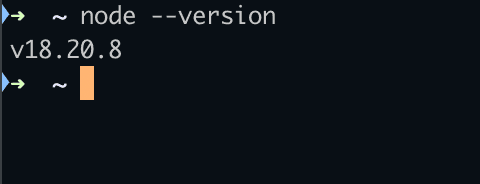
Example output:
v18.20.8
Check npm:
npm --version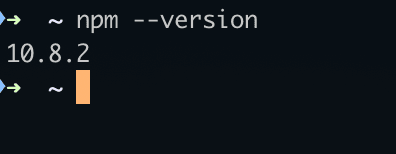
Example:
10.8.2
If both commands work, you are ready to install Playwright.
Why QA Engineers Are Choosing Playwright
Before we install Playwright, let’s understand why it has become so popular.
Playwright Benefits
| Feature | Benefit |
|---|---|
| Auto Waiting | Less flaky tests |
| Cross Browser Support | Chromium, Firefox, WebKit |
| Parallel Execution | Faster execution |
| API Testing | Built-in |
| Mobile Emulation | Built-in |
| Trace Viewer | Excellent debugging |
How to Install Playwright
This is the easiest way to install Playwright.
Create a new folder:
mkdir playwright-demo
Move into the folder:
cd playwright-demo
Initialize project:
npm init -y
Install Playwright:
npm init playwright@latest
You will see several prompts.
Example:
✔ TypeScript or JavaScript
✔ Tests Folder
✔ GitHub Actions
✔ Install Browsers
Choose the default options if you are a beginner.
Understanding the Installation Process
When you install Playwright, several things happen automatically.
Playwright Creates
| Item | Purpose |
|---|---|
| tests | Test files |
| playwright.config | Configuration |
| package.json | Dependencies |
| node_modules | Libraries |
| browsers | Browser binaries |
Playwright Project Structure
After installation:
playwright-demo
│
├── tests
│   └── example.spec.js
│
├── playwright.config.js
│
├── package.json
│
└── node_modules
Understanding this structure is important for long-term success.
Your First Playwright Test
Now let’s create our first test.
Create:
tests/google.spec.js
Add:
import { test, expect } from '@playwright/test';

test('Open Google', async ({ page }) => {

  await page.goto('https://google.com');

  await expect(page).toHaveTitle(/Google/);

});
Understanding the Code
Let’s break it down.
Import
import { test, expect } from '@playwright/test';
This imports Playwright testing functions.
Test Block
test('Open Google', async ({ page }) => {
Creates a test.
Navigation
await page.goto('https://google.com');
Opens a website.
Validation
await expect(page).toHaveTitle(/Google/);
Verifies the title.
Run Your First Test
Execute:
npx playwright test
Expected:
Running 1 test

✓ Open Google
Congratulations.
You have executed your first Playwright automation test.
Run Tests in UI Mode
Playwright includes a powerful UI Mode.
Execute:
npx playwright test --ui
Benefits:
- Visual execution
- Debugging support
- Trace viewing
- Screenshot inspection
Generate a Test Automatically
One of Playwright’s most powerful features is Codegen.
Launch:
npx playwright codegen https://www.saucedemo.com
Playwright records actions automatically.
Example output:
await page.goto('https://www.saucedemo.com');

await page.fill('#user-name', 'standard_user');

await page.fill('#password', 'secret_sauce');

await page.click('#login-button');
This dramatically speeds up test creation.
Common Installation Problems
Node Version Too Old
Error:
Unsupported Node Version
Solution:
Upgrade Node.js.
Browser Installation Failed
Fix:
npx playwright installDependency Issues
Run:
npm install
again.
Playwright vs Selenium Installation
Many engineers ask:
Why is Playwright setup easier?
| Area | Playwright | Selenium |
|---|---|---|
| Driver Setup | Automatic | Manual |
| Browser Download | Automatic | Manual |
| Configuration | Easier | More Complex |
| First Test | Faster | Slower |
| Beginner Friendly | Excellent | Moderate |
This simplicity is one reason Playwright adoption is growing rapidly.
Best Practices When You Install Playwright
Do
✅ Use latest stable version
✅ Use Git
✅ Keep tests organized
✅ Commit configuration files
✅ Use Page Object Model later
Avoid
❌ Hardcoded waits
❌ Large test files
❌ Copy-paste locators
❌ Ignoring test structure
Quick Setup Checklist
| Task | Status |
|---|---|
| Install Node.js | ✅ |
| Create Project | ✅ |
| Install Playwright | ✅ |
| Install Browsers | ✅ |
| Create First Test | ✅ |
| Run Test | ✅ |
| Open UI Mode | ✅ |
FAQ
Is Playwright Free?
Yes. Playwright is completely open source.
Which Languages Does Playwright Support?
Playwright supports:
- JavaScript
- TypeScript
- Python
- Java
- .NET
Is Playwright Better Than Selenium?
Both are excellent tools.
For modern web automation, many teams prefer Playwright because of auto-waiting, tracing, and easier setup.
Do I Need Coding Experience?
Basic JavaScript knowledge helps, but beginners can start quickly.
Can Playwright Test APIs?
Yes.
Playwright includes built-in API testing capabilities.
What You’ll Learn Next
In the next Playwright Zero to Hero lesson, we will learn:
Playwright Locators: How to Find Elements the Right Way
This is one of the most important topics because locator strategy directly impacts test stability.
Internal Links
- Day 1: What is Playwright and Why Everyone is Talking About It
- Day 2: How to Install Playwright: Complete Beginner Setup Guide for 2026
- Day 3: Your First Playwright Test: Understanding Every Line Before You Write Code
- Day 4: How Playwright Works Behind the Scenes: Complete Architecture Guide for Beginners
- Day 5: Playwright Locators: Stop Writing Fragile Selectors Forever
- Playwright: Zero to Hero Series