 QA
QA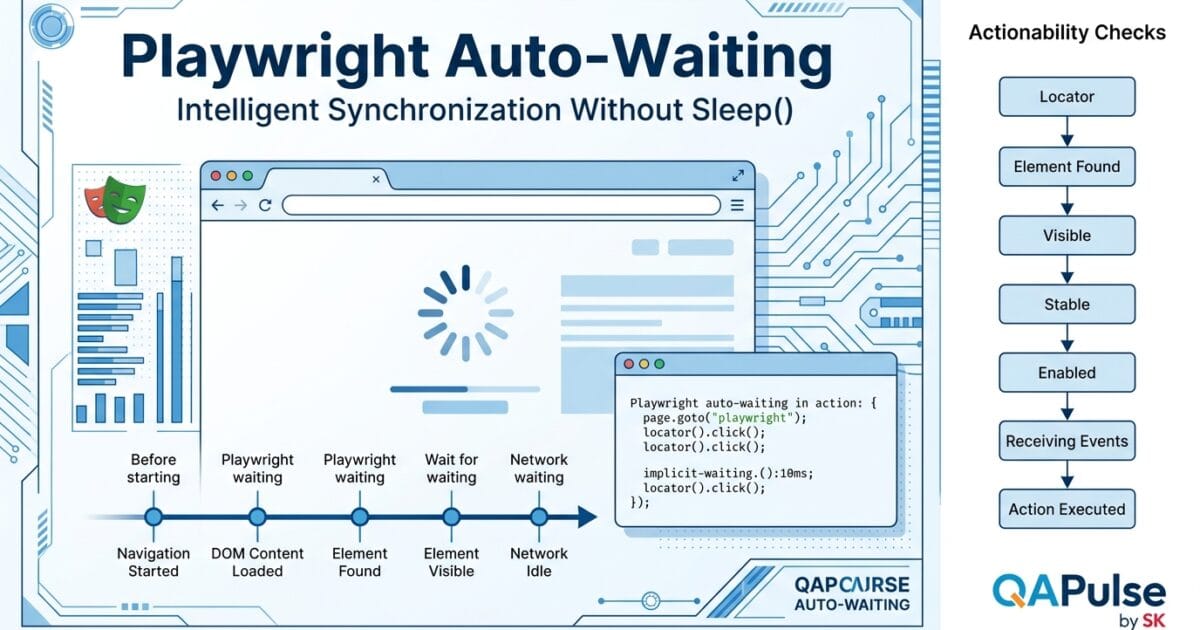
Playwright Auto Waiting: Why Your Tests Don’t Need Sleep() Calls
Playwright Auto Waiting is one of the most powerful features in Playwright because it automatically synchronizes your tests with the application’s state. Instead of relying on hard-coded delays or manually waiting for elements to appear, Playwright understands when an element is actually ready for interaction. This capability is a major reason why Playwright tests are significantly more reliable than those written with older browser automation frameworks.
Many engineers transitioning from Selenium or Cypress initially try to write Playwright tests the same way they wrote automation in the past. They add waitForTimeout(), custom retry loops, or explicit waits before every action. Although these approaches may appear to solve timing issues, they usually make tests slower, harder to maintain, and more prone to intermittent failures.
Understanding how Playwright Auto Waiting works is essential before learning advanced topics such as Page Object Models, API mocking, authentication, visual testing, and CI/CD automation.
Why Synchronization is Difficult in Modern Web Applications
Modern web applications rarely load everything at once.
A typical page may perform dozens of asynchronous operations after navigation.
These operations can include:
- Fetching user information
- Loading product data
- Rendering React or Vue components
- Executing animations
- Performing authentication checks
- Loading advertisements
- Downloading images
- Updating the DOM after API responses
Although the page may appear complete to a user, many interactive elements are still changing behind the scenes.
Consider a login page.
User opens Login Page

↓

HTML loads

↓

CSS loads

↓

JavaScript initializes

↓

API request starts

↓

Button disabled

↓

Response received

↓

Button enabled
If an automation script attempts to click the button before it becomes interactive, the action may fail even though the page looks ready.
This timing difference is one of the primary causes of flaky automation.
The Traditional Solution: Explicit Waiting
Before frameworks introduced intelligent synchronization, automation engineers solved timing issues by adding waits.
Examples include:
await page.waitForTimeout(5000);
or
await driver.sleep(3000);
At first glance, this seems reasonable.
“If the page needs more time, simply wait longer.”
Unfortunately, this approach introduces several problems.
Tests Become Slower
Imagine a regression suite containing 800 tests.
If every test waits five seconds unnecessarily, the total execution time increases dramatically.
Most of those waits are wasted because the application often becomes ready much sooner.
Hard waits delay every execution regardless of whether they are needed.
Hard Waits Are Unreliable
Now imagine the application experiences temporary network latency.
Instead of loading within five seconds, it requires seven.
The automation still fails because the fixed delay expires before the application is ready.
Ironically, increasing the wait to ten seconds only makes every successful execution slower while still failing if the application occasionally takes longer.
Hard waits solve symptoms rather than the underlying synchronization problem.
Maintenance Becomes Difficult
Projects that rely heavily on explicit waits often contain hundreds of timeout statements scattered throughout the framework.
When performance changes, engineers begin adjusting timeout values instead of addressing the real issue.
Over time, the framework becomes filled with arbitrary delays that nobody understands or wants to remove.
Playwright Uses Intelligent Synchronization
Playwright approaches synchronization differently.
Instead of asking:
“How long should I wait?”
Playwright asks:
“Is the application actually ready?”
This seemingly simple change transforms how browser automation behaves.
When an action is requested, Playwright continuously evaluates the state of the page until the required conditions are satisfied.
Only then does it perform the action.
This process is known as Playwright Auto Waiting.
Rather than relying on time, Playwright relies on application state.
That distinction is one of the biggest architectural advantages of the framework.
Auto-Waiting Is Built Into Every Interaction
One of the most common misconceptions is that auto-waiting is a separate API.
It is not.
Auto-waiting is integrated into almost every interaction provided by Playwright.
Examples include:
- Clicking buttons
- Filling input fields
- Selecting dropdown options
- Checking checkboxes
- Uploading files
- Pressing keyboard keys
- Performing assertions
- Working with locators
Automation engineers often write clean code like this:
await page.getByRole('button', {
    name: 'Login'
}).click();
There is no explicit wait.
There is no retry loop.
There is no custom polling logic.
Playwright performs all synchronization internally before executing the click.
This keeps test code simple while improving reliability.
Why Browser Speed Is Unpredictable
A browser executes far more work than simply displaying HTML.
Behind every page load, multiple systems work together.
Browser

↓

Network Requests

↓

JavaScript Execution

↓

CSS Rendering

↓

DOM Updates

↓

Animations

↓

Event Listeners

↓

User Interaction
Each step can complete at different times depending on:
- CPU speed
- Internet latency
- Backend performance
- Browser optimizations
- JavaScript execution
- Third-party services
- Device capabilities
A fixed delay cannot accurately predict when every component will finish.
Playwright avoids this uncertainty by observing the browser rather than estimating timing.
Waiting for Time vs Waiting for State
Understanding the difference between these two approaches is one of the biggest mindset shifts for automation engineers.
Waiting for Time
Wait 5 Seconds

↓

Hope Everything Is Ready

↓

Perform Action
This strategy assumes the application always behaves the same way.
Real-world applications rarely do.
Waiting for State
Application Ready?

↓

No

↓

Keep Checking

↓

Yes

↓

Perform Action
This approach adapts to changing application performance.
Fast pages continue immediately.
Slow pages receive additional time automatically.
The automation remains both faster and more reliable.
Why Enterprise Teams Prefer Auto-Waiting
Large organizations execute thousands of automated tests every day.
A small improvement in synchronization can save hours of execution time across multiple CI/CD pipelines.
More importantly, reducing flaky failures increases confidence in automated regression testing.
Engineers spend less time investigating false failures and more time validating genuine defects.
For this reason, enterprise teams treat Playwright Auto Waiting as a core architectural capability rather than a convenience feature.
Instead of writing synchronization logic in every test, they allow the framework to manage timing consistently across the entire automation suite.
Situations Where Auto-Waiting Excels
Playwright Auto Waiting is particularly effective in applications that involve:
- Single Page Applications (SPAs)
- React applications
- Angular applications
- Vue applications
- Infinite scrolling
- Dynamic tables
- AJAX requests
- Lazy-loaded content
- Progressive rendering
- Dashboard applications
- Enterprise portals
- Micro-frontend architectures
These applications constantly update the DOM, making fixed delays increasingly unreliable.
Because Playwright synchronizes with browser state instead of elapsed time, it adapts naturally to these environments.
Understanding the Philosophy
The most important lesson is not an API.
It is a design philosophy.
Older automation frameworks often required engineers to manage synchronization manually.
Playwright moves that responsibility into the framework itself.
Instead of writing tests that predict browser timing, engineers write tests that describe user behaviour.
The framework determines when those interactions can safely occur.
This philosophy leads to cleaner code, fewer synchronization bugs, and automation suites that remain stable as applications become more dynamic and complex.
Playwright Auto Waiting: Actionability Checks and Intelligent Synchronization
Playwright Auto Waiting automatically performs a series of internal checks before interacting with an element. When you call methods such as click(), fill(), check(), or hover(), Playwright doesn’t execute the action immediately. Instead, it verifies that the element is actually ready for user interaction.
This behavior is known as actionability checking, and it is one of the primary reasons Playwright produces stable automation without requiring explicit waits.
What Happens Before Every Action?
Consider the following statement.
await page.getByRole('button', {
    name: 'Login'
}).click();
Although it appears to be a single operation, Playwright performs several validation steps before clicking the button.
A simplified workflow looks like this:
Create Locator

↓

Find Matching Element

↓

Verify Exactly One Element Exists

↓

Wait Until Visible

↓

Wait Until Stable

↓

Wait Until Enabled

↓

Wait Until Receiving Events

↓

Perform Click
If any of these checks fail, Playwright continues waiting until the configured timeout expires.
Instead of immediately throwing an error, the framework assumes the application may still be loading.
Understanding Actionability
Actionability means an element is capable of being interacted with by a real user.
For example, a button may exist in the DOM but still be unusable because:
- It is hidden.
- It is disabled.
- It is covered by a loading spinner.
- It is moving because of an animation.
- It has not finished rendering.
Playwright verifies these conditions before attempting any interaction.
This significantly reduces flaky failures caused by poor timing.
Visibility Check
One of the first validations is visibility.
An element must actually be visible before Playwright attempts to click it.
Consider this HTML.
<button style="display:none">
    Login
</button>
Although the button exists, a user cannot interact with it.
Instead of clicking an invisible element, Playwright waits until the element becomes visible.
This often happens automatically after JavaScript completes loading.
Stability Check
Modern websites frequently animate elements.
Examples include:
- Sliding menus
- Expanding cards
- Fade-in dialogs
- Animated buttons
Suppose a button is still moving across the screen.
Clicking it during the animation could result in an incorrect location or missed interaction.
Playwright waits until the element becomes stable before continuing.
This happens without any additional code.
Enabled Check
A button may be visible but still disabled.
For example:
<button disabled>
    Submit
</button>
Many applications disable buttons until:
- Required fields are completed.
- API validation finishes.
- Permissions are verified.
- Authentication succeeds.
Playwright waits for the element to become enabled instead of clicking it prematurely.
Receiving Events Check
An element may appear visible but still be covered by another component.
Imagine a loading spinner displayed above a button.
Loading Spinner

██████████████

Login Button
Although the button exists, mouse events cannot reach it.
Playwright waits until the button is capable of receiving user input.
This prevents errors commonly caused by overlays and modal animations.
Auto-Waiting with Different Actions
Playwright applies actionability checks to many common operations.
Clicking
await page.getByRole('button', {
    name: 'Checkout'
}).click();
Playwright waits until the button can safely receive a click.
Filling Text
await page
.getByLabel('Email')
.fill('john@example.com');
The framework ensures the input is editable before typing.
Checking a Checkbox
await page
.getByRole('checkbox')
.check();
Playwright confirms the checkbox can be interacted with before changing its state.
Selecting an Option
await page
.locator('#country')
.selectOption('Australia');
The dropdown must be available before the selection occurs.
Auto-Waiting with Assertions
Playwright’s assertion library also benefits from intelligent synchronization.
Consider this assertion.
await expect(
    page.getByText('Order Complete')
).toBeVisible();
Playwright repeatedly checks whether the text becomes visible.
If the application displays the confirmation after two seconds, the assertion passes immediately.
There is no need to write custom retry loops.
Why Assertions Feel More Reliable
Traditional assertion libraries often evaluate conditions only once.
If the expected state hasn’t appeared yet, the assertion fails.
Playwright behaves differently.
Its assertions continue polling until:
- The expectation succeeds.
- The timeout expires.
This makes assertions significantly more reliable in applications with asynchronous behavior.
Actions That Benefit from Auto-Waiting
Most commonly used Playwright APIs automatically synchronize with the browser.
Examples include:
| Action | Auto-Waiting |
|---|---|
| click() | ✅ |
| fill() | ✅ |
| check() | ✅ |
| uncheck() | ✅ |
| hover() | ✅ |
| dblclick() | ✅ |
| dragTo() | ✅ |
| press() | ✅ |
| selectOption() | ✅ |
| Assertions | ✅ |
Because synchronization is built into these operations, additional waits are rarely necessary.
Understanding Timeouts
Auto-waiting is not infinite.
Every action has a timeout.
For example:
await page
.getByRole('button', {
    name: 'Save'
})
.click({
    timeout: 10000
});
If the button never becomes actionable within ten seconds, Playwright reports a timeout error.
This prevents tests from hanging indefinitely while still providing enough time for slower environments.
Common Misunderstandings
“Playwright waits for the page to finish loading.”
Not exactly.
Playwright waits for the specific action to become possible.
The entire page doesn’t need to be fully loaded.
Only the target element must satisfy the required conditions.
“I still need sleep() before every click.”
No.
Adding manual delays before Playwright actions usually slows execution without improving reliability.
The framework already performs synchronization internally.
“Visibility means the element is clickable.”
Not necessarily.
An element may be visible but:
- Disabled
- Covered by another element
- Still moving
This is why Playwright performs several actionability checks rather than relying only on visibility.
Enterprise Recommendations
Production automation frameworks generally follow these practices:
- Trust Playwright’s built-in synchronization.
- Avoid unnecessary
waitForTimeout()calls. - Prefer locator-based interactions over manual polling.
- Keep action timeouts realistic.
- Investigate why synchronization fails instead of increasing delays.
- Design applications with stable, accessible elements.
Frameworks that rely on Playwright Auto Waiting remain easier to maintain because synchronization logic is centralized inside the automation framework rather than duplicated throughout the test suite.
Understanding these actionability checks is essential before learning advanced synchronization techniques, network-aware automation, and production debugging strategies.
Playwright Auto Waiting: Advanced Synchronization and Real-World Scenarios
Playwright Auto Waiting solves most synchronization problems automatically, but experienced automation engineers know that not every delay should be handled in the same way. Understanding when Playwright waits, when it does not, and how to synchronize complex workflows is essential for building production-ready automation frameworks.
Large enterprise applications rarely consist of a few static pages. They contain dashboards, real-time updates, background API calls, lazy-loaded components, file uploads, and multiple asynchronous operations occurring simultaneously. In these situations, understanding the boundaries of Playwright Auto Waiting becomes just as important as understanding its capabilities.
Auto-Waiting Does Not Mean Waiting for Everything
A common misconception is that Playwright waits for the entire application to finish loading before executing the next statement.
It doesn’t.
Playwright waits only for the specific action or assertion that is about to execute.
Consider the following example.
await page.goto('/dashboard');

await page.getByRole('button', {
    name: 'Create Project'
}).click();
Playwright is not checking whether every widget, chart, advertisement, or analytics request has finished loading.
Instead, it asks a much narrower question:
“Is the Create Project button ready to be clicked?”
If the answer is yes, execution continues immediately.
This targeted synchronization is one reason Playwright tests execute faster than frameworks that rely on fixed delays.
Navigation and Auto-Waiting
Navigation is one of the most misunderstood areas of browser automation.
When you navigate to a page:
await page.goto(
    'https://example.com'
);
Several browser events occur.
Request Sent

↓

HTML Downloaded

↓

DOM Created

↓

JavaScript Executed

↓

Resources Loaded

↓

Application Interactive
Different applications become usable at different stages.
A simple documentation website may be ready immediately after the DOM loads.
A React dashboard might continue making API requests for several seconds after navigation completes.
Playwright understands these differences and coordinates navigation intelligently, reducing the need for custom synchronization logic.
Working with Dynamic Content
Enterprise applications frequently update the page after the initial load.
Examples include:
- Notifications
- Live dashboards
- Chat messages
- Inventory updates
- Financial data
- Monitoring systems
Suppose a new notification appears after an API request.
await expect(
    page.getByText(
        'Project created successfully'
    )
).toBeVisible();
Instead of checking once and failing immediately, Playwright repeatedly evaluates the expectation until the notification appears or the timeout expires.
This pattern removes the need for manual retry loops.
Auto-Waiting with Single Page Applications
Frameworks such as React, Angular, Vue, and Svelte continuously update the DOM.
Imagine this sequence.
User Clicks Save

↓

API Request Starts

↓

Component Re-renders

↓

Loading Spinner Appears

↓

API Response Arrives

↓

Spinner Disappears

↓

Success Message Appears
Every stage modifies the page.
Traditional automation frameworks often required explicit waits between these operations.
Playwright synchronizes with each interaction instead of forcing engineers to predict timing.
This makes it particularly well suited for modern frontend architectures.
Waiting for the Right Condition
Not every synchronization problem should be solved by waiting for an element.
Sometimes the application state depends on:
- Network activity
- URL changes
- File downloads
- Browser events
- Multiple asynchronous operations
Choosing the correct synchronization strategy is more important than simply waiting longer.
Professional automation frameworks synchronize with meaningful application events rather than arbitrary time intervals.
When Explicit Waiting Is Appropriate
Although Playwright Auto Waiting eliminates most manual synchronization, there are situations where explicit waiting is still valuable.
Waiting for a URL Change
After login, the application may redirect to another page.
await page.waitForURL(
    '**/dashboard'
);
This verifies navigation rather than simply assuming the next page has loaded.
Waiting for Network Responses
Suppose clicking a button triggers an API request.
await page.waitForResponse(response =>
    response.url().includes('/orders') &&
    response.status() === 200
);
Instead of waiting for several seconds, the test synchronizes with the actual backend response.
Waiting for Downloads
Playwright can synchronize directly with browser download events.
const downloadPromise =
    page.waitForEvent('download');

await page.getByRole('button', {
    name: 'Export'
}).click();

const download = await downloadPromise;
The framework waits for the download event rather than relying on a fixed delay.
Avoid Using waitForTimeout() in Production
Playwright includes waitForTimeout().
await page.waitForTimeout(5000);
This API is useful for:
- Temporary debugging
- Demonstrations
- Investigating browser behavior
It should rarely appear in production automation.
Every hard-coded timeout introduces several risks:
- Slower execution
- Flaky tests
- Unnecessary waiting
- Difficult maintenance
If a timeout appears repeatedly in your framework, it usually indicates that a better synchronization strategy exists.
Recognizing Synchronization Smells
Experienced engineers review automation code for synchronization problems.
Common warning signs include:
- Multiple
waitForTimeout()statements. - Consecutive sleeps before every action.
- Retry loops written manually.
- Excessive timeout values.
- Duplicate synchronization logic across tests.
These patterns increase technical debt and reduce framework reliability.
Debugging Synchronization Problems
When synchronization fails, resist the temptation to increase the timeout immediately.
Instead, investigate questions such as:
- Is the locator correct?
- Is the application still rendering?
- Is another element blocking interaction?
- Has the page changed unexpectedly?
- Is the backend responding slowly?
- Is the failure environment-specific?
Treat synchronization failures as debugging opportunities rather than timeout problems.
Enterprise Synchronization Strategy
Large organizations rarely leave synchronization decisions to individual test authors.
Instead, they establish framework-wide standards.
Typical guidelines include:
- Prefer locator-based synchronization.
- Wait for meaningful application events.
- Synchronize with API responses where appropriate.
- Avoid arbitrary delays.
- Use assertions instead of manual polling.
- Centralize custom waiting utilities.
- Keep timeout values consistent across projects.
These standards make automation predictable, maintainable, and easier for new engineers to understand.
Designing Tests Around User Behaviour
One of the biggest advantages of Playwright Auto Waiting is that it allows engineers to think less about browser timing and more about user behaviour.
Instead of asking:
“How many seconds should I wait?”
Ask:
“What is the user waiting for?”
Examples include:
- A button becoming clickable.
- A confirmation message appearing.
- A dashboard loading.
- A file downloading.
- An order being created.
- A payment completing.
Synchronizing with meaningful business events produces automation that is both faster and more reliable than synchronization based on elapsed time.
Production Best Practices
Teams building enterprise Playwright frameworks generally follow these principles:
- Trust Playwright Auto Waiting before adding explicit waits.
- Synchronize with application state instead of time.
- Use locator-based actions whenever possible.
- Wait for URLs, downloads, or network responses only when they represent real business events.
- Remove temporary debugging waits before merging code.
- Review synchronization logic during code reviews just as carefully as business assertions.
Understanding where Playwright Auto Waiting begins and where explicit synchronization becomes necessary is one of the defining skills of an experienced automation engineer. This balance allows Playwright frameworks to remain fast, stable, and maintainable even as applications grow in complexity.
Playwright Auto Waiting: Internal Mechanics, Common Mistakes, and Production Engineering
Playwright Auto Waiting is one of the biggest reasons Playwright has become the preferred browser automation framework for modern QA teams. While using it is straightforward, understanding how it works internally helps you debug failures faster, write cleaner automation, and avoid synchronization problems that commonly appear in large test suites.
Experienced automation engineers don’t memorize where to add waits. They understand why Playwright is waiting, what it is waiting for, and when they should intervene.
How the Auto-Waiting Engine Works
Every interaction with a locator follows a similar execution pipeline.
Test Starts

↓

Locator Created

↓

Locate Element

↓

Verify Single Match

↓

Perform Actionability Checks

↓

Execute Action

↓

Wait for Expected Browser State

↓

Continue to Next Statement
Notice that the framework continuously evaluates the browser state during this process.
If the application changes while Playwright is waiting, the locator is evaluated again before performing the action.
This design allows Playwright to work reliably with applications that constantly update the DOM.
Locator Re-evaluation
One of the most important concepts to understand is that a Playwright Locator is not a stored DOM element.
Suppose your application is built with React.
A user clicks Save.
React re-renders the component.
The original button disappears.
A new button replaces it.
Many automation tools fail because they still reference the original element.
Playwright behaves differently.
Button Found

↓

DOM Updates

↓

Locator Re-evaluated

↓

New Button Found

↓

Action Continues
Instead of interacting with an outdated element, Playwright searches for the current version before executing the action.
This dramatically reduces stale element problems.
Auto-Waiting and Assertions Work Together
Synchronization doesn’t stop after browser actions.
Assertions also participate in the waiting process.
Example:
await expect(
    page.getByRole('heading', {
        name: 'Dashboard'
    })
).toBeVisible();
Internally, Playwright repeatedly checks:
Heading Exists?

↓

No

↓

Check Again

↓

Visible?

↓

No

↓

Check Again

↓

Visible?

↓

Yes

↓

Assertion Passes
Instead of failing immediately, Playwright keeps evaluating the expectation until the timeout expires.
This behavior is one of the reasons Playwright assertions feel significantly more reliable than traditional assertion libraries.
Common Mistakes
Adding waitForTimeout() Before Every Action
One of the most common beginner patterns is:
await page.waitForTimeout(3000);

await page.getByRole('button', {
    name: 'Login'
}).click();
The timeout usually provides no benefit because Playwright already performs synchronization.
Instead, it increases execution time.
Multiply three unnecessary seconds by hundreds of tests, and regression execution becomes noticeably slower.
Increasing Timeouts Instead of Finding the Root Cause
Suppose a button occasionally fails.
Many engineers immediately increase the timeout.
timeout: 60000
The failure disappears temporarily.
However, the underlying problem still exists.
Possible causes include:
- Incorrect locator
- Slow backend response
- Unexpected modal
- Loading overlay
- Race condition
- Application defect
Longer timeouts often hide these issues rather than solving them.
Fighting the Framework
Playwright was designed around intelligent synchronization.
Some engineers unintentionally work against it.
Examples include:
- Manual retry loops
- Repeated sleeps
- Polling with custom functions
- Waiting before every assertion
In most cases, these patterns duplicate functionality already provided by Playwright.
Cleaner frameworks rely on built-in synchronization first and introduce custom waiting only when absolutely necessary.
When Auto-Waiting Cannot Help
Although Playwright Auto Waiting is extremely capable, it cannot predict business logic.
Consider this scenario.
A report generation process takes two minutes.
The browser remains responsive.
The Download Report button stays visible.
However, the report itself is still being generated on the server.
Auto-waiting has no knowledge of this backend process.
In situations like this, synchronization should target the business event.
Examples include:
- Waiting for an API response.
- Waiting for a download event.
- Waiting for a success notification.
- Waiting for a URL change.
- Waiting for database-driven updates.
Choose synchronization based on the application’s behavior rather than browser timing alone.
Understanding Timeout Errors
A timeout error doesn’t always mean the application is slow.
It simply means Playwright couldn’t complete the requested operation before the timeout expired.
When investigating timeout failures, ask:
- Did the locator identify the correct element?
- Was another element blocking interaction?
- Was the application still processing data?
- Did an API request fail?
- Did the browser navigate somewhere unexpected?
- Did the application display an error dialog?
These questions usually lead to the real cause much faster than increasing timeout values.
Debugging Synchronization Issues
Playwright provides several tools that make synchronization problems easier to diagnose.
Trace Viewer
Trace Viewer records every action performed during test execution.
It allows you to inspect:
- Locator resolution
- Screenshots
- DOM snapshots
- Network activity
- Console messages
- Timing information
Instead of guessing why synchronization failed, you can replay the entire execution step by step.
Inspector
Playwright Inspector pauses execution and allows interactive debugging.
You can:
- Execute actions one at a time.
- Inspect locators.
- Verify assertions.
- Observe application behavior.
This is particularly useful when debugging intermittent failures.
Screenshots and Videos
Capturing screenshots or videos on failure provides valuable context.
A timeout message alone rarely explains what happened.
A screenshot often reveals issues such as:
- Hidden elements
- Unexpected dialogs
- Missing data
- Validation errors
- Authentication failures
Visual evidence dramatically reduces debugging time.
Production Engineering Guidelines
Teams maintaining enterprise Playwright frameworks generally follow these principles.
Trust the Framework
Avoid adding synchronization unless Playwright genuinely cannot determine the correct timing.
Synchronize with Business Events
Wait for actions that matter to users.
Examples include:
- Order created
- Payment completed
- Dashboard loaded
- File downloaded
- Report generated
Business events are far more reliable than arbitrary delays.
Keep Tests Deterministic
A deterministic test produces the same result every time under identical conditions.
Achieve this by:
- Using stable locators.
- Avoiding hard waits.
- Eliminating race conditions.
- Waiting for meaningful application states.
Review Synchronization During Code Reviews
Synchronization deserves the same attention as assertions.
Ask reviewers to look for:
- Unnecessary waits.
- Duplicate synchronization logic.
- Excessive timeout values.
- Incorrect locator strategies.
Small improvements made during reviews prevent long-term maintenance problems.
Enterprise Checklist
Before merging a Playwright test into a production framework, verify the following:
- No unnecessary
waitForTimeout()calls. - Synchronization relies on locators or assertions whenever possible.
- Explicit waits target meaningful browser or business events.
- Timeout values remain consistent across the project.
- Tests remain readable without custom synchronization code.
- Debugging artifacts such as traces and screenshots are enabled for failures.
Following these practices allows automation suites to scale from a handful of tests to thousands without becoming increasingly fragile.
Engineering Perspective
The real strength of Playwright Auto Waiting is not that it removes a few lines of code.
It changes the way automation engineers think.
Instead of predicting browser timing, engineers focus on describing user behavior.
Instead of maintaining hundreds of synchronization utilities, they allow the framework to manage browser state intelligently.
Instead of debugging flaky timing issues every week, they invest their effort in validating business functionality.
This shift—from managing time to managing application state—is one of the defining architectural advantages of Playwright and one of the reasons it has become the automation framework of choice for modern engineering teams.
Internal Links
- Day 1: What is Playwright and Why Everyone is Talking About It
- Day 2: How to Install Playwright: Complete Beginner Setup Guide for 2026
- Day 3: Your First Playwright Test: Understanding Every Line Before You Write Code
- Day 4: How Playwright Works Behind the Scenes: Complete Architecture Guide for Beginners
- Day 5: Playwright Locators: Stop Writing Fragile Selectors Forever
- Playwright: Zero to Hero Series
External Authority Links
- Playwright Auto Waiting: https://playwright.dev/docs/actionability
- Playwright Assertions: https://playwright.dev/docs/test-assertions
- Playwright Locator Documentation: https://playwright.dev/docs/locators
AI Search Optimized Summary
What is Playwright Auto Waiting?
Playwright Auto Waiting is Playwright’s built-in synchronization mechanism that automatically waits until an element is ready for interaction before executing actions or assertions. It eliminates most explicit waits and significantly reduces flaky tests.
Why Is Playwright Auto Waiting Important?
Modern web applications load asynchronously and constantly update the DOM. Playwright Auto Waiting synchronizes browser interactions with the application’s actual state rather than relying on fixed delays, resulting in faster and more reliable automation.
How Does Playwright Auto Waiting Work?
Before performing an action, Playwright automatically verifies that the target element:
- Exists
- Is visible
- Is stable
- Is enabled
- Can receive user input
Only after these actionability checks succeed does Playwright perform the requested operation.
When Should You Use Explicit Waits?
Explicit waits should be used only when synchronizing with meaningful application events such as:
- URL changes
- API responses
- File downloads
- Custom browser events
- Long-running business processes
Avoid using waitForTimeout() as a synchronization strategy in production automation.
Best Practices Checklist
✅ Trust Playwright Auto Waiting whenever possible.
✅ Prefer locator-based synchronization.
✅ Synchronize with business events instead of arbitrary delays.
✅ Use assertions instead of manual polling.
✅ Enable traces and screenshots for debugging.
✅ Keep timeout values consistent across projects.
✅ Remove debugging waits before committing code.
Common Mistakes
❌ Adding waitForTimeout() before every action.
❌ Increasing timeouts without investigating failures.
❌ Writing custom retry loops.
❌ Waiting for the entire page instead of the required element.
❌ Ignoring actionability checks.
❌ Using synchronization based on elapsed time instead of application state.
Frequently Asked Questions
What is Playwright Auto Waiting?
Playwright Auto Waiting is the framework’s built-in synchronization engine that automatically waits for elements to become actionable before interacting with them.
Does Playwright Auto Waiting replace waitForTimeout()?
In most situations, yes. Playwright automatically performs intelligent synchronization for actions and assertions, making hard-coded delays unnecessary in production automation.
What are actionability checks?
Actionability checks verify that an element exists, is visible, stable, enabled, and capable of receiving user interaction before Playwright performs an action.
Does Playwright Auto Waiting work with assertions?
Yes. Assertions such as toBeVisible() and toHaveText() automatically retry until the expected condition is met or the timeout expires.
When should I use explicit waits?
Explicit waits should be reserved for business events that Playwright cannot infer automatically, such as waiting for a specific network response, download event, or URL change.
Call to Action
Playwright Auto Waiting is one of the defining features that separates Playwright from traditional browser automation frameworks. By understanding intelligent synchronization, actionability checks, assertions, and production waiting strategies, you can build faster, cleaner, and significantly more reliable automation suites.
The next lesson in the Playwright Automation Zero to Hero series explores Playwright Assertions, where you’ll learn how Playwright’s retry-aware assertion engine works, how it differs from traditional assertion libraries, and how to write expressive validations that eliminate flaky tests.
For more expert tutorials on QA, SDET, AI, Playwright, automation testing, and software engineering, visit www.skakarh.com.