 QA
QA
What is the OpenAI Codex CLI?
After understanding what OpenAI Codex is and how it helps developers generate, explain, debug, and refactor code, the next logical step is to OpenAI Codex CLI Installation.
The OpenAI Codex CLI (Command Line Interface) is a terminal-based developer tool that allows you to interact with Codex directly from your computer. Instead of switching between browser tabs or copying code into web interfaces, you can communicate with Codex without leaving your development environment.
The CLI enables developers to:
- Generate source code
- Explain existing code
- Debug applications
- Refactor projects
- Create documentation
- Build prototypes
- Review pull requests
- Automate development tasks
For software engineers who spend most of their time inside the terminal, the Codex CLI becomes a natural extension of their workflow.
Why Use the OpenAI Codex CLI?
Many developers already rely heavily on the command line for daily work.
Typical activities include:
- Running Git commands
- Managing Docker containers
- Installing packages
- Executing Python scripts
- Running automated tests
- Building applications
- Deploying software
- Managing cloud infrastructure
Adding Codex directly to this workflow eliminates unnecessary context switching.
Instead of opening another application to ask coding questions, you can simply interact with Codex from the same terminal where your project is already running.
This creates a faster and more productive development experience.
Prerequisites Before Installation
Before installing the OpenAI Codex CLI, ensure your development environment is ready.
Python
Python is required for many development workflows and may be needed depending on your installation method.
Recommended version:
- Python 3.10 or newer
Verify your installation:
python --version
or
python3 --version
Node.js
The Codex CLI is distributed through the Node.js ecosystem.
Install a modern Long-Term Support (LTS) version of Node.js.
Verify installation:
node --version
Verify npm:
npm --version
Git
Git is essential for most software development projects.
Verify installation:
git --version
OpenAI Account
You should have:
- An OpenAI account
- API access (if your workflow requires API usage)
- Appropriate permissions for the services you intend to use
Internet Connection
The CLI communicates with OpenAI services, so a stable internet connection is required for most operations.
Supported Operating Systems
The OpenAI Codex CLI supports modern development environments, including:
Windows
Compatible with:
- Windows 10
- Windows 11
- Windows Terminal
- PowerShell
- Command Prompt
Many developers also use:
- Windows Subsystem for Linux (WSL)
macOS
Supported on:
- Intel Macs
- Apple Silicon (M-series)
Popular terminal applications include:
- Terminal
- iTerm2
- Warp
Linux
Supported across most modern distributions, including:
- Ubuntu
- Debian
- Fedora
- Arch Linux
- Pop!_OS
Linux is widely used for backend development, cloud engineering, and DevOps workflows.
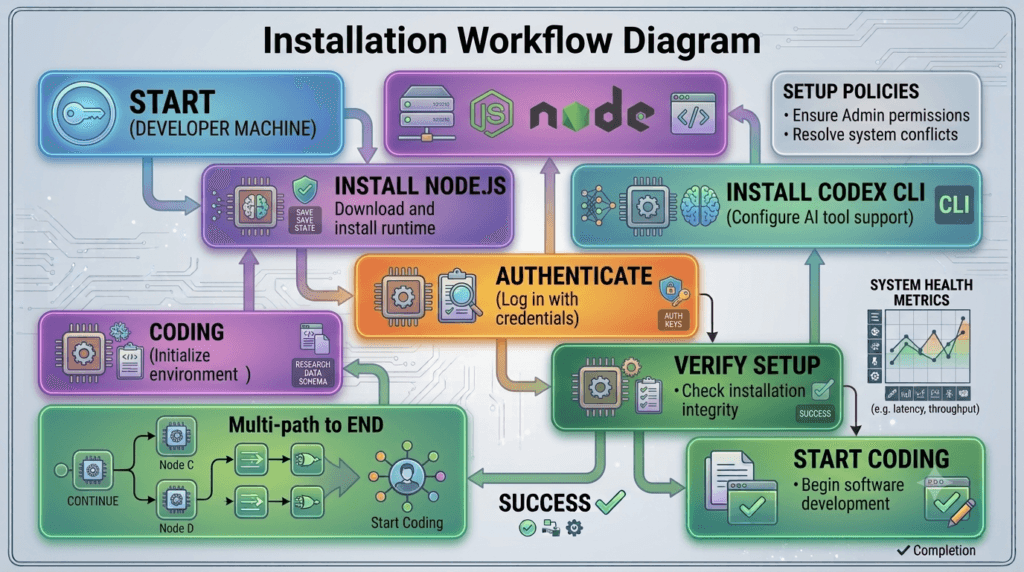
Installation Workflow
A typical installation process follows this sequence.
Install Node.js

↓

Install Codex CLI

↓

Authenticate

↓

Verify Installation

↓

Start Using Codex
Although the individual commands may evolve over time, this overall workflow remains consistent.
Configuring Your Development Environment
Before installing the CLI, it is a good idea to prepare your workspace.
Recommended tools include:
- Visual Studio Code
- Cursor
- Windsurf
- Zed
- Neovim
- JetBrains IDEs
The OpenAI Codex CLI complements these editors by providing AI-powered assistance directly from the terminal.
Choosing a Terminal
Any modern terminal works well.
Examples include:
Windows
- PowerShell
- Windows Terminal
- Git Bash
macOS
- Terminal
- iTerm2
- Warp
Linux
- GNOME Terminal
- Konsole
- Alacritty
- Kitty
Choose the terminal that best matches your workflow and preferences.
Common Installation Challenges
New users occasionally encounter setup issues.
Node.js Not Found
Cause:
Node.js is either not installed or not available in your system’s PATH.
Solution:
- Install the latest LTS version.
- Restart the terminal.
- Verify using
node --version.
npm Command Not Found
Cause:
Node Package Manager was not installed correctly.
Solution:
Reinstall Node.js or correct your PATH configuration.
Permission Errors
Linux and macOS users sometimes experience permission-related issues.
Instead of using administrator privileges unnecessarily, configure your package manager correctly and follow platform-specific best practices.
Firewall Restrictions
Corporate environments may block external package downloads.
If you are working behind a company firewall, consult your IT administrator before installation.
Best Practices Before Installing
To ensure a smooth setup:
- Keep Node.js updated.
- Use the latest LTS release.
- Install Git before beginning.
- Verify internet connectivity.
- Organise your development workspace.
- Update your terminal application.
- Keep your operating system current.
- Use version control for all projects.
A well-prepared environment reduces installation problems and makes future updates easier.
What You Will Learn Next
Installing the CLI is only the beginning. In the next lesson, you will learn how to authenticate the OpenAI Codex CLI, configure your development environment, securely manage credentials, verify that everything is working correctly, and execute your first AI-assisted coding commands. These steps will prepare you to integrate Codex into your daily software development workflow with confidence.
Summary
The OpenAI Codex CLI brings AI-assisted software development directly into the terminal, allowing developers to generate code, debug applications, explain complex logic, and automate repetitive tasks without leaving their command-line environment. By preparing your system with the necessary prerequisites and understanding the installation workflow, you establish a solid foundation for using Codex effectively. As the series progresses, you will move from installation to authentication, practical coding workflows, project integration, and advanced automation techniques that demonstrate how Codex can become an essential part of a modern software engineering toolkit.
OpenAI Codex Authentication: Securely Connecting the Codex CLI to Your Account
Why Authentication Is Required
Installing the OpenAI Codex CLI is only the first step. Before the CLI can generate code, analyse projects, refactor applications, or execute AI-assisted development tasks, it must securely identify who is making the request.
This process is called OpenAI Codex Authentication.
Authentication establishes a secure connection between your local machine and your OpenAI account. It ensures that requests are authorised, your usage is associated with your account, and the CLI can safely access the models and capabilities you are permitted to use.
Without proper authentication, the CLI cannot communicate with OpenAI services.
How Authentication Works
When you execute a command from the OpenAI Codex CLI, the request follows a secure workflow.
Developer Command

↓

Codex CLI

↓

Authentication

↓

OpenAI Platform

↓

AI Processing

↓

Response Returned
Every request is verified before any AI processing begins.
This prevents unauthorised access while protecting user accounts and API resources.
Authentication Methods
Depending on your development workflow and the version of the Codex CLI you are using, authentication may be performed through different mechanisms.
Account Sign-In
Some workflows allow you to authenticate by signing in with your OpenAI account.
This approach is convenient because:
- Credentials are managed securely.
- Access is tied directly to your account.
- Authentication can often be refreshed without manual configuration.
- Multiple projects can share the same authenticated session.
This method is recommended for many developers who primarily use Codex on their own machines.
API Key Authentication
Many professional development environments use API keys.
An API key acts as a secure credential that authorises requests from your local computer.
Typical workflow:
Developer

↓

API Key

↓

Environment Variable

↓

Codex CLI

↓

OpenAI Platform
Instead of entering credentials every time, the CLI reads the configured environment variable during execution.
This is especially useful for automation, CI/CD pipelines, and server environments.
Protecting Your API Keys
Your API key should always be treated as confidential.
Never:
- Commit API keys to Git repositories.
- Store them inside source code.
- Share them in screenshots.
- Include them in documentation.
- Post them in public forums.
- Send them through unsecured messaging platforms.
If an API key becomes publicly exposed, it should be revoked and replaced immediately.
Recommended Storage Options
Professional developers typically store credentials using secure methods.
Examples include:
- Environment variables
- Operating system credential stores
- Secret management platforms
- CI/CD secret managers
- Cloud secret vaults
Keeping credentials separate from application code significantly improves security.
Using Environment Variables
Environment variables are one of the most common ways to provide credentials to development tools.
Typical workflow:
Operating System

↓

Environment Variable

↓

Terminal Session

↓

Codex CLI

↓

Authenticated Request
The CLI reads the required values automatically during execution.
This approach avoids embedding secrets directly into projects.
Verifying Authentication
After authentication has been configured, it is good practice to verify that everything is working correctly.
A successful verification confirms that:
- The CLI can communicate with OpenAI.
- Credentials are valid.
- Network connectivity is functioning.
- Your environment is configured correctly.
- Requests can be processed successfully.
Testing authentication before beginning development helps avoid unnecessary troubleshooting later.
Authentication in Team Environments
Development teams often have different authentication requirements.
Examples include:
- Individual developer credentials
- Shared development environments
- CI/CD pipelines
- Build servers
- Cloud development workspaces
Each environment should use its own secure authentication strategy.
Avoid sharing personal credentials between team members.
Authentication for CI/CD
Continuous Integration and Continuous Deployment systems frequently execute AI-assisted workflows automatically.
Examples include:
- Code review
- Documentation generation
- Test generation
- Static analysis
- Pull request automation
In these cases, credentials should be stored using the CI/CD platform’s built-in secret management features rather than hard-coded into pipeline configuration files.
Common Authentication Problems
Developers occasionally encounter authentication issues during setup.
Invalid Credentials
Possible causes:
- Incorrect API key
- Expired credentials
- Revoked access
- Typographical errors
Always verify credentials before investigating other problems.
Missing Environment Variables
If required variables have not been configured correctly, the CLI cannot authenticate requests.
Check that the variable exists in the active terminal session.
Network Connectivity Issues
Authentication requires communication with OpenAI services.
Firewall restrictions, proxy settings, or unstable internet connections may prevent successful authentication.
Permission Errors
Some accounts may not have access to every capability.
Ensure your account has permission to use the services required by your workflow.
Security Best Practices
When working with the OpenAI Codex CLI:
- Store credentials securely.
- Use environment variables instead of hard-coded values.
- Rotate credentials periodically.
- Remove unused keys.
- Apply the principle of least privilege.
- Monitor account activity.
- Protect development machines with strong authentication.
- Keep development tools updated.
- Review project access regularly.
Following these practices reduces the risk of accidental credential exposure.
Preparing for Your First AI-Assisted Development Session
Once authentication has been completed successfully, the OpenAI Codex CLI is ready to communicate securely with OpenAI services. The next step is learning how to navigate the CLI, understand its basic command structure, interact with projects, and begin using AI to generate code, explain existing implementations, debug applications, and automate common software engineering tasks directly from the terminal.
Summary
OpenAI Codex Authentication establishes the secure connection between your development environment and OpenAI services, enabling the Codex CLI to perform AI-assisted coding tasks safely and reliably. Whether using account-based sign-in or API key authentication, developers should follow modern security practices by protecting credentials, storing secrets outside source code, and using secure secret management solutions for both local development and automated environments. With authentication configured correctly, you are ready to begin exploring the practical capabilities that make Codex a powerful companion for modern software development.
OpenAI Codex CLI Commands: Mastering the Essential Commands Every Developer Should Know
Why Learn OpenAI Codex CLI Commands?
After installing and authenticating the OpenAI Codex CLI, the next step is learning how to communicate effectively with it. Like Git, Docker, or Python, the Codex CLI is controlled through terminal commands. Understanding these commands allows developers to interact with AI efficiently without leaving their development environment.
The OpenAI Codex CLI Commands provide a structured way to ask questions, generate code, explain existing projects, refactor applications, debug issues, and automate repetitive programming tasks.
Learning the core commands early will significantly improve your productivity and help you integrate Codex into your daily software development workflow.
Understanding the Command Workflow
Every interaction with the CLI follows a simple execution process.
Open Terminal

↓

Navigate to Project

↓

Run Codex Command

↓

AI Processes Request

↓

Response Displayed

↓

Continue Development
The CLI acts as a bridge between your local development environment and OpenAI’s AI models.
Working Inside a Project Directory
Most developers use Codex while working inside an existing project.
Typical workflow:
Open Terminal

↓

Navigate to Project Folder

↓

Start Codex

↓

Analyse Files

↓

Generate or Modify Code
Running the CLI inside your project allows it to understand the surrounding codebase and provide more relevant suggestions.
Types of Tasks You Can Perform
Once the CLI is configured, it can assist with many common development activities.
Code Generation
Developers can request:
- New functions
- Complete classes
- REST APIs
- Database models
- Unit tests
- Configuration files
- Documentation
Rather than writing everything manually, Codex accelerates development by generating high-quality starting points.
Code Explanation
Large or unfamiliar codebases can be difficult to understand.
Codex can explain:
- Algorithms
- Functions
- Classes
- Design patterns
- Business logic
- Complex expressions
This is particularly useful when onboarding to new projects.
Bug Investigation
Developers frequently use Codex to analyse:
- Stack traces
- Runtime errors
- Logic bugs
- Syntax issues
- Performance bottlenecks
Instead of searching through documentation manually, developers receive contextual guidance directly within the terminal.
Refactoring
Codex can help improve existing code by:
- Simplifying functions
- Improving readability
- Removing duplication
- Applying best practices
- Modernising syntax
- Enhancing maintainability
Refactoring becomes faster while preserving application behaviour.
Documentation
Maintaining documentation often becomes a low priority during development.
Codex can generate:
- README files
- API documentation
- Function descriptions
- Usage examples
- Code comments
- Technical documentation
This helps keep projects easier to understand over time.
Understanding AI Prompts
The quality of AI responses depends heavily on the instructions you provide.
Effective prompts are usually:
- Clear
- Specific
- Contextual
- Goal-oriented
For example, instead of requesting:
Improve this code.
A better request would describe:
- The desired outcome
- Programming language
- Performance goals
- Coding standards
- Constraints
More context generally produces more accurate results.
Working with Existing Projects
One of the biggest advantages of the OpenAI Codex CLI is its ability to understand project context.
For example, it can analyse:
- Source code
- Configuration files
- Project structure
- Dependencies
- Existing architecture
- Naming conventions
This enables recommendations that align more closely with the current codebase.
Integrating Codex into Daily Development
Many developers naturally incorporate Codex into their existing workflow.
Example:
Receive Task

↓

Understand Requirements

↓

Generate Initial Code

↓

Review Output

↓

Run Tests

↓

Refine Implementation

↓

Commit Changes
Rather than replacing developers, Codex acts as an intelligent coding assistant throughout the software development lifecycle.
Combining Codex with Other Tools
The CLI works well alongside many modern development tools.
Common combinations include:
- Git
- GitHub
- Visual Studio Code
- Cursor
- Docker
- Python
- Node.js
- Playwright
- FastAPI
- LangGraph
Codex complements these tools by reducing repetitive manual work.
Common Mistakes
Developers beginning with the CLI often make similar mistakes.
Asking Very Broad Questions
Vague requests usually produce generic responses.
Provide enough context for the AI to understand your objective.
Accepting Every Suggestion Immediately
AI-generated code should always be reviewed before being added to production systems.
Developers remain responsible for verifying correctness.
Ignoring Existing Project Standards
Generated code should follow:
- Existing architecture
- Naming conventions
- Style guides
- Testing standards
- Security policies
Consistency improves maintainability.
Skipping Testing
Every AI-generated change should be validated using:
- Unit tests
- Integration tests
- Manual verification
- Code reviews
Testing remains essential regardless of how code is produced.
Best Practices for Using OpenAI Codex CLI Commands
To maximise productivity:
- Write detailed prompts.
- Provide project context.
- Review generated code carefully.
- Test every implementation.
- Refactor generated code when necessary.
- Keep dependencies updated.
- Follow your team’s coding standards.
- Use version control for every change.
- Treat AI as a collaborator rather than an infallible source.
These practices produce better long-term results.
Enterprise Use Cases
Development teams increasingly use the OpenAI Codex CLI for:
- Feature development
- Code reviews
- Bug fixing
- Automated documentation
- Test generation
- API development
- Legacy code modernisation
- Internal developer productivity
Because the CLI integrates directly into terminal-based workflows, it fits naturally within professional software engineering environments.
Preparing for Real-World Coding Examples
Understanding the CLI workflow is the foundation for productive AI-assisted development. In the next lesson, you will explore practical OpenAI Codex examples, including generating Python applications, creating REST APIs, debugging real projects, writing automated tests, refactoring existing code, and integrating Codex into modern software engineering workflows. These hands-on examples will demonstrate how developers use Codex to accelerate everyday programming tasks while maintaining code quality and reliability.
Summary
The OpenAI Codex CLI Commands enable developers to interact efficiently with AI from the terminal, making it easier to generate code, explain existing implementations, refactor projects, investigate bugs, and create documentation without interrupting their workflow. By learning how to provide clear instructions, review AI-generated output critically, and combine Codex with established development practices such as testing and version control, software engineers can significantly improve productivity while maintaining high standards of code quality and maintainability.
OpenAI Codex Practical Examples: Building Real-World AI-Assisted Development Workflows
Why Practical Examples Matter
Understanding how the OpenAI Codex CLI works is important, but the real value comes from using it in everyday software development. Modern developers rarely use AI for a single isolated task. Instead, they integrate AI into the entire development lifecycle—from planning and implementation to testing, debugging, documentation, and deployment.
This is where OpenAI Codex Practical Examples become invaluable.
Real-world examples demonstrate how Codex can assist with common programming challenges while allowing developers to remain in complete control of the final implementation. Rather than replacing software engineers, Codex acts as an intelligent pair programmer that accelerates routine work and provides helpful suggestions throughout the development process.
A Typical AI-Assisted Development Workflow
Many professional developers follow a workflow similar to the following.
Understand Requirements

↓

Generate Initial Code

↓

Review AI Output

↓

Modify Implementation

↓

Run Tests

↓

Fix Issues

↓

Document Changes

↓

Commit to Git
AI becomes another development tool alongside the compiler, debugger, IDE, and version control system.
Example 1: Creating a Python Utility
Suppose you need a Python utility that processes CSV files and generates a summary report.
Instead of writing everything manually, you can ask Codex to:
- Read CSV files
- Validate input
- Process records
- Calculate statistics
- Export results
Codex quickly produces a starting implementation that you can customise according to your project’s requirements.
This significantly reduces development time for repetitive programming tasks.
Example 2: Building a REST API
Backend development often requires creating standard API endpoints.
Codex can assist with generating:
- Route definitions
- Request validation
- Response models
- Error handling
- Database integration
- Authentication structure
Developers still review the generated implementation, but much of the repetitive boilerplate is produced automatically.
Example 3: Explaining Legacy Code
Many organisations maintain software that has been evolving for years.
Understanding unfamiliar code can consume considerable time.
Codex can help explain:
- Complex functions
- Business logic
- Class hierarchies
- Design patterns
- Database queries
- Configuration files
Instead of reading hundreds of lines manually, developers receive concise explanations that accelerate onboarding.
Example 4: Refactoring Existing Code
Applications naturally become more complex over time.
Codex can recommend improvements such as:
- Simplifying large functions
- Removing duplicate code
- Improving readability
- Modernising outdated syntax
- Applying current language features
- Enhancing maintainability
Developers remain responsible for validating that behaviour has not changed after refactoring.
Example 5: Debugging Runtime Errors
Debugging is one of the most common uses of AI-assisted development.
Typical problems include:
- Unexpected exceptions
- Syntax errors
- Logic bugs
- API failures
- Database issues
- Configuration mistakes
Codex analyses available context and suggests possible causes along with practical debugging approaches.
Although AI accelerates investigation, developers should always verify conclusions through testing.
Example 6: Writing Unit Tests
High-quality software requires thorough testing.
Codex can generate:
- Unit tests
- Edge case scenarios
- Mock objects
- Parameterised tests
- Integration test templates
Automatically generated tests provide an excellent starting point while allowing developers to expand coverage as needed.
Example 7: Generating Documentation
Documentation is essential for long-term project success but is often neglected.
Codex can assist with:
- README files
- Installation guides
- API documentation
- Function descriptions
- Code comments
- Usage examples
Keeping documentation aligned with the codebase becomes much easier.
Example 8: Learning New Frameworks
Developers frequently explore unfamiliar technologies.
Codex can explain concepts related to:
- FastAPI
- Django
- React
- Next.js
- LangChain
- LangGraph
- Playwright
- Docker
Instead of searching multiple resources, developers can ask focused questions while experimenting locally.
Example 9: Code Review Assistance
Before submitting code for peer review, developers can use Codex to identify potential improvements.
Typical review areas include:
- Naming consistency
- Code duplication
- Readability
- Error handling
- Security concerns
- Performance opportunities
This helps reduce avoidable review comments and improves overall code quality.
Example 10: Project Modernisation
Many organisations migrate older applications to newer technologies.
Codex can assist by:
- Identifying deprecated APIs
- Recommending modern alternatives
- Updating configuration files
- Refactoring outdated syntax
- Suggesting migration strategies
AI accelerates migration while allowing developers to validate every proposed change.
Combining Codex with Your Existing Toolchain
Codex integrates naturally into modern software engineering environments.
A typical workflow may include:
Git Repository

↓

OpenAI Codex

↓

Local Development

↓

Testing Framework

↓

CI/CD Pipeline

↓

Production Deployment
Rather than replacing existing tools, Codex enhances them.
Responsible Use of AI-Generated Code
AI-generated code should always be treated as a starting point rather than a finished product.
Developers should:
- Review every generated change.
- Execute automated tests.
- Validate business requirements.
- Check security implications.
- Confirm coding standards.
- Benchmark performance where appropriate.
- Perform peer reviews before production deployment.
Human expertise remains essential throughout the software development lifecycle.
Common Mistakes
Developers new to AI-assisted programming often encounter similar issues.
Copying Code Without Understanding It
Generated code should always be understood before it is integrated into a project.
Understanding the implementation simplifies future maintenance.
Ignoring Project Standards
AI output should follow the existing architecture, naming conventions, testing strategy, and coding guidelines used by the project.
Skipping Validation
Every generated feature should be verified through testing and code review before deployment.
Expecting Perfect Results
AI accelerates development, but it does not eliminate the need for engineering judgement.
Developers should refine suggestions based on real project requirements.
Best Practices
To maximise the value of OpenAI Codex:
- Provide detailed requirements.
- Include relevant project context.
- Break large tasks into smaller objectives.
- Review generated code carefully.
- Test every implementation thoroughly.
- Keep documentation updated.
- Use version control for all changes.
- Combine AI assistance with established engineering practices.
- Continue learning the underlying technologies rather than relying entirely on AI.
These habits help teams benefit from AI while maintaining high-quality software.
Preparing for Advanced OpenAI Codex Workflows
Practical examples demonstrate how Codex accelerates everyday programming tasks, but modern development teams often integrate AI into collaborative workflows that span multiple repositories, automated testing, continuous integration, code reviews, and deployment pipelines. In the next lesson, you will explore advanced OpenAI Codex workflows, including team collaboration, repository-aware development, automation strategies, CI/CD integration, and enterprise best practices for scaling AI-assisted software engineering.
Summary
OpenAI Codex Practical Examples show how AI can support developers throughout the complete software development lifecycle. From generating new features and explaining legacy code to debugging applications, writing tests, creating documentation, and assisting with project modernisation, Codex serves as a powerful development companion that complements existing engineering tools. By combining thoughtful prompts, careful review, automated testing, and professional coding standards, developers can use Codex to improve productivity while continuing to deliver secure, reliable, and maintainable software.
Internal Links:
- Learn MCP – Zero to Hero
- Learn AI Agents for QA – Zero to Hero
- Playwright Automation – Zero to Hero
- LangGraph: Complete Zero to Hero
- Learn Python – Zero to Hero
- OpenAI Codex: Complete Zero to Hero
- Cursor AI: Complete Zero to Hero
- Claude Code Tutorial: Complete Zero to Hero
- Free QA Resources Built From Real Experience
- QA Glossary: Test Automation Terms Every Engineer Should Know
External Resources:
- OpenAI Codex – Get Started: OpenAI Codex Get Started
- OpenAI Codex CLI – Getting Started: OpenAI Codex CLI Guide
- OpenAI Codex GitHub Repository: OpenAI Codex GitHub Repository
- Using OpenAI Codex with ChatGPT: Using Codex with ChatGPT
- OpenAI Codex CLI Authentication: Codex CLI Sign-in Guide
People Also Ask
What is OpenAI Codex CLI Installation?
OpenAI Codex CLI Installation is the process of installing and configuring the OpenAI Codex Command Line Interface so developers can use AI-powered coding assistance directly from their terminal.
What are the prerequisites for OpenAI Codex CLI Installation?
You should have a supported operating system, a recent version of Node.js, Git, internet connectivity, and an OpenAI account. Depending on your workflow, authentication may require an API key or account sign-in.
How do I authenticate the OpenAI Codex CLI?
Authentication is typically completed using your OpenAI account or a securely stored API key through environment variables or a secret management solution.
What can I do after OpenAI Codex CLI Installation?
After installation, you can generate code, explain existing projects, refactor applications, debug issues, write tests, create documentation, and automate common software development tasks directly from the terminal.
Is OpenAI Codex CLI suitable for enterprise development?
Yes. The CLI integrates well with version control, automated testing, CI/CD pipelines, and modern development environments, making it suitable for both individual developers and enterprise engineering teams.
Featured Snippet
What is OpenAI Codex CLI Installation?
OpenAI Codex CLI Installation is the process of installing, configuring, and authenticating the OpenAI Codex Command Line Interface, enabling developers to access AI-assisted coding capabilities such as code generation, debugging, documentation, and refactoring directly from the terminal.
AI Overview Answer
OpenAI Codex CLI Installation allows developers to integrate AI-powered coding assistance into their command-line workflow. After installing the CLI and completing secure authentication, developers can use natural language to generate code, analyse projects, debug applications, write tests, and automate repetitive software engineering tasks without leaving their terminal.
Enjoyed this article? Explore more in-depth guides on AI engineering, automation testing, Model Context Protocol, Playwright, and intelligent software quality at www.skakarh.com. Follow QAPulse by SK for practical, production-focused tutorials designed for QA engineers, SDETs, and AI developers.