 QA
QA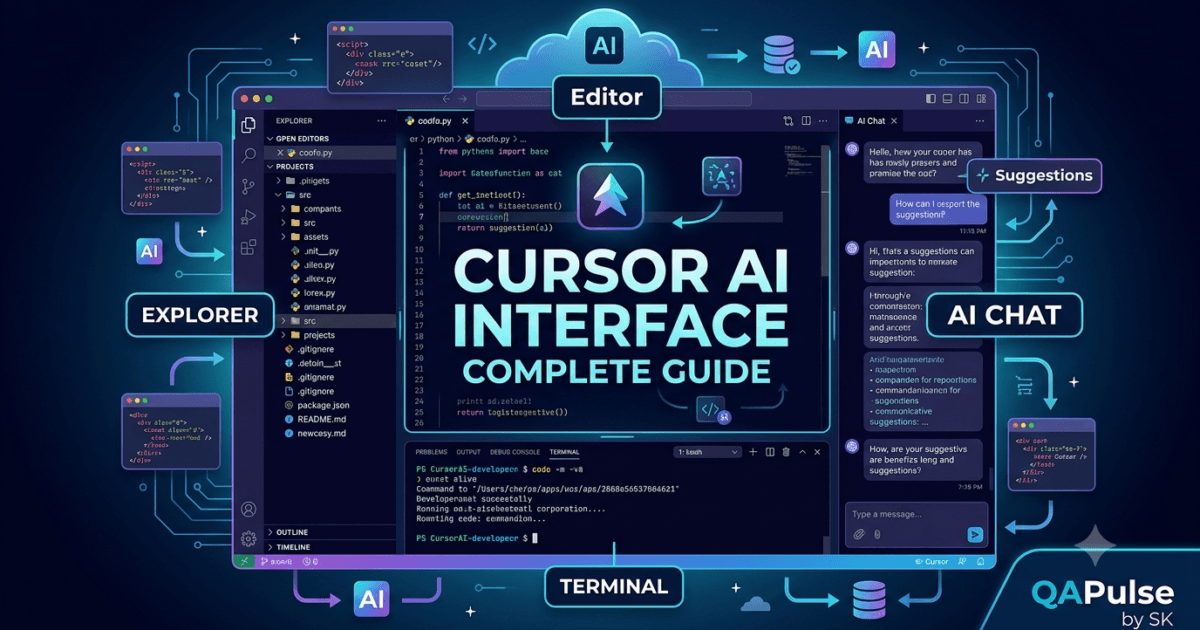
Why Learning the Cursor AI Interface Matters
Installing Cursor AI Interface correctly is only the beginning of your AI-assisted development journey. To fully leverage Cursor’s capabilities, you must understand how its workspace is organized, where AI features are located, and how each component contributes to a productive development workflow.
Unlike traditional code editors that rely heavily on extensions for AI capabilities, Cursor integrates artificial intelligence directly into the editor. Every panel, sidebar, and workspace element is designed to reduce context switching and help developers write, understand, debug, and maintain software more efficiently.
Whether you’re building a new application, contributing to an enterprise repository, or learning a new programming language, understanding the Cursor AI Interface will help you work faster and collaborate more effectively with AI.
What Is the Cursor AI Interface?
The Cursor AI Interface is the visual workspace where developers interact with their projects and communicate with the integrated AI assistant. It combines the familiar layout of Visual Studio Code with additional AI-powered capabilities, creating a unified development environment.
Instead of opening multiple applications for documentation, code generation, debugging, and repository exploration, developers can perform these activities within a single interface.
The interface is designed around three key principles:
- Simplicity
- Productivity
- Context-aware AI assistance
These principles ensure that developers spend more time solving engineering problems and less time navigating tools.
High-Level Workspace Overview
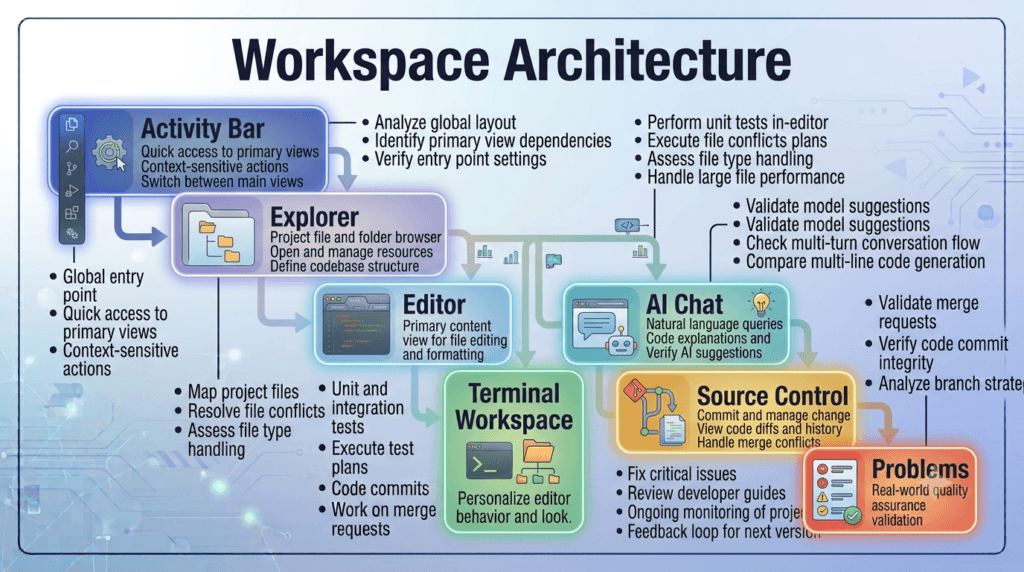
When you launch Cursor for the first time, you’ll see several interconnected workspace components.
Activity Bar

↓

Explorer

↓

Editor Tabs

↓

AI Chat Panel

↓

Terminal

↓

Problems & Output

↓

Status Bar
Each component serves a specific purpose while working together to create an efficient development experience.
Main Components of the Cursor AI Interface
Activity Bar
The Activity Bar provides quick access to the editor’s primary tools.
Common sections include:
- Explorer
- Search
- Source Control
- Extensions
- AI Features
Rather than opening multiple windows, developers can switch between these sections with a single click.
Explorer Panel
The Explorer displays the complete project structure.
It allows you to:
- Browse folders
- Open files
- Create new files
- Rename resources
- Organize project directories
Opening the entire repository instead of individual files allows Cursor AI Interface to understand the broader project context and provide more accurate suggestions.
Editor Area
The editor is where most development work takes place.
It supports:
- Syntax highlighting
- Intelligent code completion
- Inline AI suggestions
- Multi-tab editing
- Error indicators
- Code navigation
Since Cursor is built on the Visual Studio Code foundation, developers migrating from VS Code will find the editing experience familiar while benefiting from AI-native enhancements.
AI Chat Panel
The AI Chat Panel is one of the most powerful features of the Cursor AI Interface.
Instead of searching documentation manually, developers can ask questions in natural language.
Examples include:
- Explain this function.
- Find where authentication is implemented.
- Generate unit tests.
- Review this code.
- Suggest performance improvements.
- Refactor this module.
Because the AI has access to repository context, its responses are typically more relevant than generic chatbot interactions.
Integrated Terminal
The built-in terminal enables developers to execute development tasks without leaving the editor.
Typical tasks include:
- Installing dependencies
- Running development servers
- Executing automated tests
- Building applications
- Running Git commands
- Deploying projects
Keeping terminal operations inside the interface minimizes interruptions and improves workflow continuity.
Source Control Panel
Version control is an essential part of modern software engineering.
The Source Control panel helps developers:
- Review modified files
- Stage changes
- Commit code
- Resolve merge conflicts
- Push and pull repository updates
Having Git integration within the interface streamlines collaboration and code management.
Problems and Output Panel
As projects grow, identifying issues quickly becomes increasingly important.
The Problems panel displays:
- Compilation errors
- Linting issues
- Warnings
- Test failures
Meanwhile, the Output panel provides logs from development tools and extensions, making troubleshooting more efficient.
How the Cursor AI Interface Improves Productivity
A well-designed development environment reduces unnecessary context switching.
Instead of moving between:
- Browser documentation
- Terminal windows
- AI chat applications
- File explorers
- Code editors
Cursor centralizes these activities within one workspace.
This integrated approach enables developers to maintain focus and complete engineering tasks with fewer interruptions.
Customizing the Cursor AI Interface
One of Cursor’s strengths is its flexibility.
Developers can personalize the interface by adjusting:
- Themes
- Font size
- Layout
- Sidebar position
- Keyboard shortcuts
- Terminal location
- Editor settings
Customizing the workspace improves comfort during long development sessions and allows each developer to create an environment that matches their workflow.
Common Beginner Mistakes
Many new users overlook the importance of understanding the interface before writing code.
Some common mistakes include:
Opening Individual Files Instead of Entire Projects
This limits the AI’s understanding of the repository and reduces the quality of context-aware suggestions.
Ignoring Built-In Navigation Tools
Learning keyboard shortcuts, search capabilities, and panel organization can significantly improve daily productivity.
Hiding Important Panels
Removing or minimizing frequently used panels often results in unnecessary navigation and slower workflows.
Treating the AI Chat as a Standalone Chatbot
The AI is most effective when it understands the entire repository rather than isolated code snippets.
Key Takeaways
Understanding the Cursor AI Interface is an essential step toward becoming productive with AI-assisted software development. Every panel, workspace component, and integrated tool has been designed to reduce friction, improve repository awareness, and keep developers focused on solving real engineering problems.
By learning how to navigate the interface efficiently, organize your workspace, and interact naturally with the integrated AI, you establish a strong foundation for the advanced topics covered throughout the rest of this series, including AI Chat, Composer, Agent Mode, prompt engineering, multi-file editing, debugging, and enterprise development workflows.
Cursor AI Interface: Mastering Every Workspace Component for Faster Development
Understanding How the Cursor AI Interface Works
The Cursor AI Interface is more than a code editor with an AI chatbot. Every workspace component is connected to help developers understand projects, navigate repositories, generate code, review implementations, and debug applications without constantly switching between different tools.
Instead of treating each panel as an independent feature, think of the interface as a complete development ecosystem where information flows between the editor, AI assistant, terminal, version control, and project explorer.
Understanding how these components interact is essential for building an efficient development workflow.
Activity Bar
The Activity Bar serves as the primary navigation hub.
It provides quick access to commonly used sections such as:
- Explorer
- Search
- Source Control
- Run and Debug
- Extensions
- AI Features
Rather than navigating through multiple menus, developers can switch between development tasks with a single click.
Best Practices
- Keep frequently used views pinned.
- Remove unnecessary extensions that add icons.
- Learn keyboard shortcuts for faster navigation.
- Avoid cluttering the sidebar with rarely used tools.
Explorer Panel
The Explorer is where developers spend a significant portion of their time. It displays the complete folder structure of the project and allows quick navigation between files.
Typical operations include:
- Creating files
- Creating folders
- Renaming resources
- Moving files
- Deleting unused components
- Opening multiple files simultaneously
A clean project structure helps both developers and AI understand the application more effectively.
Recommended Project Structure
project/

├── src/
├── tests/
├── docs/
├── public/
├── scripts/
├── config/
├── package.json
├── README.md
└── .gitignore
Organizing projects consistently improves maintainability and repository comprehension.
Search Panel
Searching manually through hundreds of files is inefficient.
The Search panel enables developers to locate:
- Functions
- Classes
- Variables
- Configuration values
- API endpoints
- Error messages
- Comments
- Documentation
Using advanced search filters makes navigating enterprise repositories much faster.
Search Tips
Use search to:
- Find duplicate implementations.
- Locate deprecated APIs.
- Review TODO comments.
- Identify configuration files.
- Discover where specific services are used.
Editor Window
The Editor Window is the central workspace where development takes place.
It supports:
- Multiple open tabs
- Split-screen editing
- Syntax highlighting
- Inline diagnostics
- Intelligent code suggestions
- AI-assisted editing
Developers working on large features often split the editor into multiple sections, allowing them to compare implementations across different files without repeatedly switching tabs.
Tabs Management
Large projects can quickly become difficult to manage if dozens of tabs remain open.
Recommended habits include:
- Close completed files.
- Pin frequently used files.
- Group related tabs together.
- Use split editors only when necessary.
A cleaner workspace improves concentration and navigation.
Integrated AI Panel
One of the defining characteristics of the Cursor AI Interface is its built-in AI workspace.
Unlike browser-based AI assistants, Cursor understands your repository, allowing it to answer questions using project context.
Developers commonly use the AI panel to:
- Explain unfamiliar code
- Review implementations
- Generate helper functions
- Refactor complex methods
- Suggest improvements
- Generate documentation
- Create automated tests
The quality of responses improves significantly when the AI has access to the complete repository.
Source Control Panel
Version control is integrated directly into the interface, eliminating the need to switch constantly between Git commands and the editor.
Developers can:
- View modified files
- Compare changes
- Stage updates
- Commit code
- Resolve merge conflicts
- Review repository history
This integration simplifies daily collaboration and encourages smaller, more frequent commits.
Good Commit Workflow
Modify Code

↓

Review Changes

↓

Stage Files

↓

Write Commit Message

↓

Commit

↓

Push Repository
Maintaining a disciplined commit process makes projects easier to review and maintain.
Integrated Terminal
The terminal allows developers to execute development tasks without leaving the editor.
Common activities include:
- Installing packages
- Running applications
- Executing build commands
- Running automated tests
- Starting development servers
- Executing Git commands
Keeping terminal operations inside Cursor reduces unnecessary context switching.
Problems Panel
The Problems panel collects diagnostics generated by compilers, linters, and development tools.
Instead of searching manually through console output, developers can immediately identify:
- Compilation errors
- Syntax issues
- Missing imports
- Type mismatches
- Linting violations
- Build warnings
Resolving these issues early keeps the project healthy throughout development.
Status Bar
Although often overlooked, the Status Bar provides useful project information.
Typical indicators include:
- Current branch
- Programming language
- File encoding
- Line endings
- Cursor position
- Notification status
Experienced developers monitor the Status Bar regularly because it often reveals useful information without interrupting their workflow.
Workspace Layout for Maximum Productivity
A recommended development layout looks like this:
Explorer          Editor                 AI Chat

Explorer          Editor                 AI Chat

Explorer          Terminal               Problems
This arrangement keeps the most frequently used tools visible while minimizing unnecessary navigation.
Personalizing the Cursor AI Interface
Every developer has different preferences.
Common customization options include:
Appearance
- Themes
- Icons
- Fonts
- Font size
- Line spacing
Navigation
- Sidebar location
- Panel position
- Activity Bar visibility
- Breadcrumb navigation
Editor
- Auto Save
- Format on Save
- Word Wrap
- Minimap
- Sticky Scroll
A personalized environment improves comfort during long development sessions and supports a more efficient workflow.
Cursor AI Interface: Practical Workspace Walkthrough and Daily Development Workflow
Setting Up an Efficient Workspace
Understanding the Cursor AI Interface is only valuable if you can use it efficiently in your daily development work. Professional developers don’t randomly click through panels—they follow a structured workflow that minimizes distractions and keeps them focused on solving engineering problems.
A typical workday in Cursor begins by opening the entire project rather than individual files. This allows the AI to analyze the repository structure and provide context-aware assistance throughout the session.
A recommended startup workflow is:
Launch Cursor

↓

Open Project Folder

↓

Wait for Repository Indexing

↓

Review Project Structure

↓

Open AI Chat

↓

Understand Current Task

↓

Start Development
Following the same routine every day helps you become familiar with the interface and reduces unnecessary navigation.
Organizing Your Workspace
Every project has different requirements, but the overall workspace should remain clean and organized.
Left Sidebar
Keep the following panels easily accessible:
- Explorer
- Search
- Source Control
Hide rarely used panels to reduce clutter.
Center Editor
Reserve the editor for active development.
Keep only the files related to your current task open.
Avoid working with dozens of tabs simultaneously.
Right Sidebar
Use the AI panel for:
- Asking questions
- Explaining code
- Reviewing implementations
- Planning features
- Finding bugs
Keeping AI visible allows quick interaction without interrupting development.
Bottom Panel
Use the bottom panel for:
- Terminal
- Problems
- Output
- Debug Console
Most developers frequently switch between these panels while coding.
Exploring an Existing Repository
Imagine you’ve joined a new company and cloned a project containing thousands of files.
Instead of opening random files, use the Cursor AI Interface systematically.
Step 1: Explore the Folder Structure
Start by identifying:
- Main source directory
- Configuration files
- Test folders
- Documentation
- Assets
- Build scripts
This provides a high-level understanding of the application.
Step 2: Read the README
The README usually explains:
- Project purpose
- Installation steps
- Environment variables
- Available commands
- Architecture overview
Understanding these details before coding saves time later.
Step 3: Ask Cursor AI
Rather than manually tracing hundreds of files, ask the AI questions such as:
- Explain this project.
- Where does the application start?
- How does authentication work?
- Show the API layer.
- Explain the folder structure.
- Where are the database models?
Repository-aware responses are one of the biggest advantages of the Cursor AI Interface.
Navigating Between Files
Large projects often contain hundreds or even thousands of files.
Instead of manually browsing folders, combine multiple navigation methods.
Use:
- Explorer
- Search
- Breadcrumb navigation
- Recent files
- Go to definition
- Go to symbol
Efficient navigation dramatically improves productivity.
Working with Multiple Files
Modern software development rarely involves editing a single file.
For example, adding a new feature may require updates to:
- Controller
- Service
- Model
- Routes
- Validation
- Tests
- Documentation
Instead of opening and closing files repeatedly, use split editors.
Example layout:
Controller      Service

Model           Tests
This arrangement allows you to compare implementations and make related changes more efficiently.
Using the AI Chat During Development
The AI panel should become part of your normal workflow.
Good examples include:
Before Writing Code
Ask:
- Is there an existing implementation?
- Which service should I update?
- What design pattern is used here?
During Development
Ask:
- Explain this function.
- Review this logic.
- Suggest improvements.
- Generate unit tests.
- Find edge cases.
Before Committing
Ask:
- Review my changes.
- Suggest refactoring.
- Check for performance issues.
- Look for security concerns.
Using AI throughout development is far more effective than asking it to generate an entire feature in one request.
Managing Source Control
The Cursor AI Interface integrates Git directly into the workspace.
A recommended daily workflow is:
Create Branch

↓

Implement Feature

↓

Review Changes

↓

Run Tests

↓

Commit

↓

Push Branch

↓

Create Pull Request
Making small, focused commits simplifies collaboration and code reviews.
Using the Integrated Terminal
Developers frequently interact with the terminal during development.
Common tasks include:
- Installing dependencies
- Running applications
- Executing tests
- Building projects
- Running scripts
- Managing Git
Keeping the terminal inside Cursor reduces unnecessary application switching.
Monitoring Errors
The Problems panel should remain visible during development.
Resolve issues as soon as they appear instead of waiting until the end of the implementation.
Typical issues include:
- Missing imports
- Syntax errors
- Type mismatches
- Linting violations
- Build failures
Addressing these immediately prevents larger debugging sessions later.
Optimizing Your Daily Workflow
As you become more comfortable with the Cursor AI Interface, focus on reducing repetitive actions.
Developers who work efficiently typically:
- Open the entire repository.
- Keep only relevant files open.
- Use keyboard shortcuts instead of menus.
- Search before browsing manually.
- Ask AI for explanations before making changes.
- Review code before committing.
- Run tests frequently.
- Keep the workspace organized.
Small workflow improvements compound over time, allowing you to spend more time solving engineering challenges and less time navigating the development environment.
Cursor AI Interface: Best Practices, Common Mistakes, and Professional Workflow
Why Your Workspace Directly Impacts Productivity
A powerful editor alone does not make a developer productive. The way you organize and use the Cursor AI Interface determines how quickly you can understand code, implement features, debug issues, and collaborate with your team.
Many developers install Cursor, leave everything at its default settings, and never revisit their workspace. As projects grow, this often leads to cluttered tabs, poor navigation, unnecessary context switching, and slower development.
Professional developers treat their development environment as carefully as they treat their codebase.
Best Practices for Using the Cursor AI Interface
Open the Entire Repository
Always open the project’s root folder instead of individual files.
This allows Cursor to:
- Understand the complete project structure
- Analyze dependencies
- Build repository context
- Provide better AI suggestions
- Navigate between related files
Repository awareness is one of Cursor’s biggest advantages.
Keep Your Workspace Clean
A clean workspace helps you focus on the current task.
Good habits include:
- Close completed files.
- Remove unused editor tabs.
- Keep related files grouped together.
- Hide unnecessary panels.
- Organize project folders consistently.
A clutter-free workspace reduces distractions and improves navigation.
Learn Keyboard Shortcuts
Mouse navigation is useful, but keyboard shortcuts dramatically improve productivity.
Prioritize shortcuts for:
- Opening files
- Searching projects
- Switching tabs
- Opening AI Chat
- Accessing the terminal
- Navigating symbols
- Viewing source control
Saving just a few seconds on repetitive actions can make a noticeable difference over the course of a workday.
Use Search Before Browsing
Large repositories may contain thousands of files.
Instead of manually expanding folders, use the Search panel to locate:
- Functions
- Variables
- Classes
- Configuration files
- API endpoints
- Error messages
Searching first is almost always faster than browsing.
Common Mistakes Beginners Make
Opening Too Many Files
Working with dozens of open tabs makes navigation difficult.
Instead:
- Close files when finished.
- Pin important files.
- Reopen files using search when needed.
Ignoring Repository Structure
Many developers begin coding without understanding how the project is organized.
Spend a few minutes exploring:
- Source folders
- Services
- Components
- Tests
- Configuration
- Documentation
This prevents duplicate implementations and improves code consistency.
Treating AI Like a Search Engine
The AI inside the Cursor AI Interface is designed to understand your repository.
Rather than asking generic programming questions, ask repository-specific questions such as:
- Where is authentication implemented?
- Explain this service.
- Which files are responsible for user registration?
- Review this module.
Context-aware questions produce significantly better answers.
Working Without Version Control
Every meaningful change should be tracked.
Developers should commit regularly instead of waiting until an entire feature is complete.
Small commits are:
- Easier to review
- Easier to revert
- Easier to understand
- Less risky
Building an Efficient Daily Routine
Successful developers follow a consistent workflow.
Open Repository

↓

Review Current Task

↓

Explore Related Files

↓

Ask AI for Context

↓

Implement Changes

↓

Run Tests

↓

Review Code

↓

Commit Changes
Repeating the same workflow each day reduces mistakes and improves consistency.
Workspace Tips for Large Projects
Enterprise applications often contain:
- Thousands of files
- Multiple services
- Shared libraries
- Microservices
- Large test suites
To manage these efficiently:
Use Split Editors
Open related files side by side.
Example:
Service        Controller

Model          Tests
This makes comparing implementations much easier.
Keep the Problems Panel Visible
Resolve warnings and errors as they appear instead of accumulating technical debt.
Organize Terminal Sessions
Use separate terminal sessions when working with:
- Development server
- Test runner
- Build process
- Git commands
This prevents command history from becoming confusing.
Optimizing AI Collaboration
The Cursor AI Interface becomes more effective when developers provide sufficient context.
Instead of requesting:
Create authentication.
Provide details such as:
- Programming language
- Framework
- Existing architecture
- Coding standards
- Testing requirements
- Security expectations
Specific instructions produce more accurate and maintainable implementations.
Preparing Your Workspace for Long Development Sessions
When working on large features, consider the following setup:
- Explorer visible
- AI Chat open
- Terminal available
- Problems panel active
- Source Control accessible
- Only relevant files open
A consistent workspace minimizes unnecessary navigation throughout the day.
Professional Recommendations
Teams adopting Cursor should establish shared workspace standards.
These may include:
- Standard folder structures
- Consistent formatting rules
- Shared extensions
- Common keyboard shortcuts
- Repository conventions
- Documentation guidelines
Standardization helps every team member work more efficiently while reducing onboarding time for new developers.
Key Takeaways
The Cursor AI Interface is much more than a place to write code. It is the central workspace where repository exploration, AI collaboration, version control, debugging, testing, and development come together.
Developers who keep their workspace organized, understand repository structure before coding, use search effectively, interact with AI using project-specific context, and maintain disciplined development habits consistently achieve better productivity than those who rely solely on AI-generated code. Mastering the interface is therefore one of the most valuable investments you can make before exploring Cursor’s more advanced capabilities.
Internal Links:
- Learn MCP – Zero to Hero
- Learn AI Agents for QA – Zero to Hero
- Playwright Automation – Zero to Hero
- Learn Python – Zero to Hero
- Cursor AI: Complete Zero to Hero
- Claude Code Tutorial: Complete Zero to Hero
- Free QA Resources Built From Real Experience
- QA Glossary: Test Automation Terms Every Engineer Should Know
External Resources:
- Model Context Protocol documentation
- Playwright documentation
- GitHub documentation
- TypeScript documentation
- Prompt Engineering Overview
- Git Documentation
- Visual Studio Code
- Cursor AI
- Cursor Documentation
People Also Ask
What is the Cursor AI Interface?
The Cursor AI Interface is the visual workspace of Cursor that combines code editing, AI assistance, project navigation, terminal access, and source control into a single development environment.
Is the Cursor AI Interface different from Visual Studio Code?
Yes. Cursor is built on Visual Studio Code but extends it with deeply integrated AI capabilities, repository awareness, AI chat, intelligent editing, and advanced developer workflows.
Can I customize the Cursor AI Interface?
Yes. You can customize themes, fonts, layouts, keyboard shortcuts, sidebars, terminal placement, and editor preferences to match your development workflow.
Does the Cursor AI Interface support Git?
Yes. Cursor includes built-in Git integration for viewing changes, committing code, creating branches, and managing repositories without leaving the editor.
Why should I learn the Cursor AI Interface?
Understanding the Cursor AI Interface helps developers navigate projects faster, collaborate effectively with AI, reduce context switching, and improve overall productivity.
Featured Snippet
What Is the Cursor AI Interface?
The Cursor AI Interface is the workspace of the Cursor editor that combines project navigation, AI assistance, code editing, terminal access, debugging, and version control into one unified environment. It enables developers to build, review, and maintain software more efficiently without constantly switching between multiple tools.
AI Overview Answer
The Cursor AI Interface provides developers with an AI-powered workspace that includes an intelligent editor, repository explorer, integrated terminal, source control, AI chat, and debugging tools. It is designed to streamline software development by keeping coding, testing, debugging, and AI collaboration within a single interface.
Enjoyed this article? Explore more in-depth guides on AI engineering, automation testing, Model Context Protocol, Playwright, and intelligent software quality at www.skakarh.com. Follow QAPulse by SK for practical, production-focused tutorials designed for QA engineers, SDETs, and AI developers.